An AI assistant that works inside your documents
Ask it to make a poster, tidy up a paragraph, translate a page or explain a contract. It makes the changes in the editor for you, lists every step, and you can check, change or undo all of it.
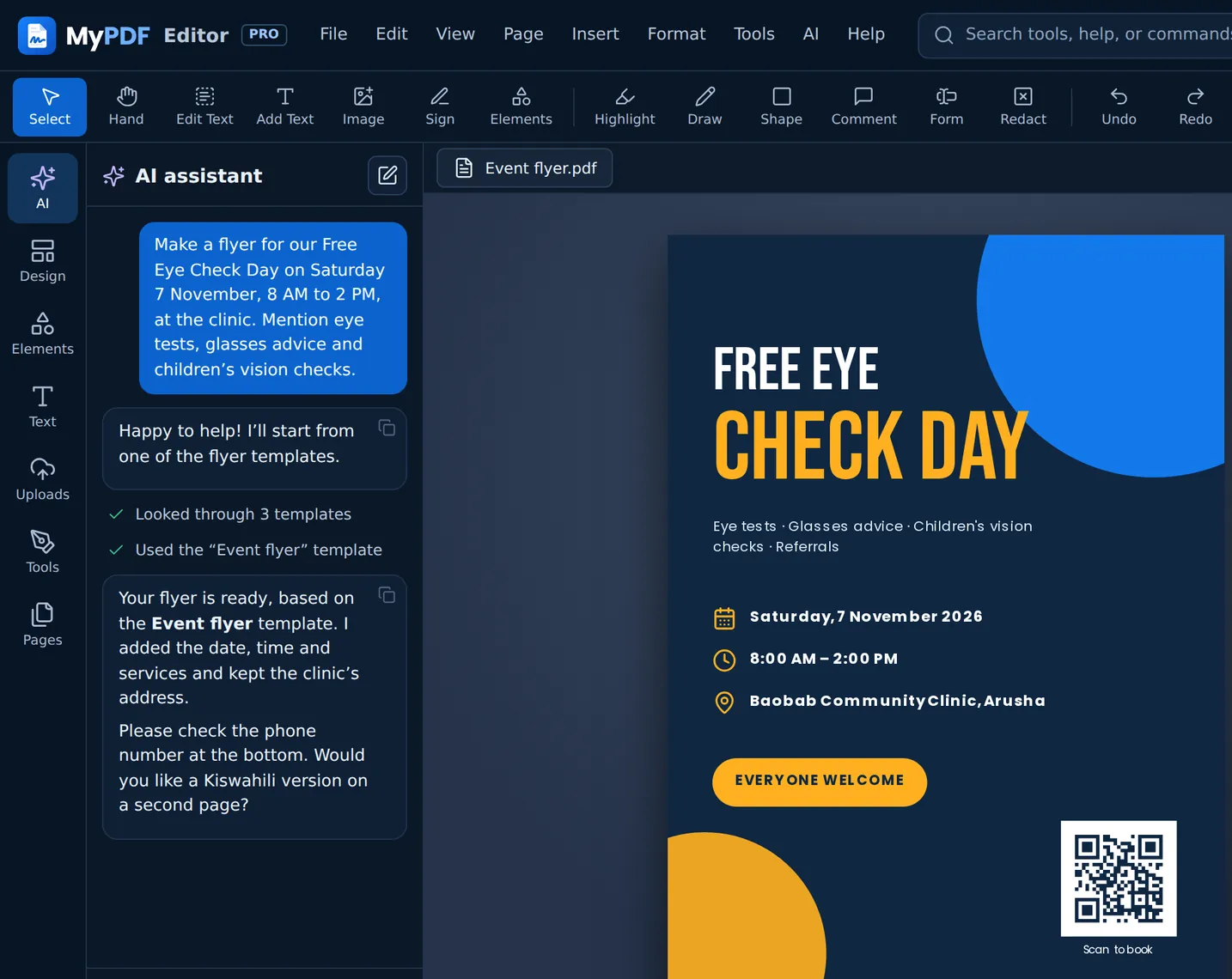
Say what you need, in your own words
The assistant can see the document you have open. Here are some of the things people ask it. It replies in the language you write in.
Create
- “Make a flyer for our bake sale this Saturday at 10 AM”
- “Design a certificate of completion for a first-aid course”
- “Make an Instagram post announcing our new office”
Change a design
- “Make the headline bigger and bolder”
- “Suggest a better colour scheme and apply it”
- “Add a QR code linking to our website”
Understand a PDF
- “Summarise this document in 5 bullet points”
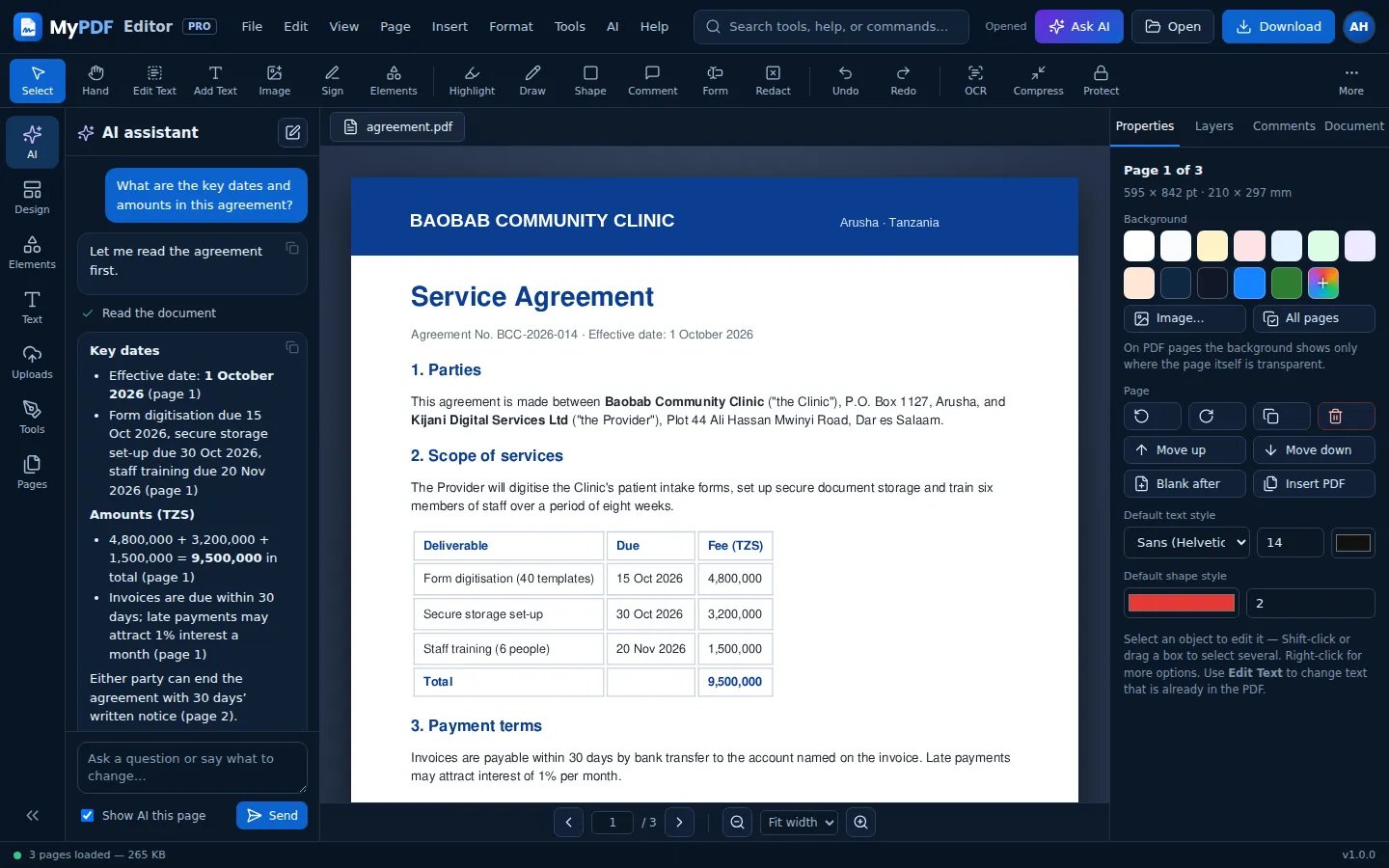
- “What are the key dates, amounts and names?”
- “Are there any deadlines I should know about?”
Write & translate
- “Rewrite all the text to sound more professional”
- “Translate the first page into Kiswahili”
- “Help me fill in this form”
A helper that does the clicking for you
Open Ask AI (or press Ctrl + J) and type a request. The assistant uses the editor's own tools: it adds and changes text, shapes, icons and QR codes, sets backgrounds, starts from a template, adds pages and fills in PDF forms. Each step appears in the chat as it happens.
- Show AI this page sends a picture of the page with your message, so it can see the layout
- Undo the assistant's changes puts everything back in one click
- It asks before deleting pages or more than three objects
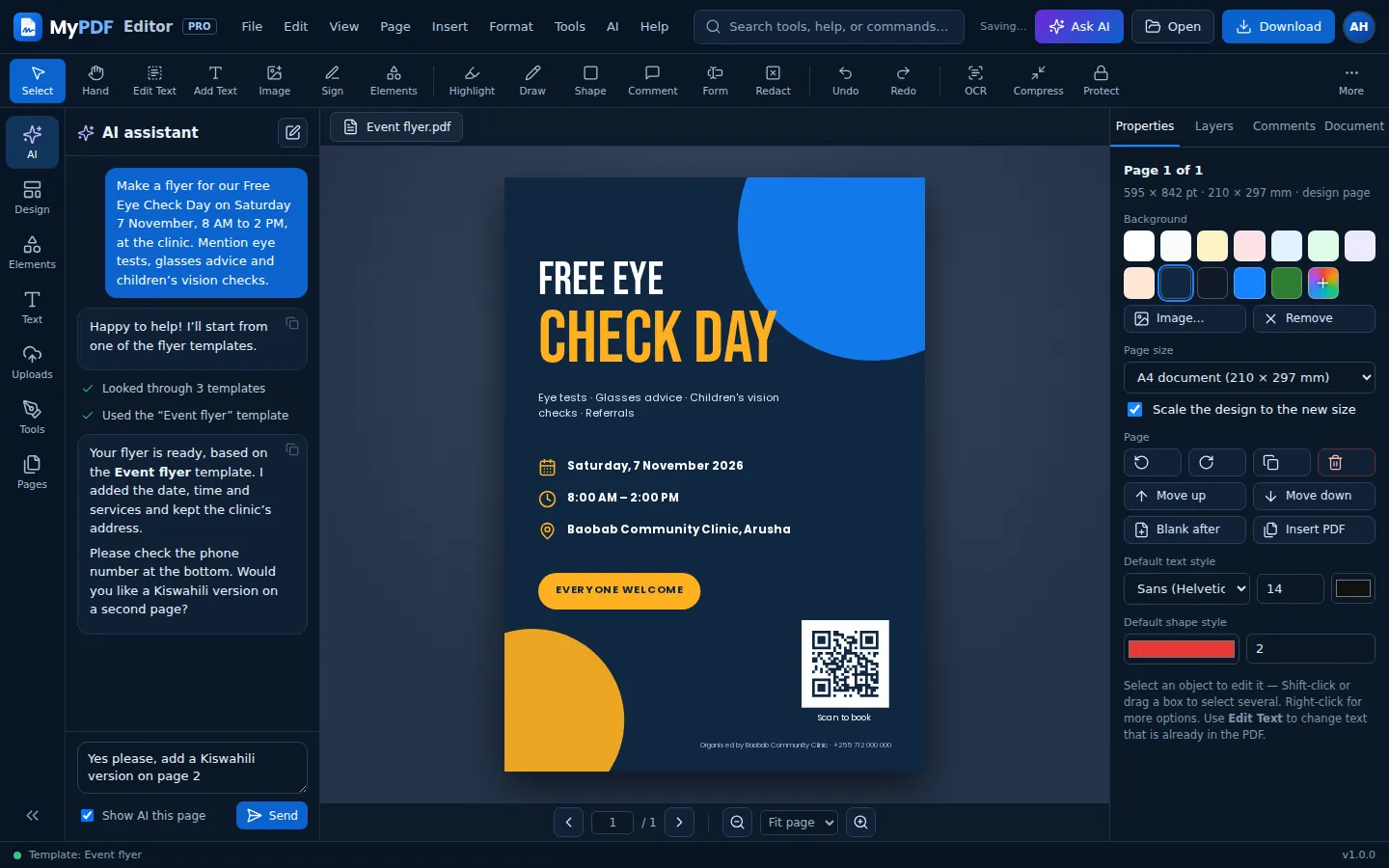
Describe it, and get a finished design
On the start screen, describe what you need, such as “Poster for our free eye check day on Saturday”. The AI picks the best of the 196,930 professional templates and writes the words for it. If none fits, the assistant builds the design from scratch.
- Choose a size, or let the AI choose
- It never invents details: it leaves clear gaps like [Time] for you to fill in
- Everything stays editable, like any other design
Better words for any text box
Select a text box and press AI in the small toolbar. The new wording replaces the old, and Ctrl + Z brings the original back.
- Improve writing
- Fix spelling & grammar
- Make shorter
- Make longer
- Simpler words
- More formal
- More friendly
- More persuasive
- Turn into a headline
- Bullet points
- Continue writing
- Translate
- Tell AI what to do
Translate into Kiswahili, English, French, Portuguese, Arabic, Amharic, Somali, Luganda, Kinyarwanda, Yoruba, Hausa, Zulu and more.
Using Magic write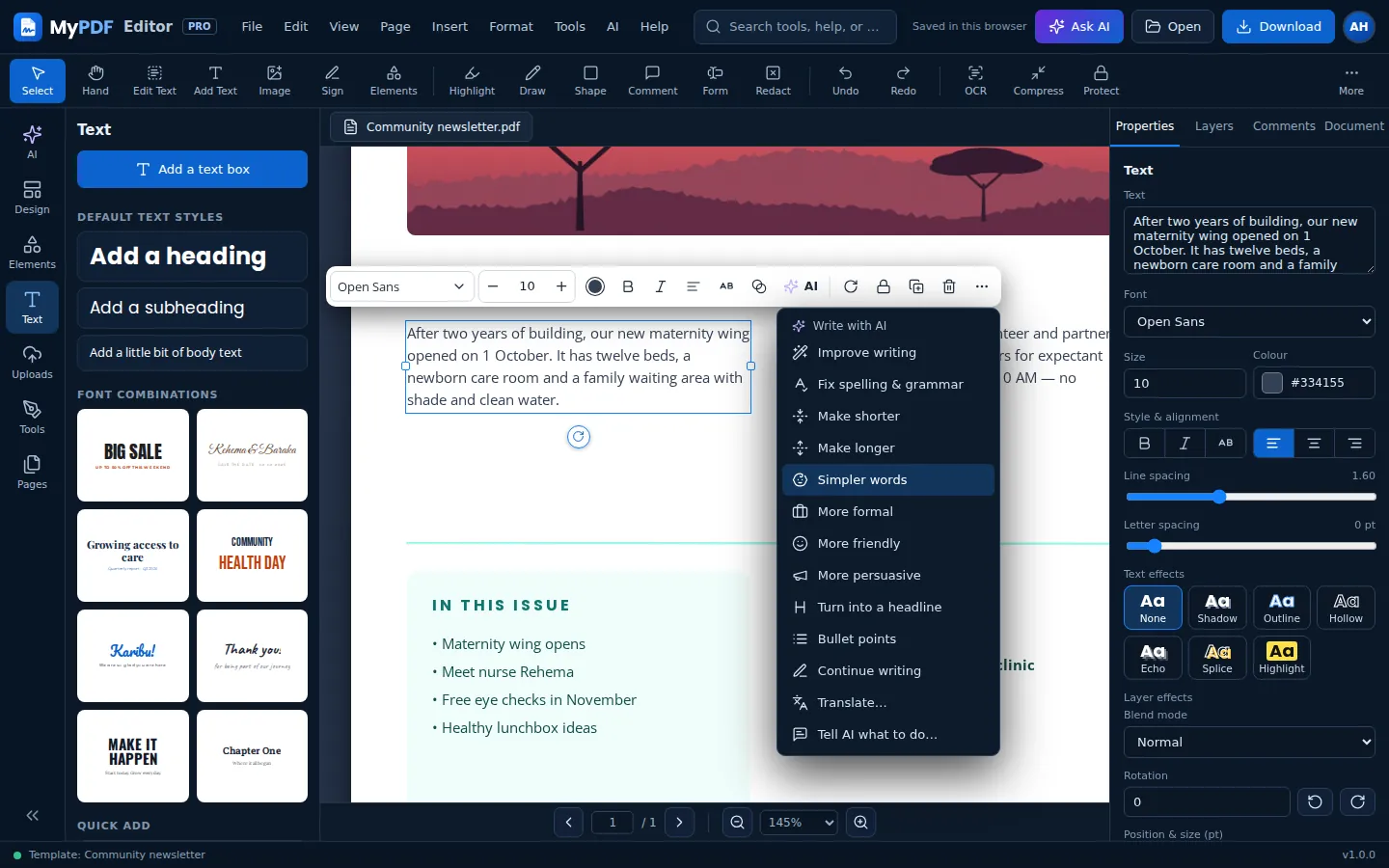
Get answers from long documents
Open a contract, report or policy and ask a question. The assistant reads the document, answers only from what is in it and tells you the page number, so you can check. If the answer isn't there, it says so.
- AI → Summarise this document gives you the main points in one click
- Scanned pages need OCR first, so there is text to read
- Ask in your own language; it answers in the language you write in
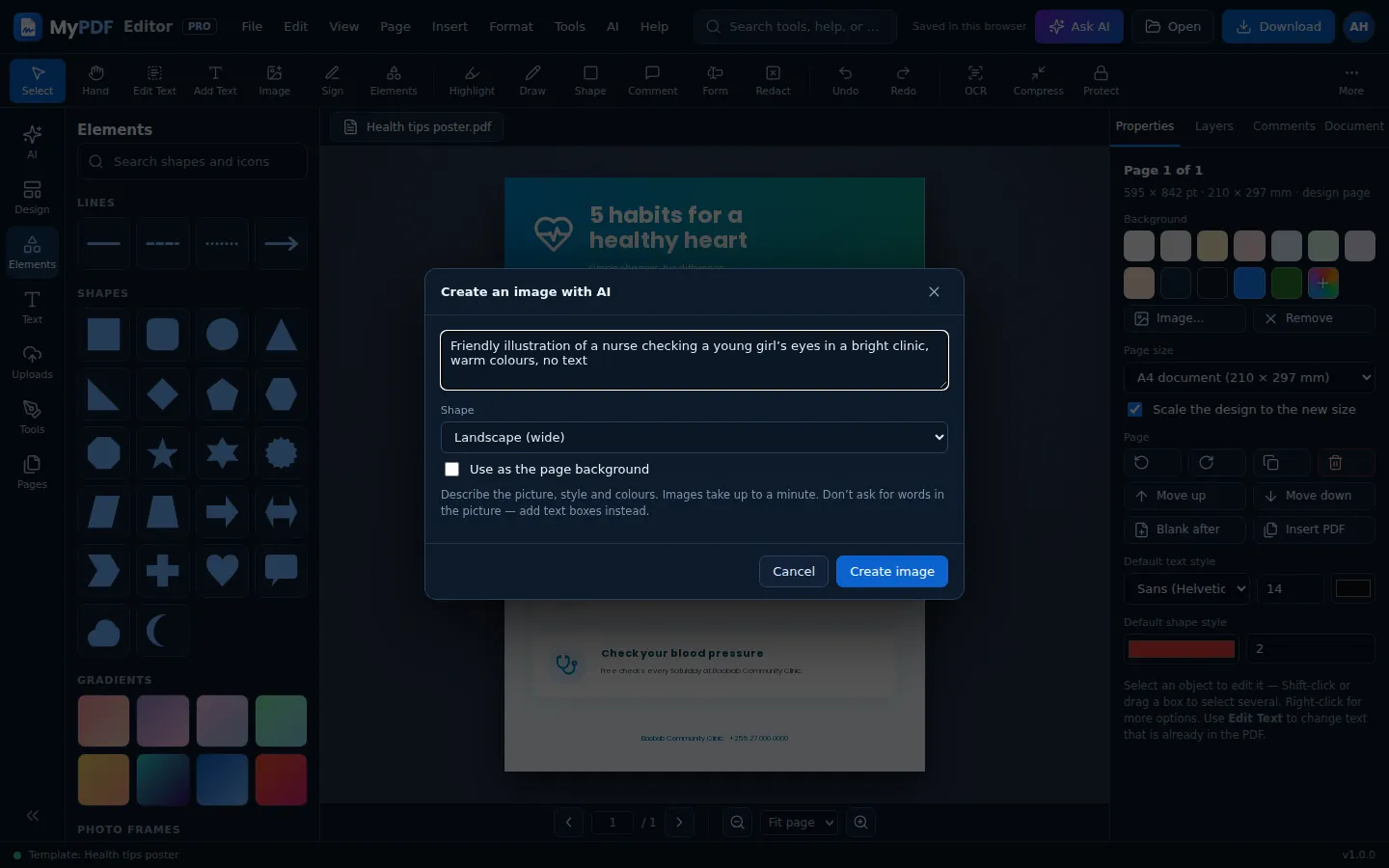
Pictures and backgrounds made to order
Describe a picture and choose square, portrait or landscape. MyPDF places it on the page, or fills the page with it as a background. It can take up to a minute.
- Works with OpenAI, or a compatible server that has an image model
- Not available with Anthropic Claude, which doesn't make images
- Admins can turn AI images off
Use the AI service your organisation chooses
MyPDF connects to your organisation's own account with an AI provider. You pay the provider directly, under your own agreement with them. MyPDF doesn't resell AI.
OpenAI Default
Text and images. For data held in the EU, you can use OpenAI's EU address if your OpenAI organisation has it. Requests are sent with storage at OpenAI turned off (store: false).
Anthropic Claude
Text only: the assistant, Magic write, Design with AI and social captions. AI images aren't available with this provider.
Azure OpenAI or your own server
Any OpenAI-compatible service: Azure OpenAI keeps data in your Azure tenant and region, or run Ollama, vLLM or LM Studio on your own hardware. The model must support tool calling for the assistant.
Your key, your limits, your data
AI is switched on and set up by your organisation's administrators, in the MyPDF console on your own server.
Your organisation's own key
The API key is stored encrypted on your server and is never shown again, only its last few characters.
Prompts aren't stored
MyPDF keeps only usage numbers: who, when, which feature and how many tokens. Admins can turn on prompt logging for troubleshooting; logs are then kept for 30 days.
Only what you ask about is sent
The provider receives your request and the context you chose, such as the selected text, the document's text for a question, or a picture of the page.
Admins set the limits
Requests per person per day (200 by default), a monthly token budget for the whole organisation, and a switch for AI images or for AI as a whole.
Your brand voice
Admins can write a short style note, such as “Warm, plain British English. Say ‘patients’, not ‘customers’.” It is added to every AI request.
Usage you can see
Requests, tokens, images and errors for the last 30 days, per day and per person. Every change to the AI settings goes into the audit log.
AI can make mistakes. Always check names, dates, figures and contact details before you print, send or publish, and take particular care with anything medical, legal or financial. The assistant is told never to invent facts and to leave gaps like [Date] instead, but it can still misread a document or get something wrong. You stay in charge: every change is listed and can be undone.
The AI features are part of MyPDF's organisation plans. Captions for social media are covered on the social media planner page.
Bring AI to your team, on your terms
Every organisation plan includes the AI assistant. Try it free for 30 days on your own server.