This guide is for the owners and administrators of your organisation's MyPDF. Everything here is done in the browser, in the console at your own address, for example https://app.yourcompany.com/console/. Installing the server is covered in Installing MyPDF for your organisation.
First sign-in and set-up checklist
Whoever installed MyPDF received a one-time set-up link. Open it and create the owner account with your name, work email, a strong password and your organisation's name. The link stops working as soon as this account exists. Then, in this order:
- Account → Two-step verification: turn it on for yourself and keep the recovery codes safe.
- Admin → Licence: paste your licence key. Until then, a 30-day trial with 5 seats runs.
- Admin → Branding: your organisation's name, logo and colours.
- Admin → Security & SSO: the 2-step verification rule, and single sign-on if you use it.
- Admin → AI & usage: connect your AI provider and set limits.
- Admin → Social apps: register your social media apps, if you'll publish to social media.
- Admin → Users & invites: make a second person owner or admin, so you're never locked out, then invite everyone else.
- Ask your IT administrator to schedule nightly backups.
The console
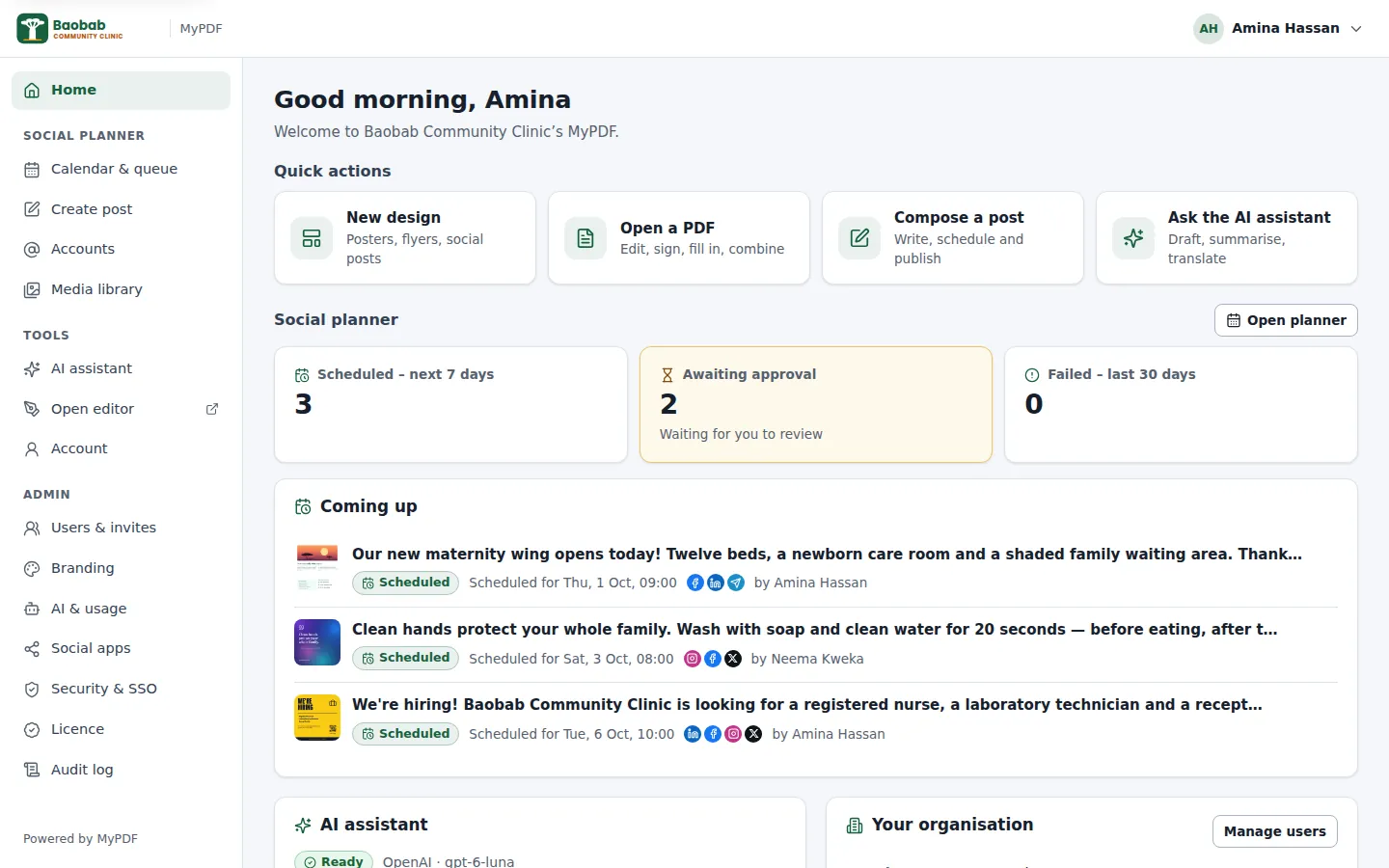
The console has a Home page with quick actions and what's coming up, the Social planner (Calendar & queue, Create post, Accounts, Media library), Tools (AI assistant, Open editor, Account) and, for owners and admins, Admin. Menu items for features that aren't in your licence are hidden.
People and invitations
- Open Admin → Users & invites and click Invite people.
- Enter the person's work email, optionally their name, and a role.
- If email is set up on your server, the invitation is emailed. You can also copy the link and send it yourself, for example on Teams, Slack or WhatsApp.
- The person opens the link within 7 days, chooses their name and password, and is signed in.
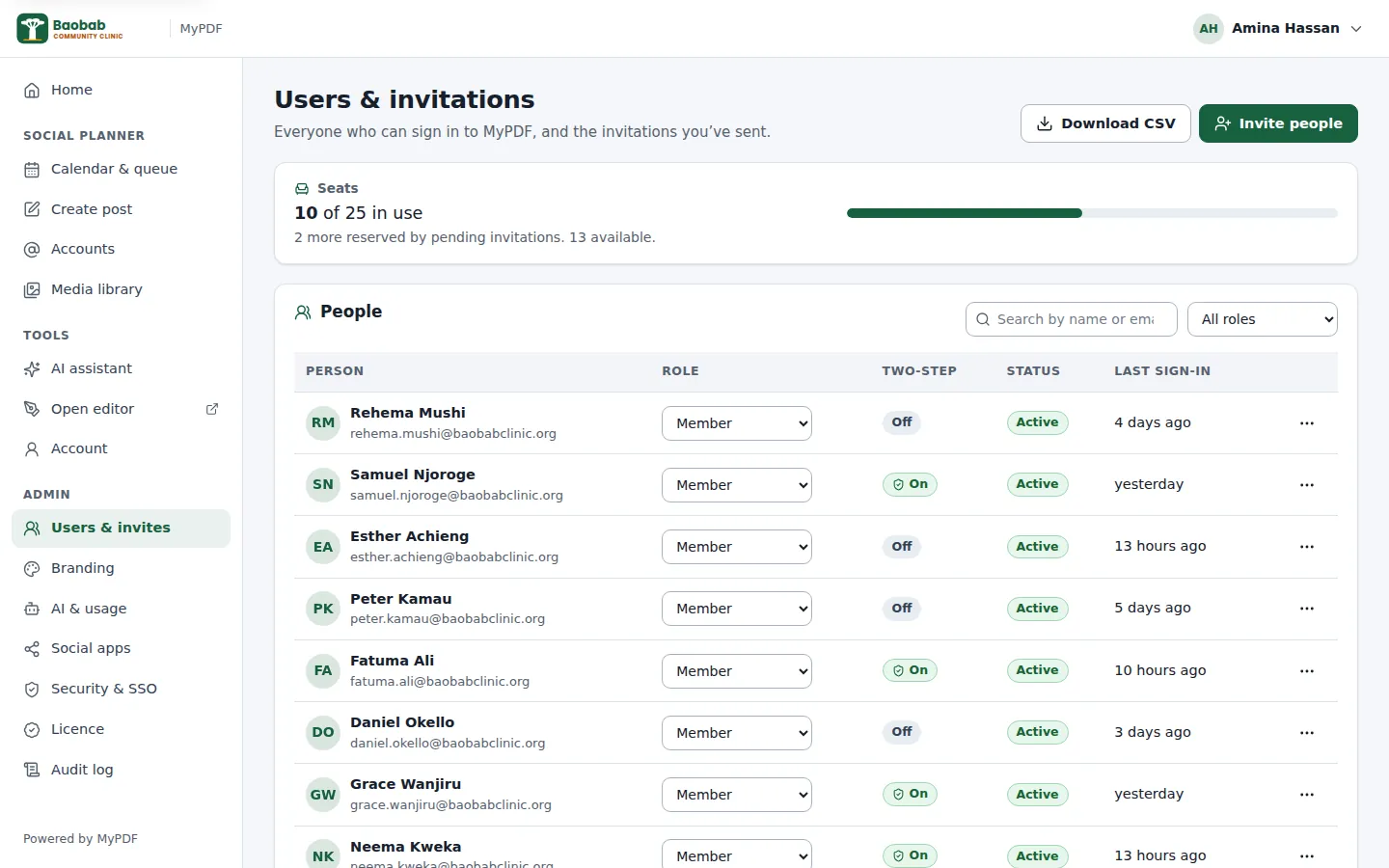
You can resend an invitation (the old link stops working) or revoke it. From the … menu next to a person you can change their role, disable them (they're signed out at once and no longer use a seat), delete them, reset 2-step verification if they lost their phone, or create a password-reset link for them. Download CSV exports the list.
Roles
| What they can do | Member | Admin | Owner |
|---|---|---|---|
| Use the editor, design studio and AI assistant | ✓ | ✓ | ✓ |
| Create social posts and use the media library | ✓ | ✓ | ✓ |
| Publish without approval; approve or reject posts; connect and remove social accounts | ✓ | ✓ | |
| Invite people, change roles, disable, reset 2-step verification or passwords | ✓ | ✓ | |
| Branding, AI, social apps, security, single sign-on, licence, audit log | ✓ | ✓ | |
| Invite or make owners; act on another owner's account | ✓ |
There must always be at least one owner: the last owner can't be demoted, disabled or deleted. We recommend two owners.
Branding and white-label
Admin → Branding changes what everyone sees in the console, on the sign-in pages and in the editor. The preview updates as you type.
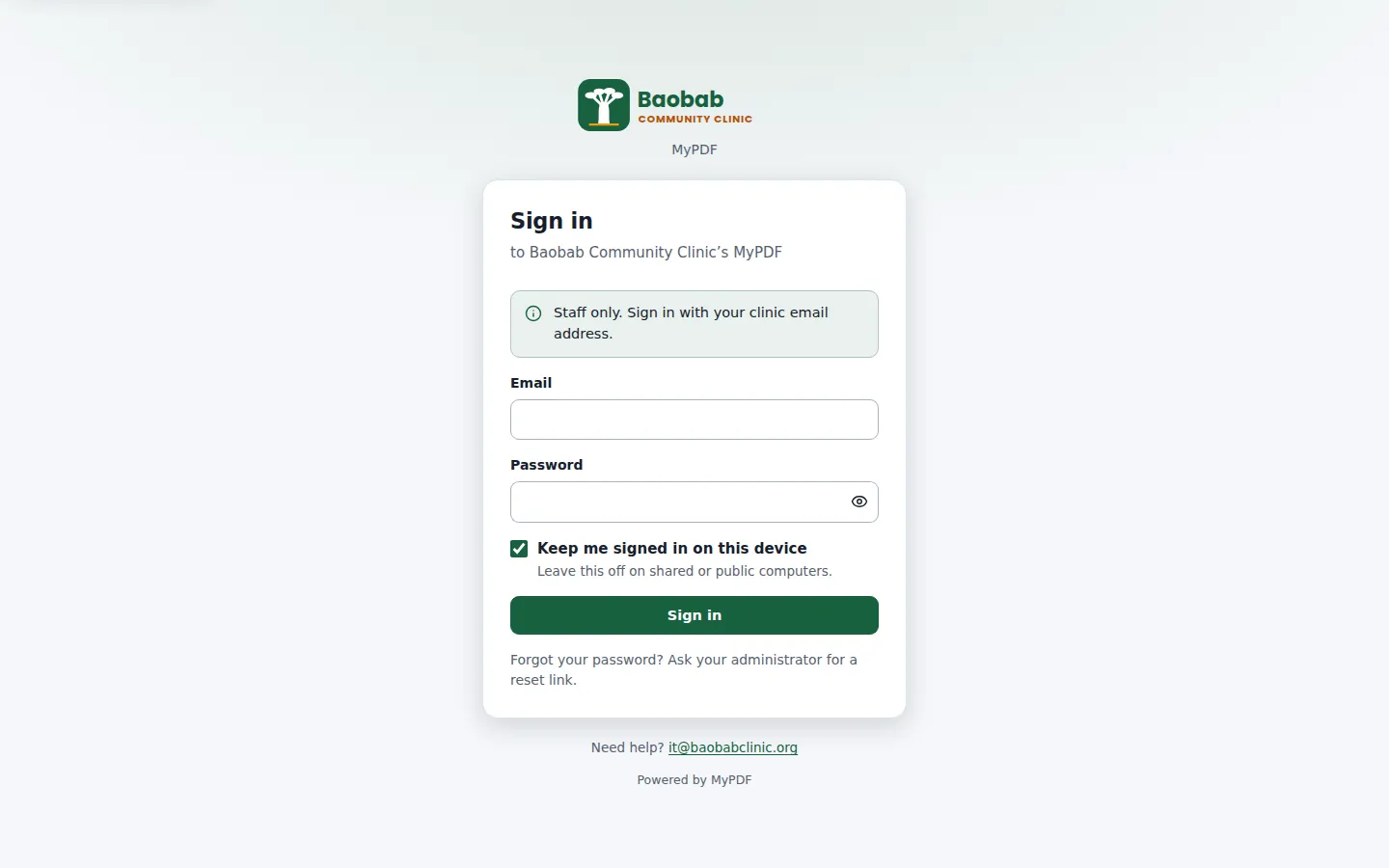
- Organisation name, a support email (shown on the sign-in page) and a short message on the sign-in page, such as “Staff only. Sign in with your work email.”
- Main and accent colours. The readability check tells you if text would be hard to read on them.
- Logo and icon: PNG, JPEG, WebP or SVG up to 1 MB. A wide logo with a transparent background works best (about 400 × 100 pixels); the icon should be square, at least 256 × 256.
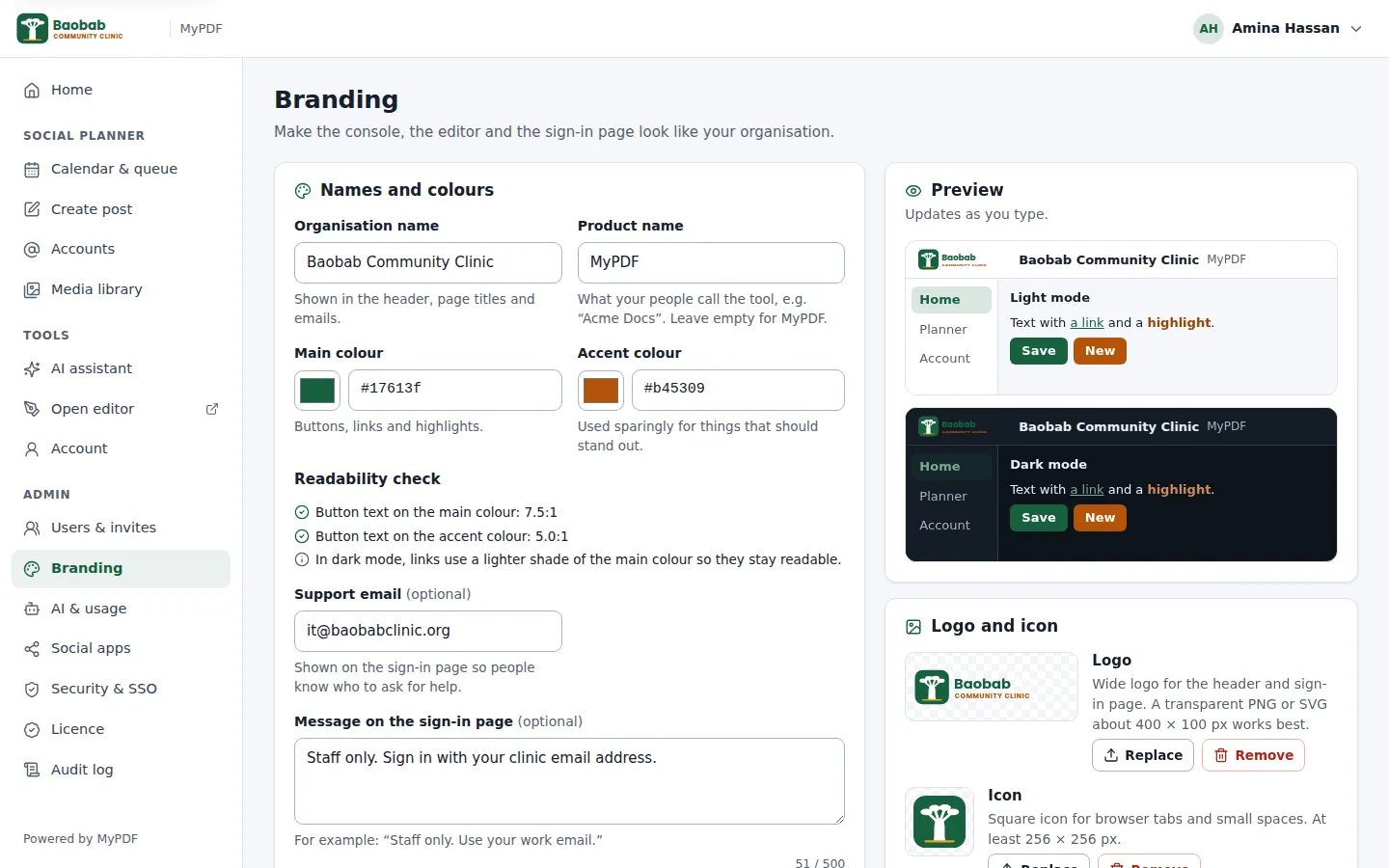
With the white-label feature (Business and Enterprise plans), you can also change the product name, for example to “Acme Docs”, and hide “Powered by MyPDF”.
AI provider
The AI features use your organisation's own account with an AI provider. MyPDF doesn't include AI usage: you pay the provider directly.
- Open Admin → AI & usage. Choose the provider and paste the API key.
- Press Test, then Save. The key is stored encrypted and never shown again, only its last characters.
- Optionally choose the model and the image model. Leave them empty for the recommended defaults.
- Set the limits: requests per person per day (200 by default; 0 means no limit) and a monthly token budget for the whole organisation.
- Optionally write a brand voice, such as “Warm, plain British English. Say ‘members’, not ‘customers’.” It's added to every AI request.
- Turn AI images on or off.
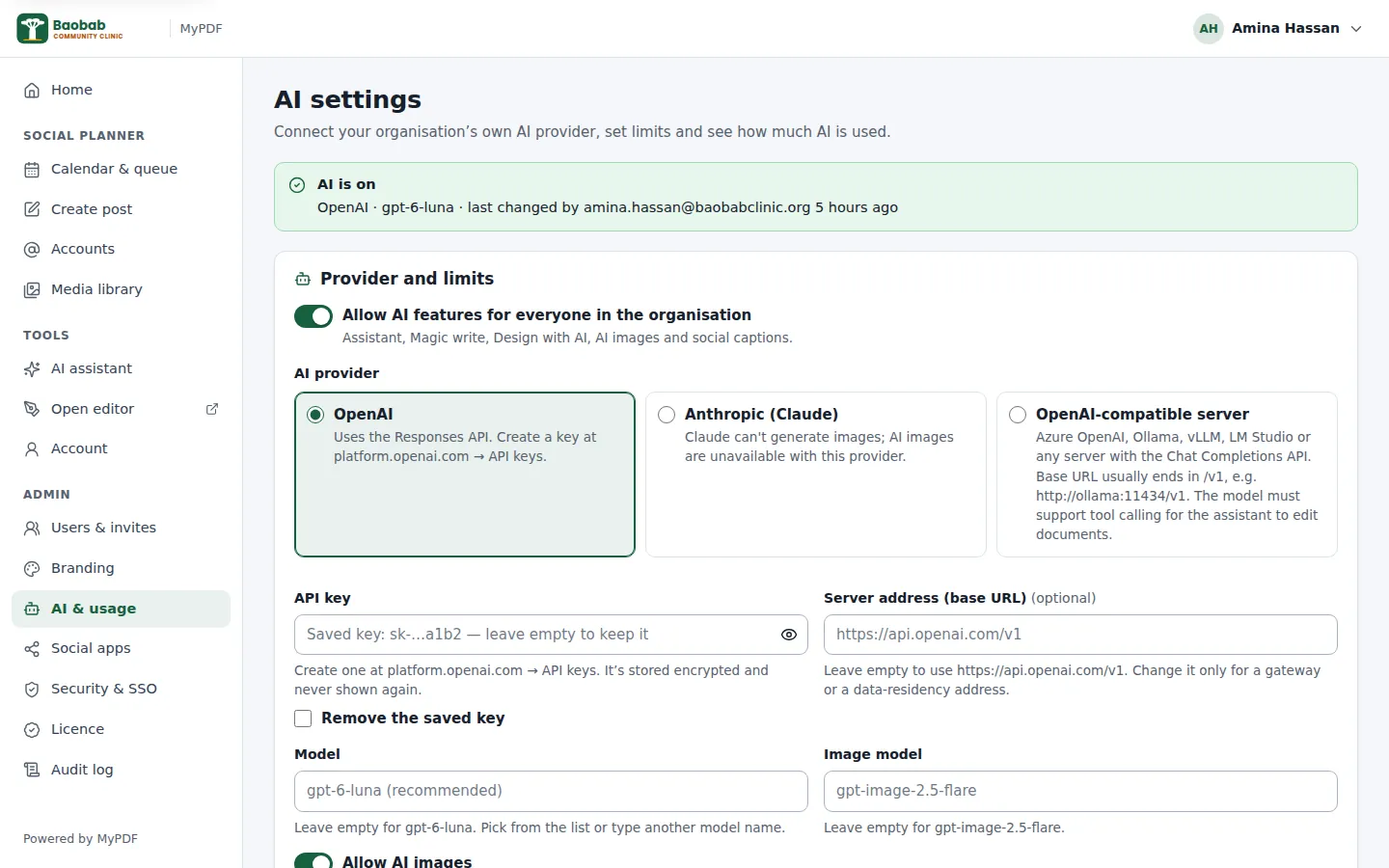
| Provider | Where to get the key | Notes |
|---|---|---|
| OpenAI (default) | platform.openai.com → API keys. Use a project key with a spending limit. | Text and images. EU data residency is possible with https://eu.api.openai.com/v1 if your OpenAI organisation has it. |
| Anthropic (Claude) | console.anthropic.com → API keys | Text only: AI images aren't available. |
| Azure OpenAI | Azure portal → your Azure OpenAI resource → Keys and Endpoint | Choose OpenAI-compatible server; the model is your deployment name. Keeps data in your Azure tenant and region. |
| Ollama, vLLM, LM Studio | No key, or the key you configured | Choose OpenAI-compatible server with the server's private address, for example http://10.0.0.20:11434/v1. The model must support tool calling for the assistant. |
The same page shows usage for the last 30 days: requests, tokens, images and errors, per day and per person. Changing the provider or server address removes the saved key, so paste it again.
Prompts and answers are not stored by MyPDF, only usage numbers. For troubleshooting you can turn on prompt logging: prompts and answers are then kept for 30 days and visible to admins, and turning it off deletes them. Tell your people before you turn it on.
Social apps
MyPDF publishes through your organisation's own developer apps. For each network you use, you create an app once on the network's developer site, paste its ID and secret in Admin → Social apps, and then an admin connects the accounts in Social → Accounts. Telegram needs only a bot token, and the Test channel needs nothing.
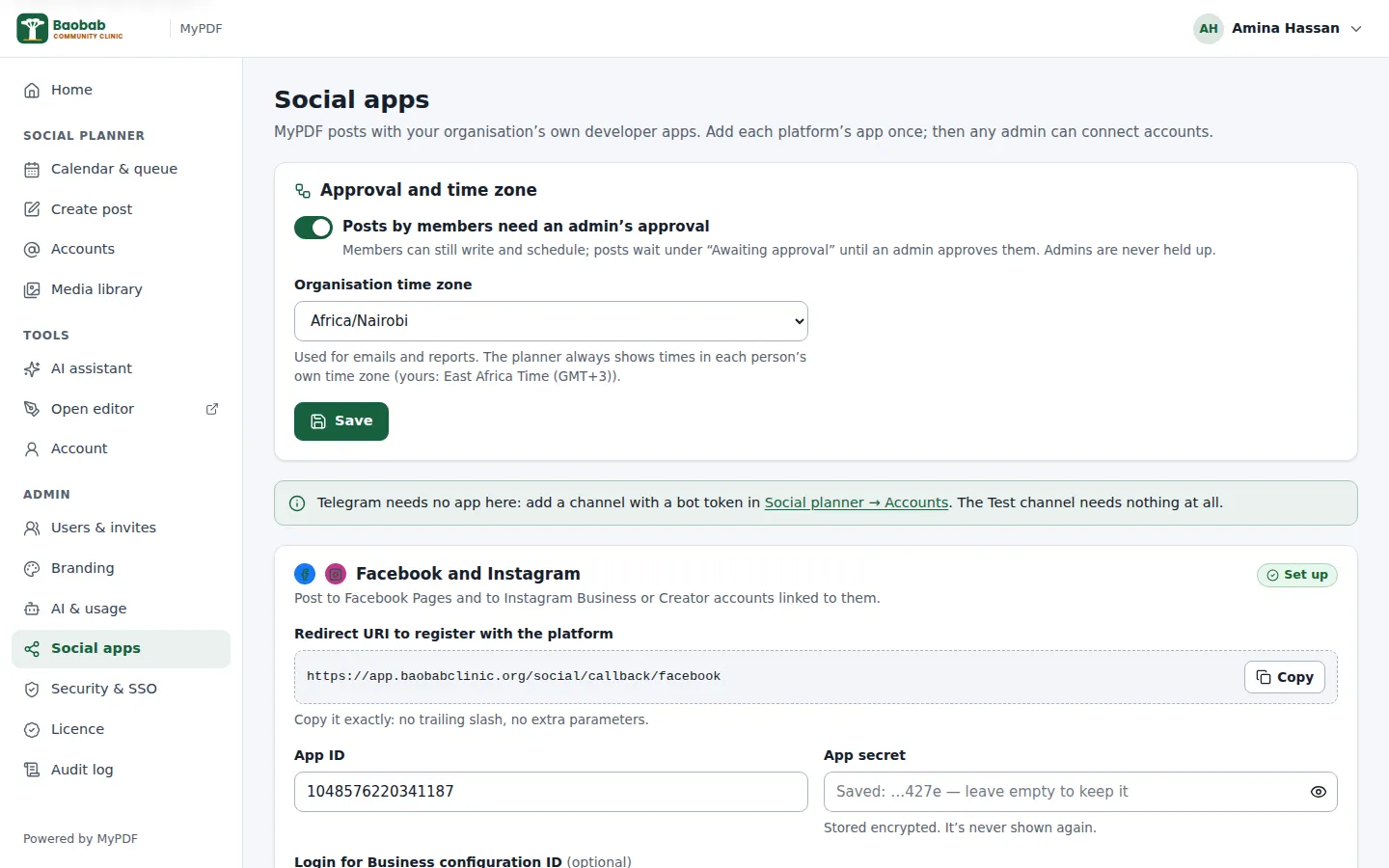
The page shows the redirect URI to register with each network, always in the form https://app.yourcompany.com/social/callback/facebook (or linkedin, x, tiktok). Copy it exactly: https, no slash at the end.
| Network | What you need |
|---|---|
| Facebook and Instagram | One Business app at developers.facebook.com, with Facebook Login and the permissions to manage Pages and publish to Instagram. Meta reviews the app (with Business Verification) before people outside your app's roles can connect; this can take days or weeks. |
| An app at linkedin.com/developers verified by your company page. For profiles only: Sign In with LinkedIn and Share on LinkedIn. For company pages: a separate app with the Community Management API, which LinkedIn reviews; then turn on Company pages in MyPDF. | |
| X | An app in the X Developer Console with Read and write permissions and OAuth 2.0 client ID and secret. X charges per API request, so add credit. |
| TikTok | An app at developers.tiktok.com with Login Kit and the Content Posting API (Direct Post), submitted for review. Posts stay private until TikTok audits your app; then turn on App approved by TikTok. |
On the same page, set Posts by members need an admin's approval and your organisation's time zone, such as Africa/Nairobi. The MyPDF release includes step-by-step set-up notes for every network, including app review and each network's limits (social/PLATFORM_SETUP.md).
2-step verification and single sign-on
Everyone can turn on 2-step verification under Account, with an authenticator app such as Microsoft Authenticator, Google Authenticator, 1Password or Authy. They get 10 one-time recovery codes for when their phone is lost.
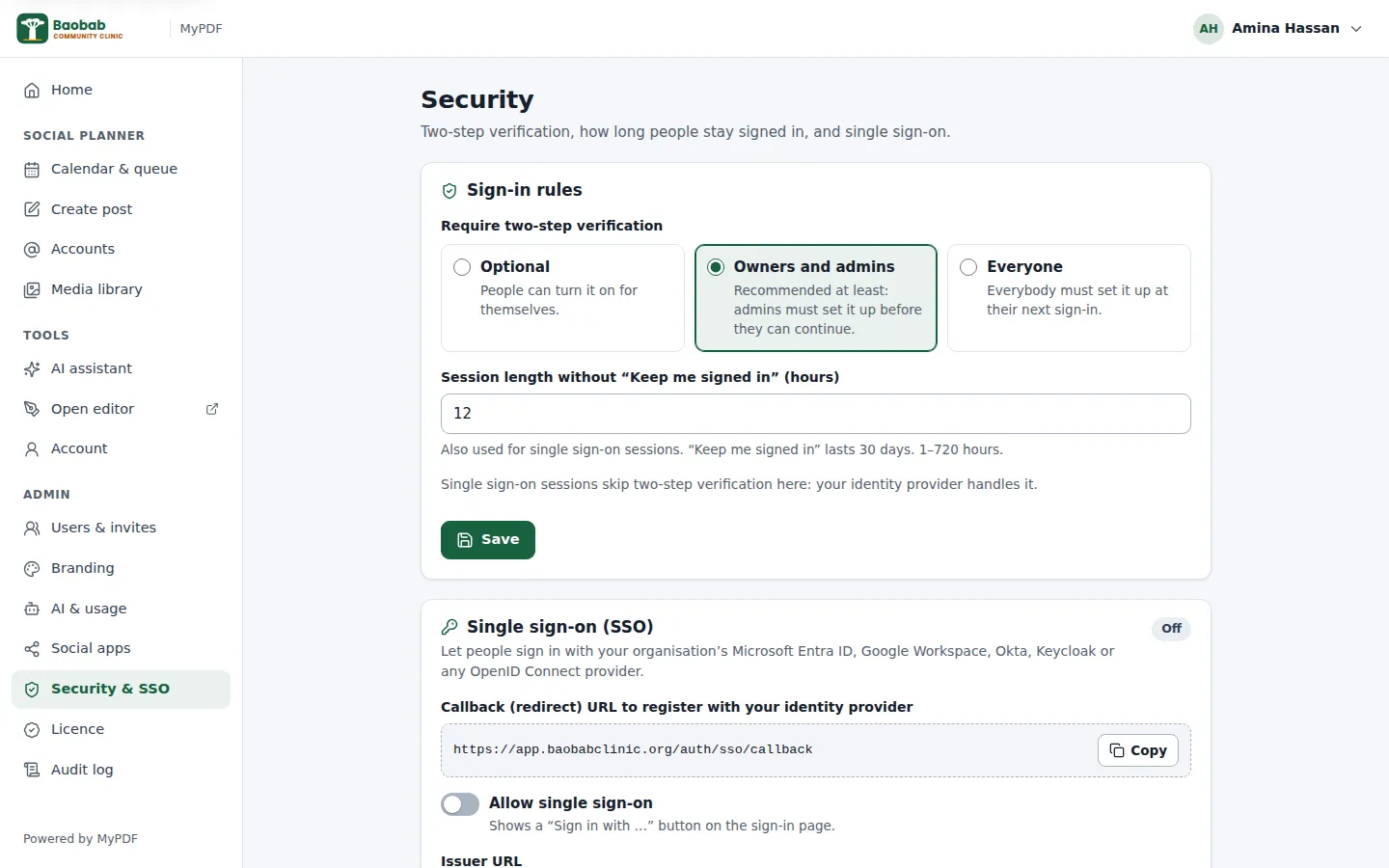
- Require two-step verification: Optional, Owners and admins (our recommendation at least) or Everyone. People it applies to set it up at their next sign-in.
- Session length: how long a sign-in lasts without “Keep me signed in” (12 hours by default). “Keep me signed in” lasts 30 days.
- Lost phone and recovery codes? Users & invites → Reset two-step verification, and the person sets it up again.
Single sign-on (Business and Enterprise plans) lets people sign in with their organisation account through any OpenID Connect provider: Microsoft Entra ID, Google Workspace, Okta, Keycloak and others. You register MyPDF with your provider using the redirect URL shown on the page (https://app.yourcompany.com/auth/sso/callback), then enter the issuer, client ID and client secret, and always fill in the allowed email domains.
- Create accounts automatically: off, only people with an account or invitation can sign in; on, anyone from an allowed domain gets an account (using a seat).
- Enforce SSO: password sign-in is refused for everyone except owners, who keep a password for emergencies.
- Press Test, switch SSO on, and try it in a private browser window before you enforce it. The audit log records the reason for any failed SSO sign-in.
Licence and seats
Admin → Licence shows your plan, the features it includes, how many seats are used and when it expires.
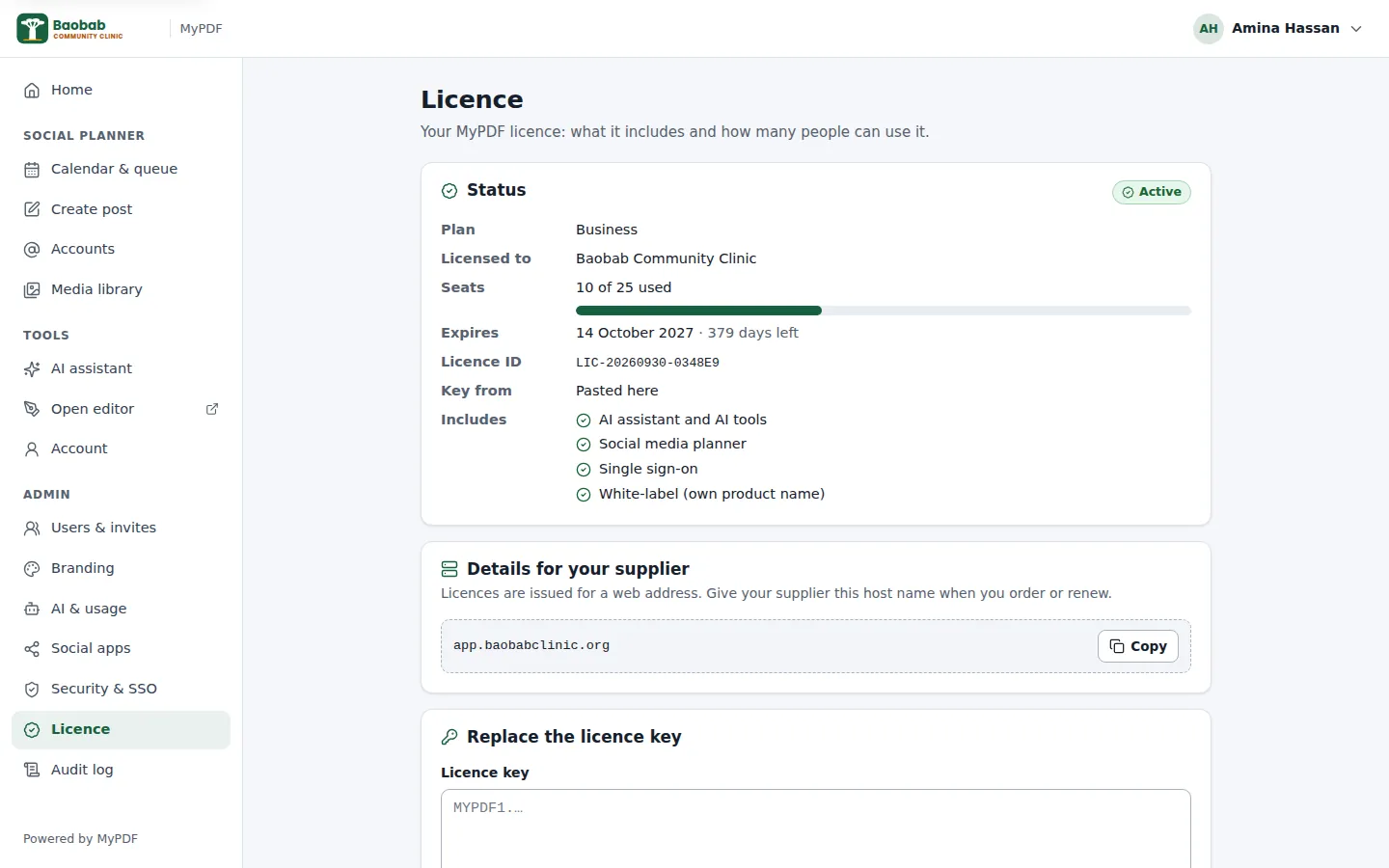
- Trial: a new install runs for 30 days with every feature and 5 seats.
- Adding or renewing: paste the key (it starts with
MYPDF1.) and save. It's checked on your server; MyPDF never calls home. Keys are issued for your address, so if you move to another address, ask us for a new key. - Seats are people who aren't disabled, plus pending invitations. When all are used, free one (disable someone, revoke an invitation) or add seats.
- Expiry: after the expiry date there are 14 days of grace, with a reminder. After that, members can't sign in and the features are off until a new key is added. Owners and admins can still sign in to add it. No data is deleted.
Audit log
Admin → Audit log records who did what, when and from which IP address: sign-ins and failed sign-ins, password changes, invitations and role changes, 2-step verification changes, branding, security, SSO, licence and AI settings changes, and social apps, accounts and published or failed posts. Secret values are never recorded. Search it, filter by type, and use Download CSV for a copy that opens safely in Excel.
Backups
Backups are made on the server by your IT administrator, ideally every night, with copies kept away from the server. A backup contains everything MyPDF stores, including the key that protects stored secrets, so it can be restored to the same or a new server with all settings, people, posts and connections. See Backups in the installation guide.
Documents edited in the editor aren't stored on the server, so they aren't in backups. People keep them on their own computers or in your document system.
Where data is kept
Everything MyPDF stores stays on your server: people and settings, the audit log, AI settings and usage numbers (prompts only while prompt logging is on), and social app settings, accounts, posts and media. Secrets are encrypted. MyPDF only connects out to the services you set up: your AI provider, the social networks, your email server and your sign-in provider. There's no telemetry. See What leaves the server, and when.
Deleting a person removes their account and personal history; audit events about them are kept as your organisation's record, and the social posts they wrote stay with the organisation.
Still stuck? Contact us and tell us what you were trying to do. We read every message.