The layout on a phone
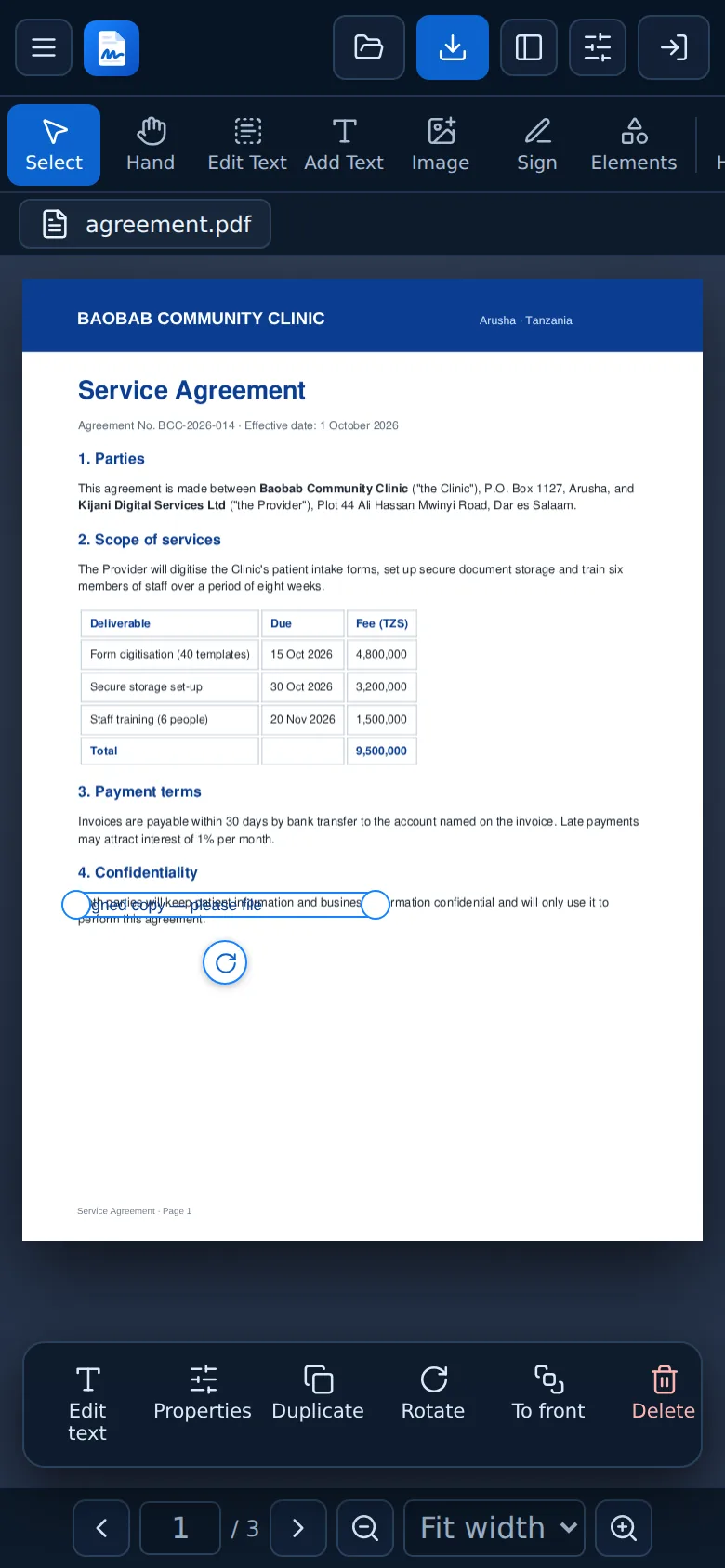
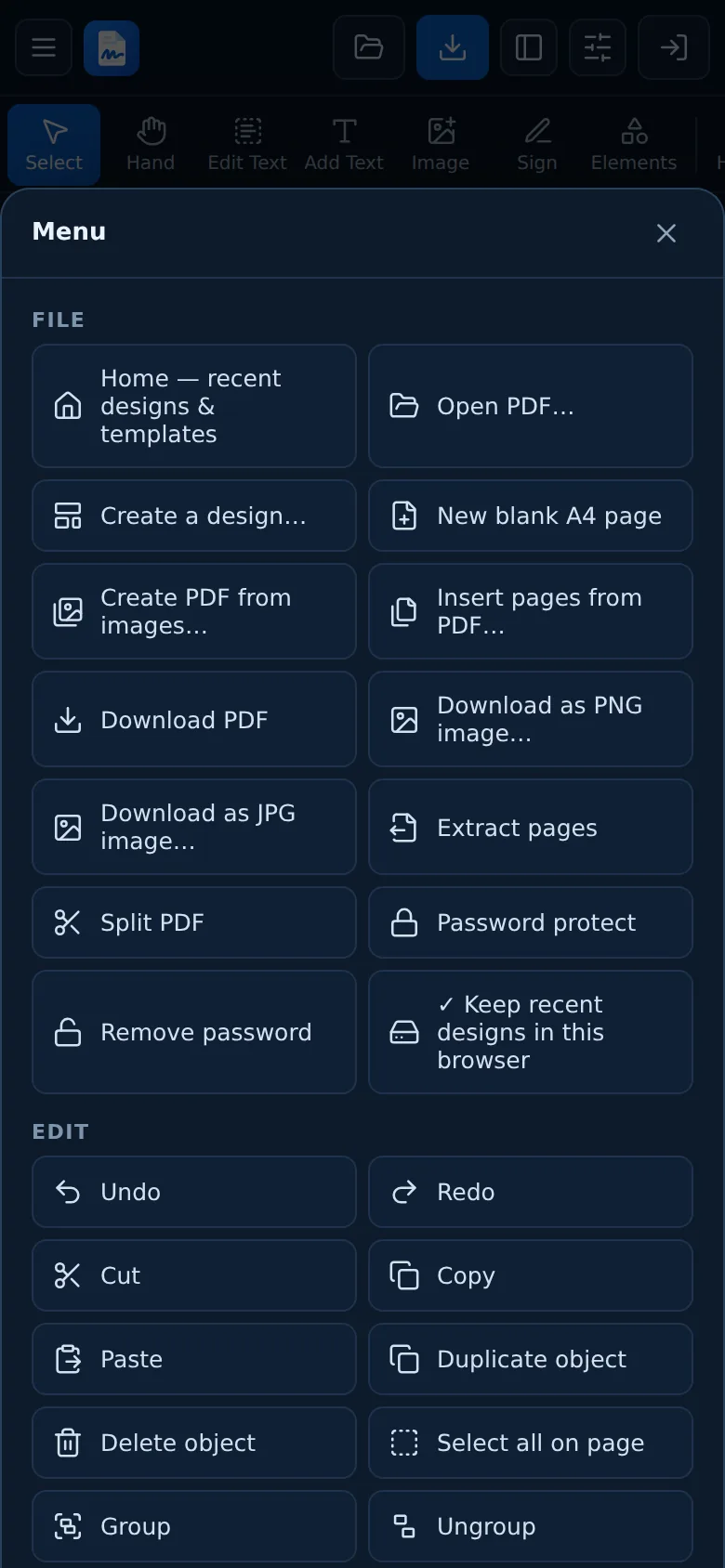
- Menu (top left) opens every command, grouped like the desktop menus.
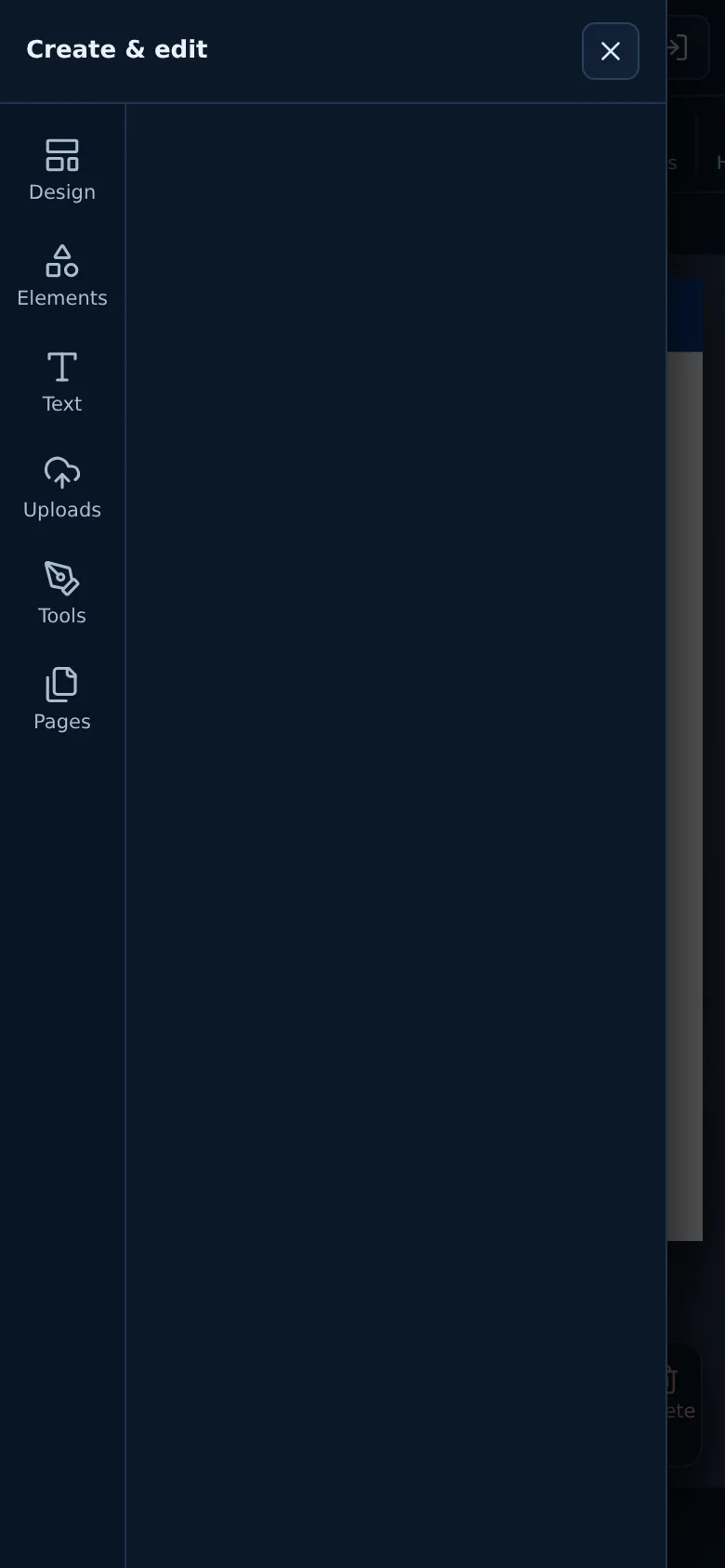
- Tools & pages slides in all tools and the page thumbnails.
- Properties slides in the Properties, Layers, Comments and Document tabs.
- The toolbar under the top bar scrolls sideways. Swipe it to see more tools.
- Dialogs open from the bottom of the screen.
Touch controls
- Draw, highlight and redact by dragging your finger when the tool is selected. When no drawing tool is active, drag to scroll the page as usual.
- Tap an item to select it. A bar appears at the bottom with Edit text, Properties, Duplicate, To front, Delete and Done.
- Tap selected text again to type in it.
- Drag the round handles to resize. They're larger on touch screens.
- Sign with your finger: Sign → Draw. Turning your phone sideways gives you more room.
- Zoom with the buttons at the bottom. Fit width is usually best on a phone.
Opening and saving files
- Open lets you choose a PDF from your phone or cloud storage. To turn photos into a PDF, use Images → PDF, which can also take a new photo with your camera.
- Download saves to your Downloads folder (Android) or asks where to save (iPhone and iPad: choose Save to Files).
- Large scans process faster on Wi-Fi.
Still stuck? Contact us and tell us what you were trying to do. We read every message.