Start a design
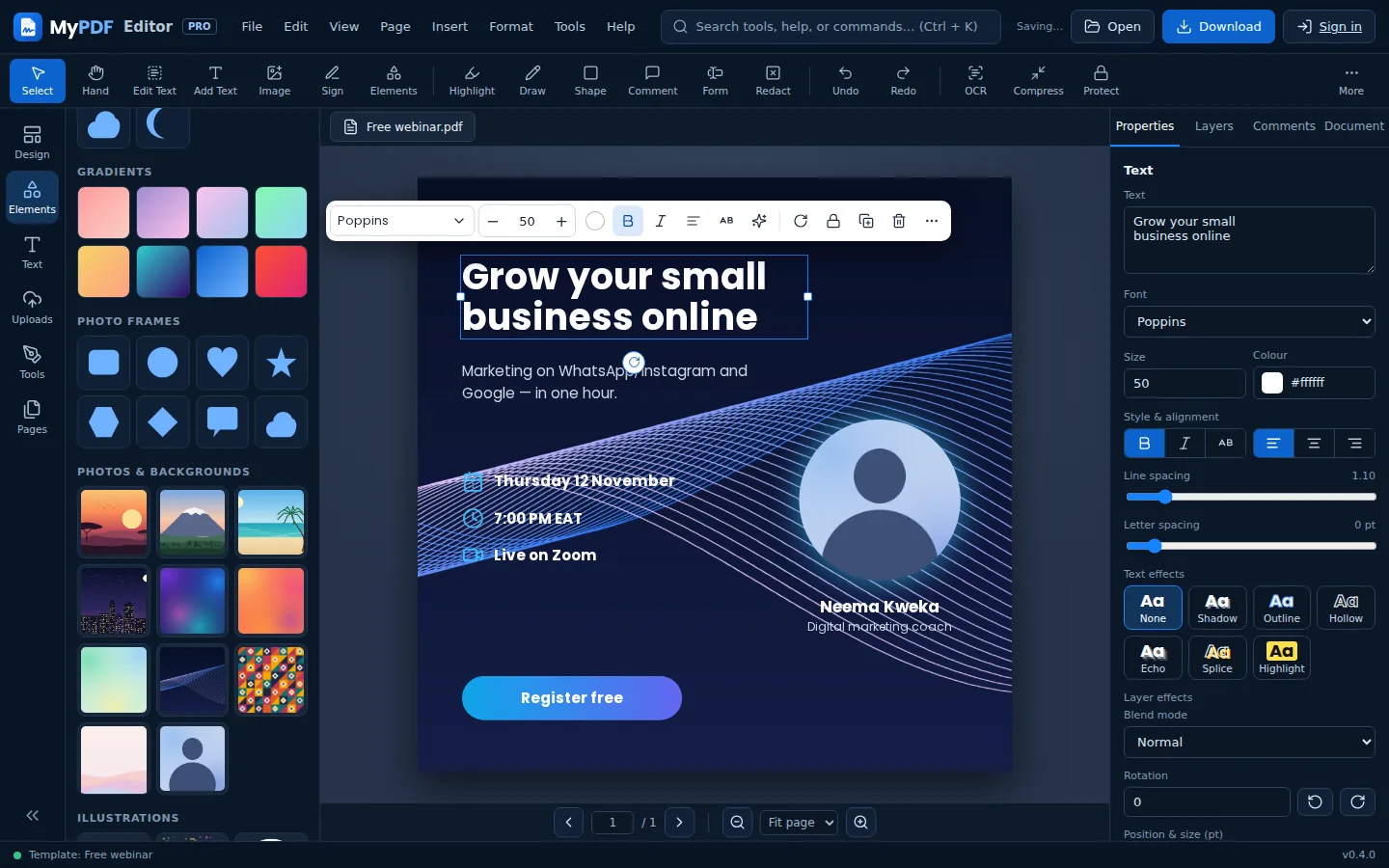
On the start screen at app.mypdf.live, choose one of these:
- Start with a size: A4 or US Letter, A4 landscape, Presentation 16:9, Instagram post, Story / Status, Facebook post, YouTube thumbnail, Poster (A3), Flyer (A5), Business card, Certificate or Invitation.
- Create a design → Custom size: any width and height in pixels, millimetres, inches or points.
- Templates: click one to open it as a new design.
Designs are PDFs too. You can add a design page to any PDF, and use every PDF tool on a design: sign it, add form fields or protect it with a password.
Templates
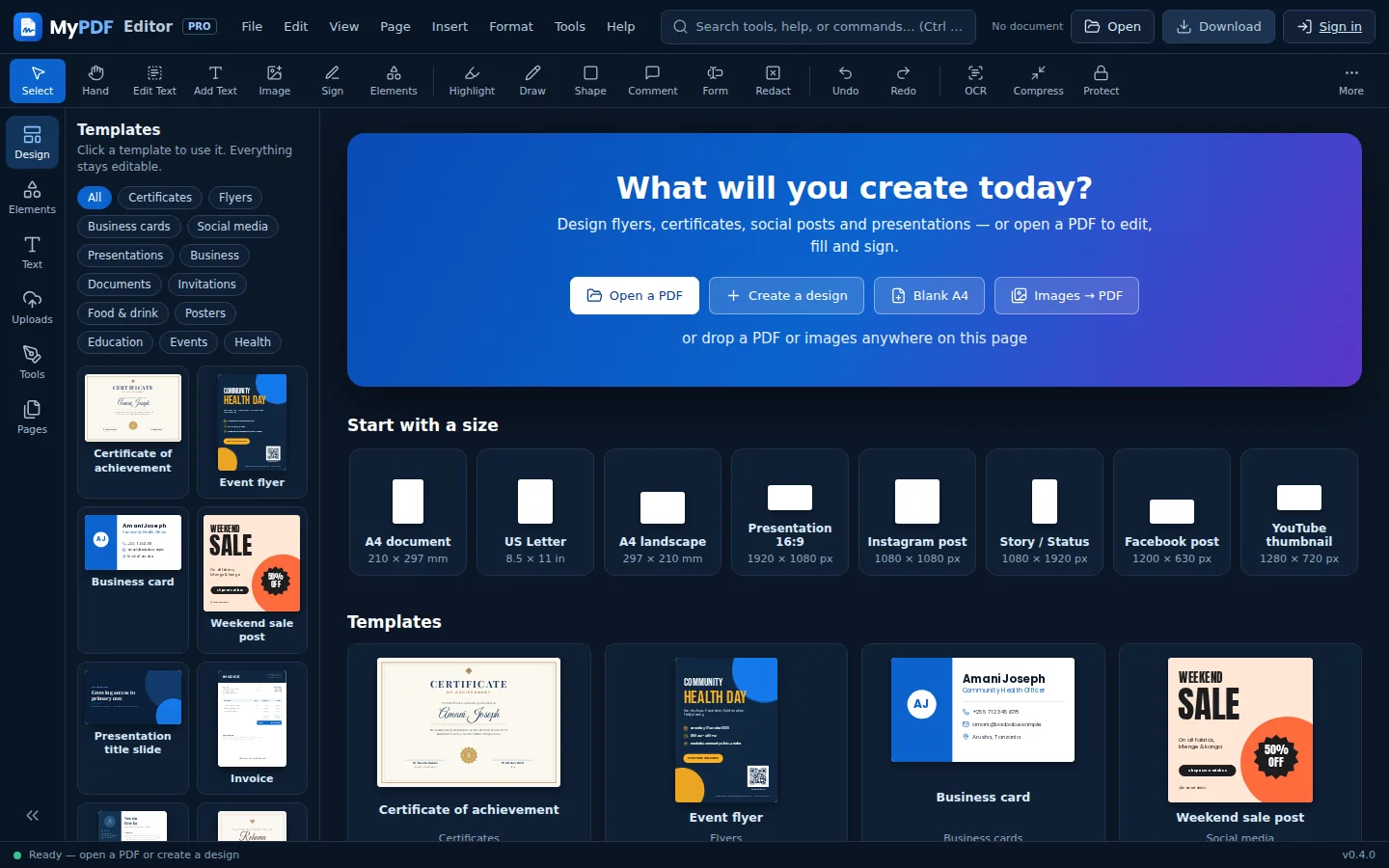
There are 196,930 templates for social media, flyers, posters, presentations, business (invoices, receipts, quotations, letterheads, vouchers, price lists), business cards, documents (CVs, cover letters, reports, newsletters), certificates, invitations, menus, a class timetable, an event badge and health tips. Browse them all on the Templates page, where Use this template opens one straight in the editor.
In the editor, open Design in the left column to browse templates by category. When a document is already open, MyPDF asks whether to add the template as a new page (resized to fit your page) or to start a new design with it. Every part of a template is editable. Double-click text to change it, and click any shape or icon to recolour it.
Elements: shapes, lines, icons and QR codes
Open Elements and click an item to add it in the middle of the page, or drag it to exactly where you want it. Type in the search box to find shapes and icons by name, such as “star”, “phone” or “heart”.
| Element | What you can change |
|---|---|
| Lines & arrows | Colour, thickness, and solid, dashed or dotted style. |
| Shapes | Square, rounded square, circle, triangles, diamond, polygons, stars, badge, block arrows, chevron, plus, heart, speech bubble, cloud and moon. Change the fill, border colour, width and style. Rounded squares have a Corner rounding slider. |
| Icons | More than 120 line icons for contact details, events, food, travel, health and more. Change the colour and line weight. |
| Gradients | Click one to add a gradient-filled shape. Change its colours and direction with the colour picker. |
| Photos & backgrounds | Built-in landscapes, city lights, soft gradients, a kitenge pattern and a portrait placeholder. All original and free to use in your designs. |
| Illustrations | Leaves, confetti and a plate of food with transparent backgrounds, for decorating posters and menus. |
| Draw | Pen, marker, highlighter and soft brush. See Brushes. |
| Photo frames | Photo in a circle and Rounded photo ask for an image and frame it for you. Great for profile pictures and team pages. |
| QR code | Enter a link or any text. Phones scan it straight from print. Keep a dark code on a light background, and test it before printing. |
Text & fonts
Open Text to add a heading, subheading or body text, or a ready-made font combination such as “Big sale” or “Elegant”. Combinations are added as a group, so they move together. Double-click to edit the words.
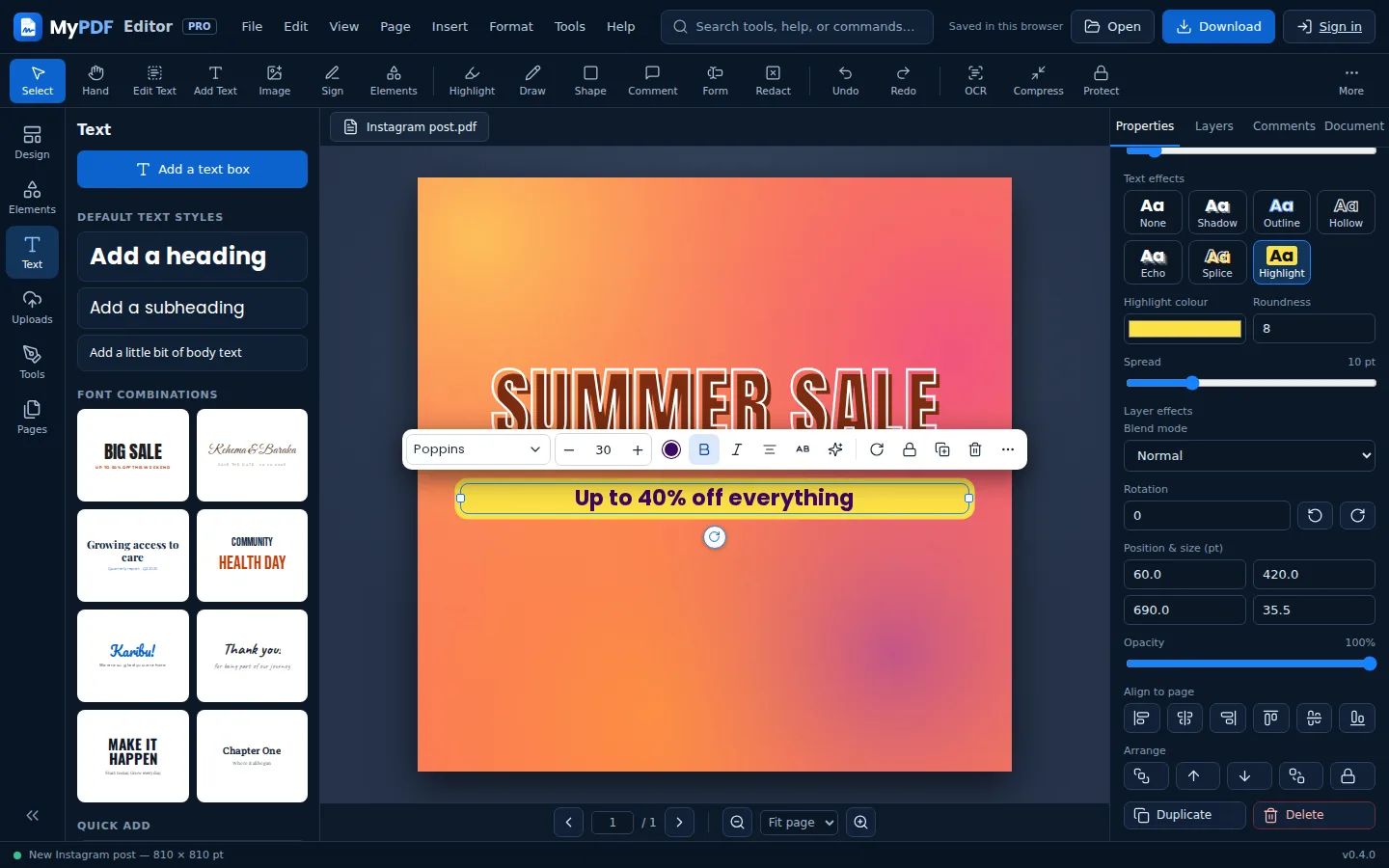
Select a text box to change it from the floating toolbar or the Properties panel:
- 14 designer fonts: Poppins, Montserrat, Open Sans, Raleway, Oswald, Bebas Neue, Anton, Playfair Display, Lora, Roboto Slab, Great Vibes, Dancing Script, Pacifico and Caveat, plus the standard PDF fonts. Some display and script fonts have only one weight, so Bold is switched off for them.
- Size, colour, bold, italic and alignment.
- Line spacing, letter spacing and UPPERCASE.
- Text effects: shadow, outline, hollow, echo, splice and highlight. See Text effects.
Fonts are embedded in your PDF, so it looks the same on every device and printer. Letters outside these fonts, such as Arabic, switch to the Unicode font automatically.
Photos
Open Uploads → Upload images (JPG, PNG or WebP), or drop images on the page. Uploaded images stay in the panel so you can reuse them. You can also use the built-in photos in Elements.
Select a photo to edit it in Properties: 12 filters, duotone, adjustments, background removal, crop, shape masks, rounded corners, flip, shadows and blend modes. Replace photo swaps the picture but keeps the frame and effects. Set as background fills the page with it. The full guide is Photo studio & effects.
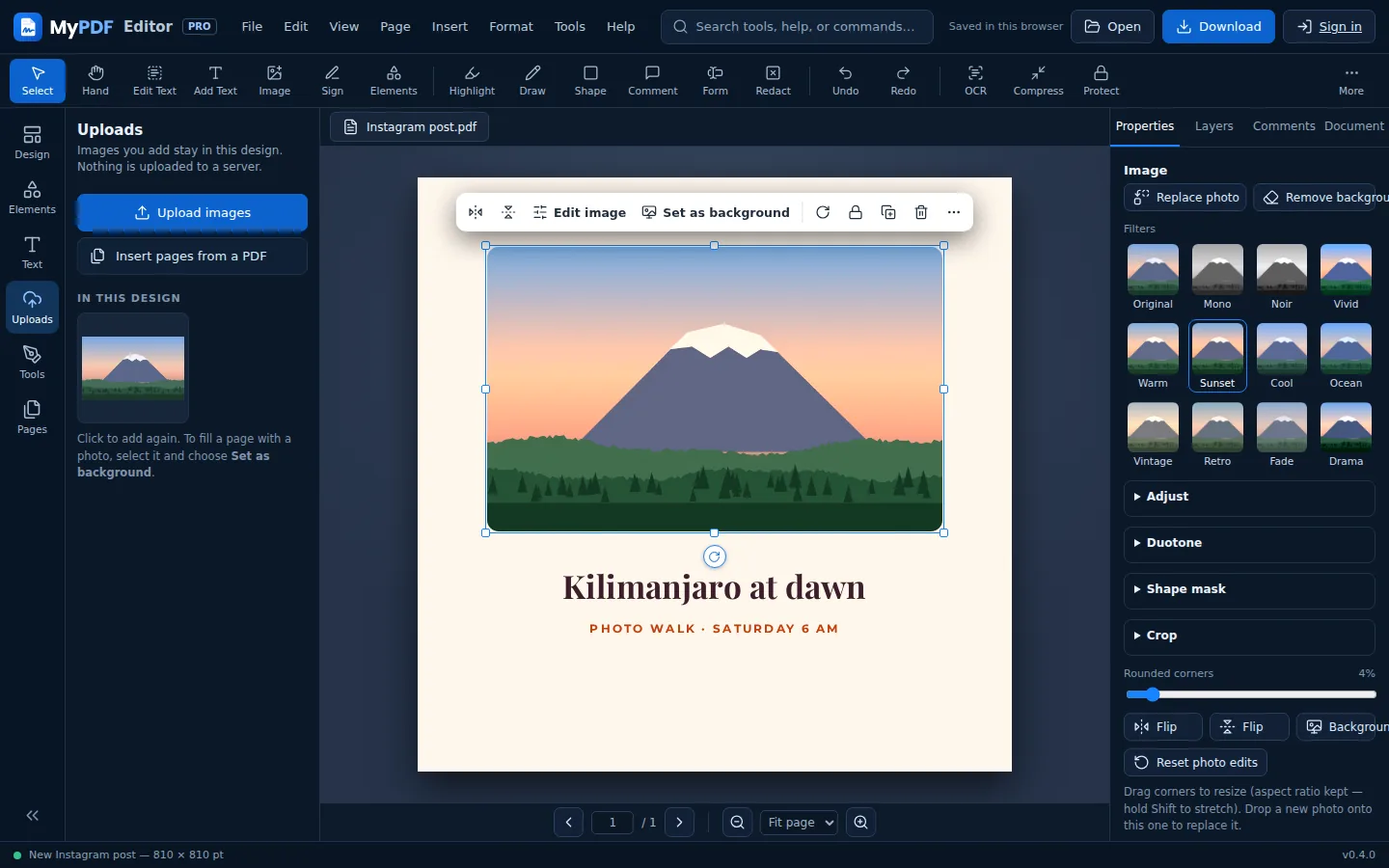
Reset photo edits brings back the original look at any time. Your original file is never changed.
Arrange, align and rotate
- Rotate: drag the round handle under a selected object. Hold Shift for 15° steps. It clicks into 0°, 45° and 90° as you pass them.
- Smart guides: pink lines appear when an object lines up with the page centre, the page edges or other objects. Hold Alt to move freely.
- Select several: Shift-click, or drag a box around them on an empty part of the page. Then drag any of them to move them together.
- Align and distribute: with one object selected, the align buttons line it up with the page. With several selected, they line up with each other. Distribute spaces three or more evenly.
- Group (Ctrl + G) keeps objects together. Click any part to select the whole group. Double-click text in a group to edit it.
- Lock stops an object from being moved by accident. Copy and paste works between pages.
- Right-click any object for all of these options in one menu.
Page background & size
Click an empty part of the page (or press Esc) to see the page settings in Properties:
- Background: pick a colour, choose any colour with +, or use an Image…. All pages copies the background to every page.
- Page size (design pages): switch to another size. Scale the design to the new size keeps everything in proportion.
Download
Click Download and choose:
| Format | Best for |
|---|---|
| PDF document | Printing, emailing and sharing. Text stays sharp and selectable. Ctrl + S always downloads a PDF. |
| PNG image | Graphics and logos. Choose 1×, 2× or 3× size. Tick Transparent background to leave out the white page. |
| JPG image | WhatsApp, Instagram and Facebook. Smaller files. |
For social sizes, 1× gives the exact pixel size of the format (for example 1080 × 1080 px for an Instagram post). Use 2× for extra sharpness on phones.
Recent designs
MyPDF keeps a copy of your work in this browser only while you edit, so you can close the tab and continue later from Recent designs on the start screen. Nothing is uploaded to our servers. The copy doesn't follow you to other devices, so download your file to keep it permanently.
On a shared computer, remove designs with Clear all (or the bin icon on one design), or turn the feature off in File → Keep recent designs in this browser.
Still stuck? Contact us and tell us what you were trying to do. We read every message.