Fill in an existing form
- Open the PDF form. If it has fillable fields, the Document tab lists them under Form fields.
- Click a field on the page. MyPDF opens the Document tab and puts your cursor in the matching box. You can also type in the list directly.
- Type your answers, tick checkboxes and choose options from drop-downs. Your answers appear on the page as you type.
- Click Download.
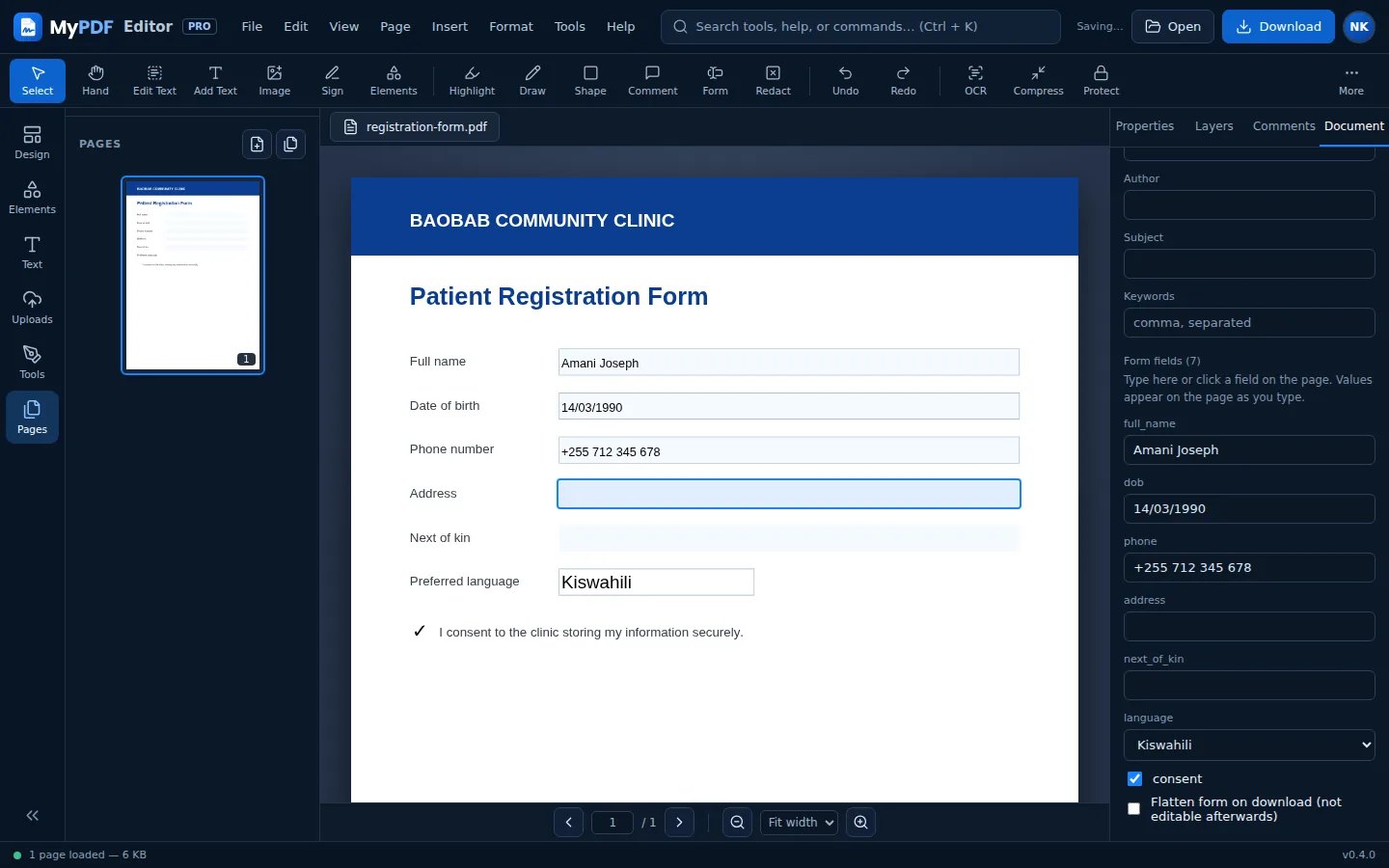
Flatten the form (optional)
Tick Flatten form on download in the Document tab to turn your answers into ordinary page content. The fields are then no longer editable, which is useful when you submit a completed form and don't want the answers changed. Leave it unticked if someone else still needs to fill in the form.
If you rearrange, delete or insert pages, MyPDF flattens the form automatically on download so your answers are kept.
Create your own fillable fields
- Form / Text field (F): drag a box where people should type.
- Checkbox: click where a tick box should go.
- Give each field a clear Field name in Properties, for example full_name or agree_terms.
When you download, these become real fillable fields that work in Acrobat, Edge, Chrome, Preview and other readers.
The form has no fillable fields
Many forms are just printed lines. Use Add Text to type on the lines, Check mark for tick boxes, Date for dates and Sign for signatures.
Still stuck? Contact us and tell us what you were trying to do. We read every message.