Highlights, shapes and drawing
| Tool | How to use it |
|---|---|
| Highlight Shift+H | Drag across the text. The tool stays on so you can highlight several passages. Press Esc when done. Change the colour in Properties. |
| Freehand draw P | Hold the mouse button (or your finger) down and draw. Each stroke becomes its own item. |
| Rectangle U / Ellipse O | Drag to draw. In Properties, set the stroke colour and width, and tick Fill to fill the shape. |
| Line L / Arrow A | Drag from start to end. The arrowhead goes where you release. |
The colours and widths you choose become the default for the next shape.
Comments
- Choose Comment (C) and click where the comment belongs.
- Type your comment in Properties. Your name is filled in automatically if you're signed in.
Comments are saved as real PDF sticky notes. They open in Adobe Acrobat, Microsoft Edge, Apple Preview and most other PDF readers. The Comments tab lists every comment in the document. Click one to jump to it.
Stamps
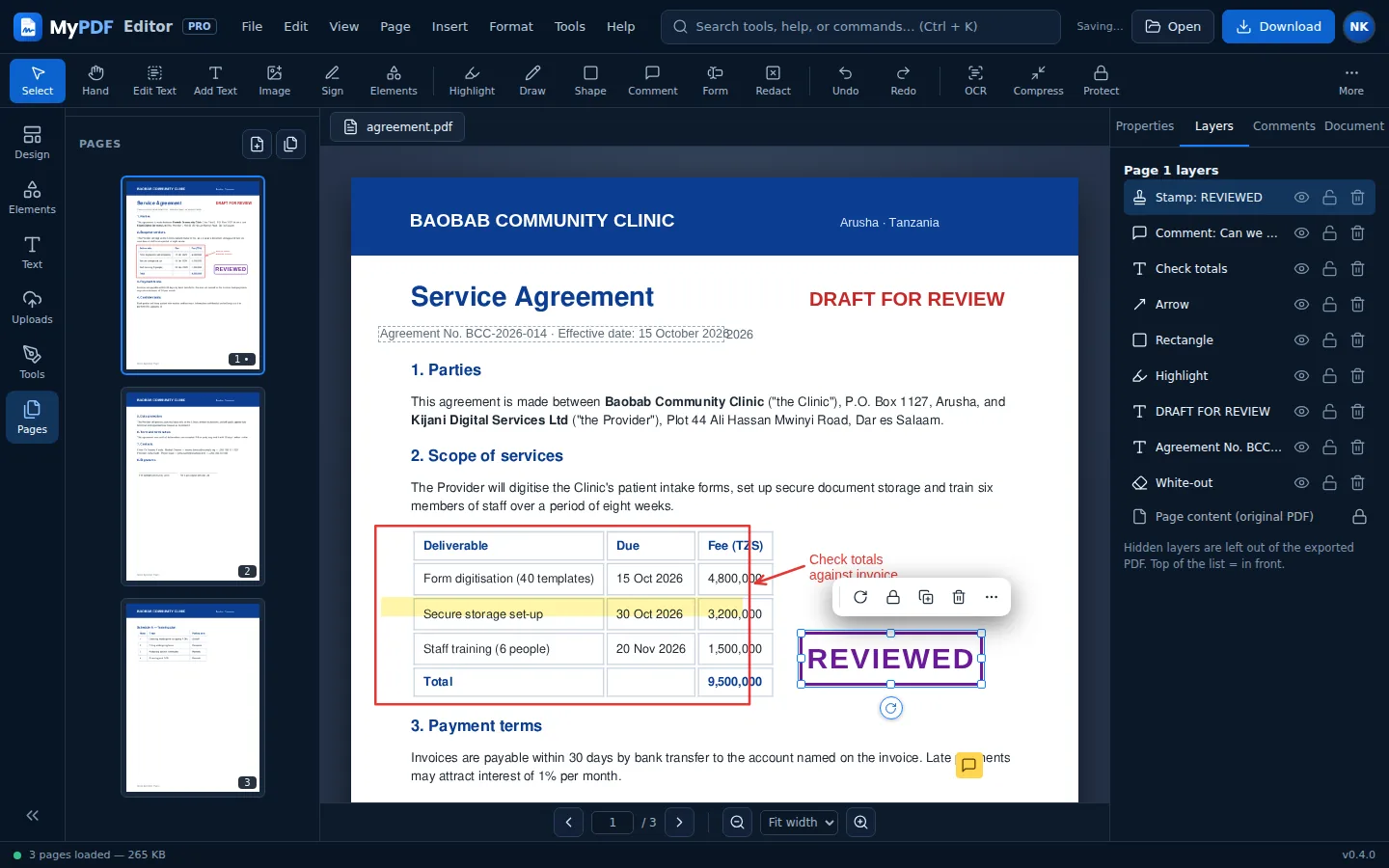
Choose Stamp in the Annotate tools and click on the page. Change the wording in Properties: Approved, Paid, Received, Draft, Reviewed, Confidential, Rejected or Void. Each has its own colour, which you can change.
Links
Choose Link (K) and drag over the area that should be clickable. In Properties, enter a web address (https://…, mailto:… or tel:…) or a page number to jump to within the document.
Layers
Open the Layers tab to see everything you've added to the current page, with the front-most item at the top. For each item you can:
- hide it. Hidden items are left out of the downloaded PDF.
- lock it so it can't be moved by accident;
- delete it.
To change the order, select an item and use Arrange in Properties.
Still stuck? Contact us and tell us what you were trying to do. We read every message.