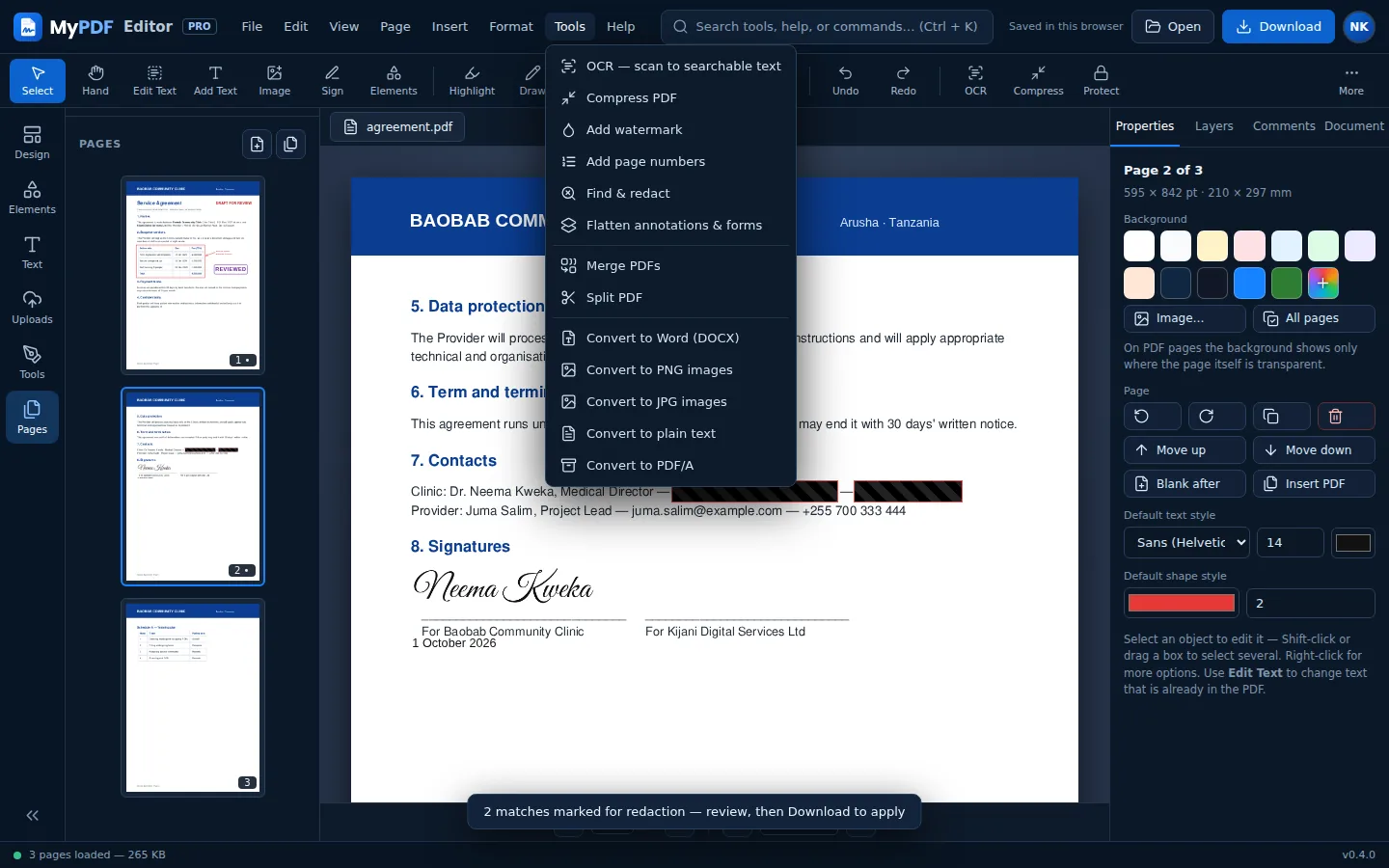
The conversions are in Convert PDF on the right-hand side, or in the Tools menu. They convert the document as it is now, including your edits.
PDF to Word (DOCX)
Choose to Word (DOCX). MyPDF rebuilds the paragraphs, tables and images as an editable Word document you can open in Microsoft Word, LibreOffice or Google Docs.
For scanned documents, run OCR first. Otherwise Word only gets pictures of the pages. Complex layouts may need some tidying afterwards.
PDF to PNG or JPG images
Choose to PNG images (sharpest) or to JPG images (smaller files). Pick a resolution (72 dpi for screens, 150 dpi standard, 300 dpi for print) and optionally which pages. You'll get a ZIP with one image per page.
PDF to plain text
Choose to plain text to download all the text as a .txt file, page by page. It's useful for copying content into emails or other systems.
PDF/A for archiving
to PDF/A creates an archive-grade PDF with fonts embedded, designed to open exactly the same way for decades. Many governments, courts and records offices ask for PDF/A.
Turn photos into a PDF
- On the start screen choose Images → PDF, or File → Create PDF from images.
- Select one or more JPG or PNG files. Each becomes an A4 page in the order you selected them.
- Reorder pages if needed, run OCR to make the text searchable, then download.
Still stuck? Contact us and tell us what you were trying to do. We read every message.