The social media planner is part of MyPDF for organisations. It publishes to your organisation's Facebook Pages, Instagram, LinkedIn, X, TikTok and Telegram channels, using apps your organisation registers with each network.
Open the planner
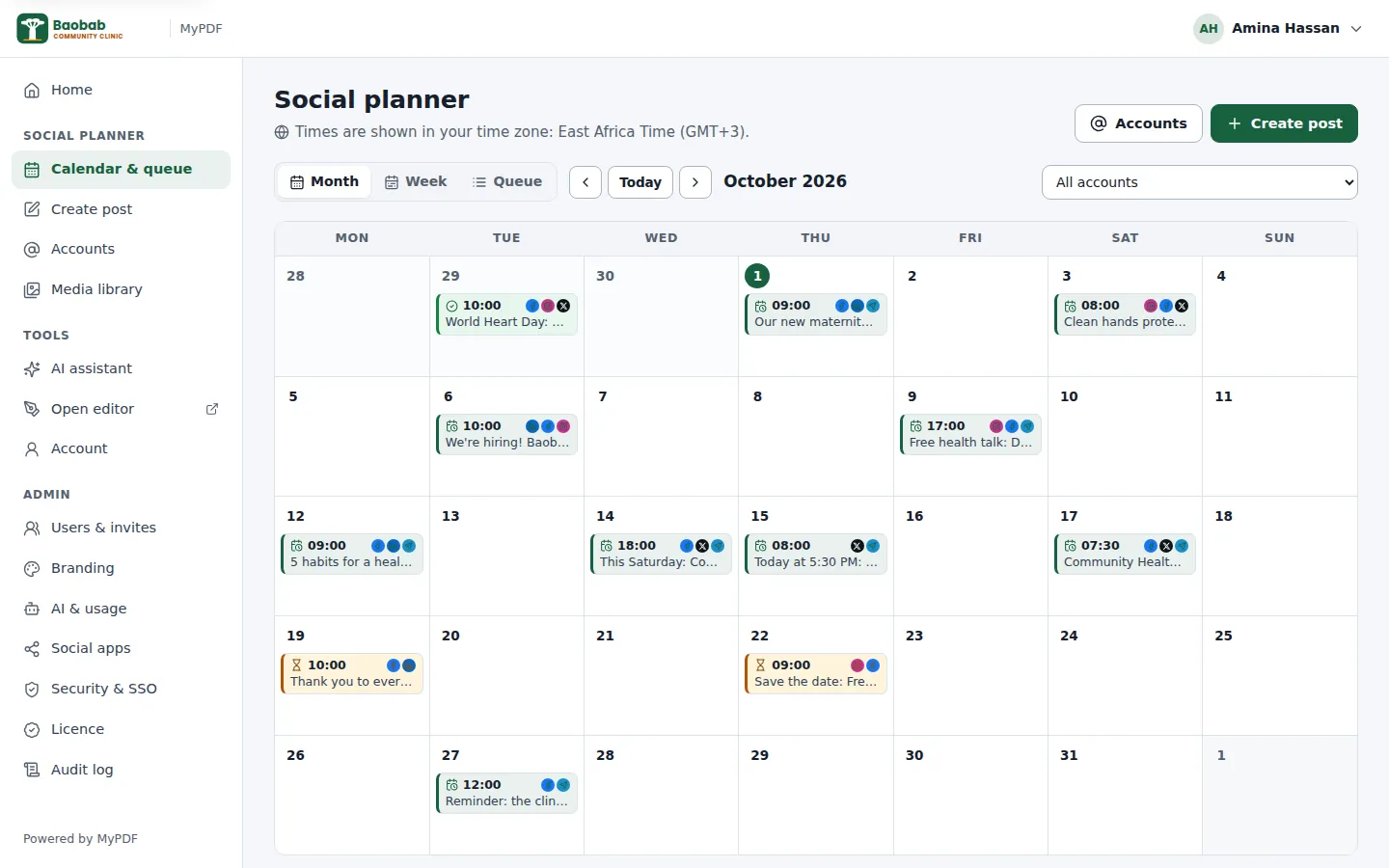
The planner is in the console at app.yourcompany.com/console (your organisation's own address). In the left column, under Social planner, you'll find Calendar & queue, Create post, Accounts and Media library. From the editor, choose AI → Social planner.
Connect accounts
Accounts belong to the organisation: once connected, everyone who uses the planner can post to them. Only administrators can add or remove accounts.
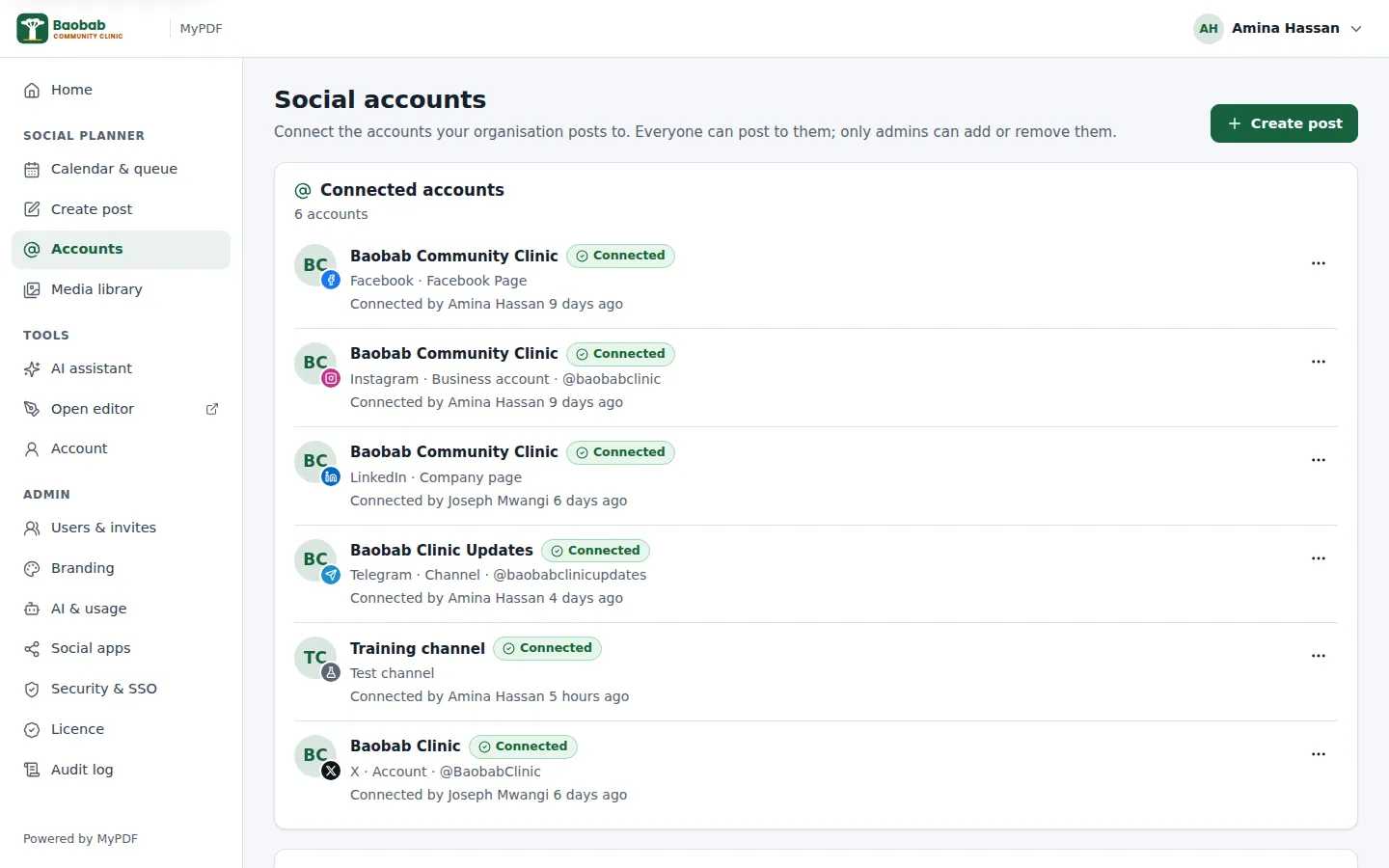
- Open Accounts. Under Connect an account, click the network, such as Connect Facebook.
- Sign in to the network and allow MyPDF to post. For Facebook, tick every Page (and linked Instagram account) MyPDF may use.
- You come back to MyPDF, and each Page, profile or channel appears as its own account.
| Network | Good to know |
|---|---|
| Pages you manage, not personal profiles. Up to 10 photos or one video. | |
| A Business or Creator account linked to a Facebook Page; connect it with the Facebook sign-in. Every post needs 1–10 photos or videos, with pictures between 4:5 (portrait) and 1.91:1 (landscape). One video posts as a Reel. Stories aren't supported. | |
| Your own profile, and company pages you administer if your organisation's LinkedIn app is approved for company pages. Sign-ins last 60 days, then the account must be reconnected. | |
| X | 280 characters (links count as 23). Up to 4 images, or one video or GIF. Your organisation needs X API credit. |
| TikTok | One video per post. Until TikTok approves your organisation's app, posts are private. |
| Telegram | A channel or group, through your own bot (see below). |
| Test channel | Records posts in MyPDF without sending them anywhere. Add it first to practise safely. |
If a network stops accepting the saved sign-in (for example after a password change), the account shows Needs reconnecting and administrators get an email. Click Reconnect; scheduled posts use the new sign-in.
Before accounts can be connected, an administrator registers your organisation's app with each network in Admin → Social apps. See Social apps in the admin guide. Telegram and the Test channel don't need this.
Connect a Telegram channel or group
- In Telegram, open @BotFather, send
/newbot, and choose a name and a username ending inbot. - Copy the token it gives you (it looks like
123456789:AAH…). Keep it secret. - Channel: open the channel → Administrators → Add admin, choose your bot and allow Post messages. Group: add the bot as a member.
- In MyPDF, open Accounts → Add Telegram chat. Paste the token, and the channel:
@nameorhttps://t.me/namefor a public one, or the number starting with-100for a private one. - Click Check and add. MyPDF checks the bot can post there and tells you what to fix if it can't.
One bot can post to several chats: add each one with the same token. Telegram allows 4,096 characters of text, or 1,024 in a caption under a photo (longer text is sent as a separate message after the photo), and videos up to 50 MB.
Write a post
- Click Create post, or the + on a day in the calendar.
- Choose accounts: tick every account the post should go to.
- Write your post in the main text box. Links, #hashtags and emoji are fine.
- Add images or a video (see below).
- When should it go out? Choose Now or At a date and time I choose.
The Preview on the right shows roughly how the post will look on each network. MyPDF checks every account's rules as you type, and a message explains anything that must be fixed before the post can go out.
A version for each account
The text you write under All accounts goes to every account. To change it for one account, for example a shorter version for X, click that account's tab above the text box and write its own version. Start from the main text copies the main text in for you to edit; Use the main text removes the separate version.
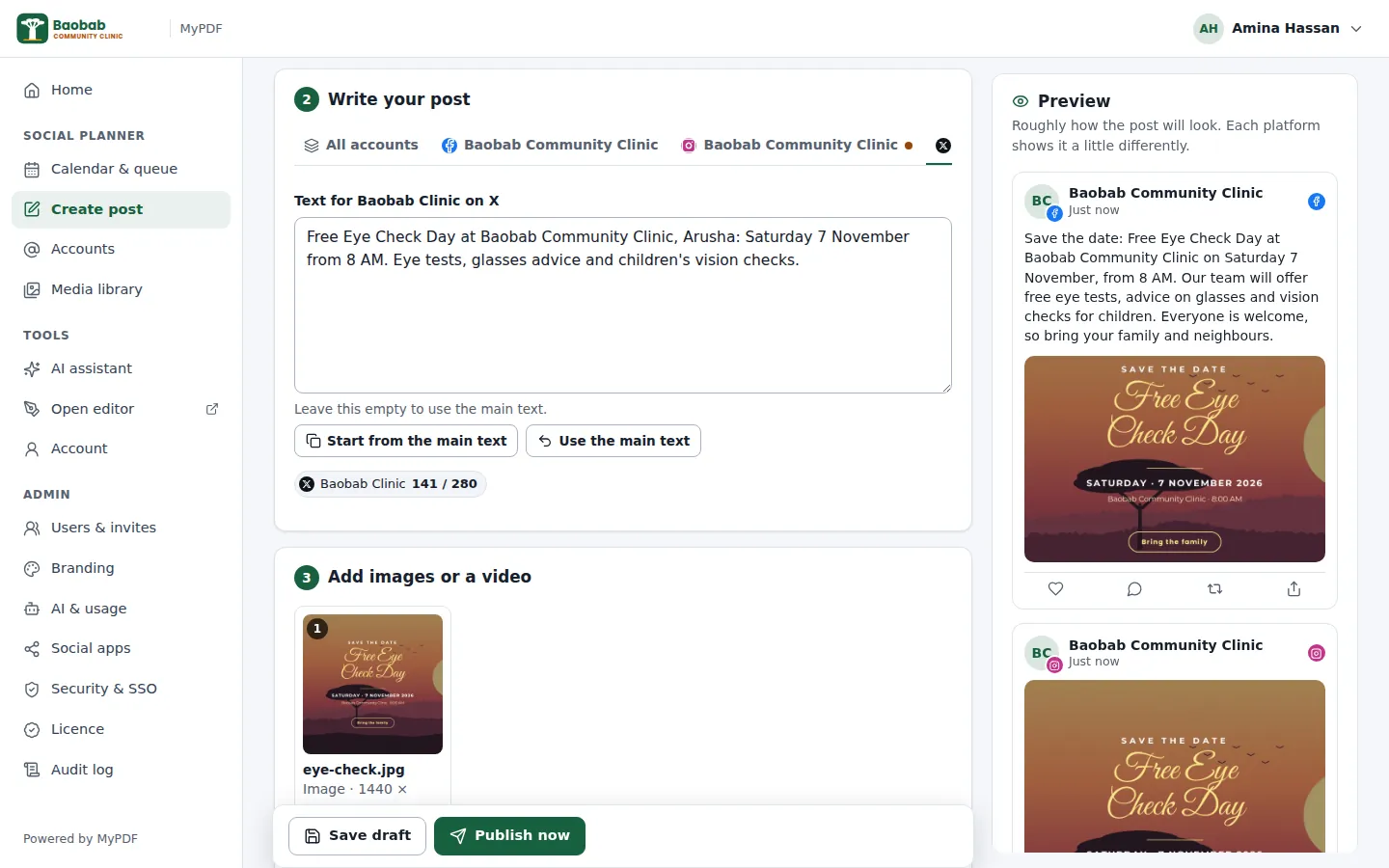
The counters under the text show each account's length and limit. X counts every link as 23 characters, and many emoji as 2.
Images and video
- Drag files onto the Add images or a video box, or use Upload from device or Choose from library.
- Images: JPEG, PNG, WebP or GIF up to 20 MB. Videos: MP4 or MOV up to 200 MB.
- The first item is the cover. Drag items, or use the arrows, to change the order.
- Everything you upload is kept in the Media library, shared with your organisation, so you can reuse it.
For TikTok, choose who can watch the video and whether comments, Duet and Stitch are allowed.
AI captions
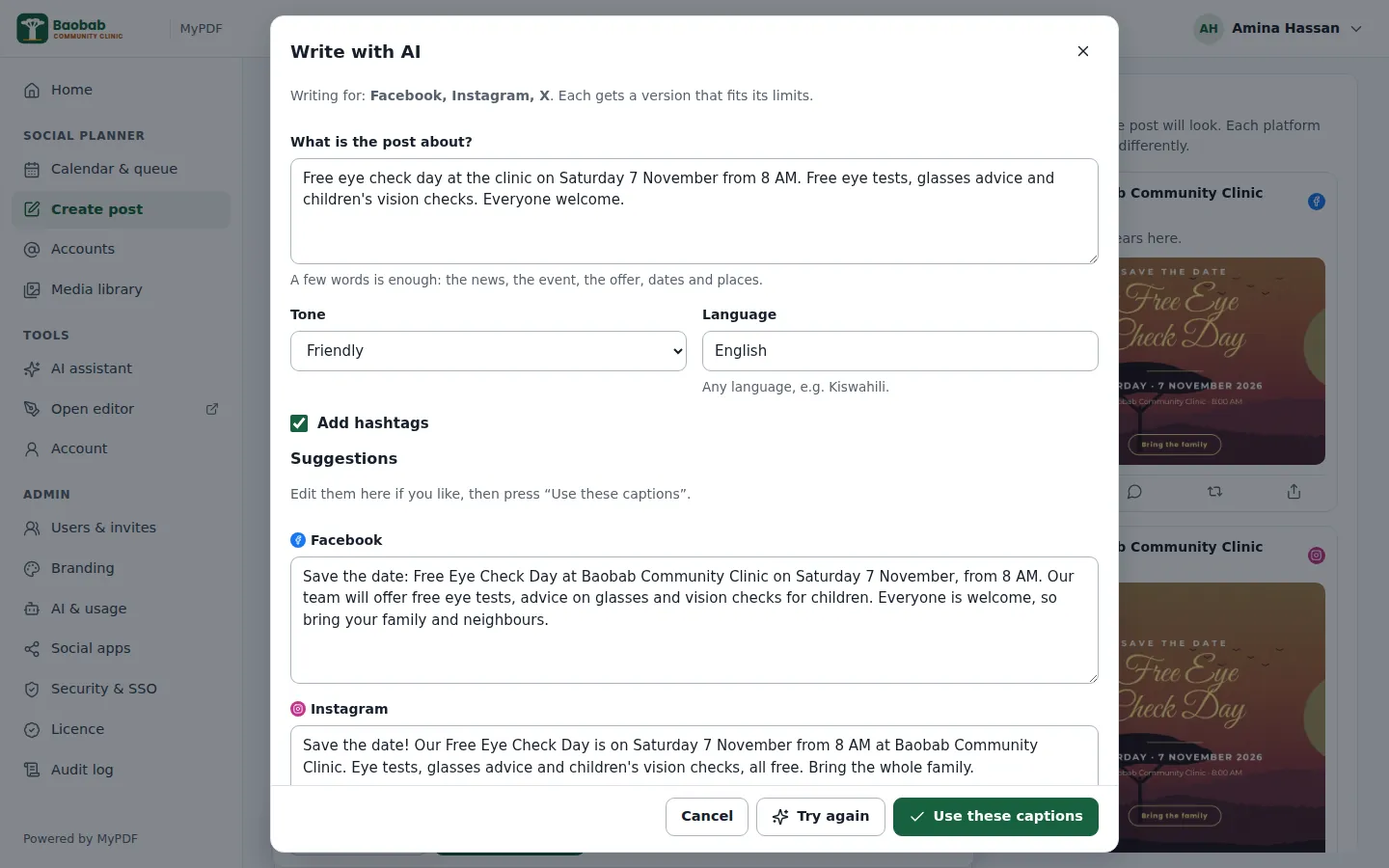
- Choose the accounts first, then click Write with AI.
- Describe the post in a few words: the news, the event or the offer, with dates and places.
- Choose a Tone (Friendly, Professional, Enthusiastic, Informative, Persuasive or Playful), a Language, and whether to Add hashtags.
- Click Write captions. You get a version for each network that fits its limits. Edit them if you like, then click Use these captions.
Publish now or schedule
- Publish now sends the post straight away.
- Schedule publishes it at the date and time you chose. Times are shown in your own time zone.
- Save draft keeps it for later without checking it.
If your organisation requires approval, members see Submit for approval instead (see below). MyPDF publishes each account separately and tries again if a network is briefly unavailable.
Calendar and queue
Calendar & queue has three views: Month, Week and Queue. The queue has tabs for Scheduled, Drafts, Awaiting approval, Published and Failed posts, and you can search posts or show one account only.
- Click a post to see its details, where you can edit, duplicate, publish now or delete it.
- Drag a scheduled post to another day to reschedule it. It keeps the same time.
- Click the + on a day to create a post for that day.
Approvals
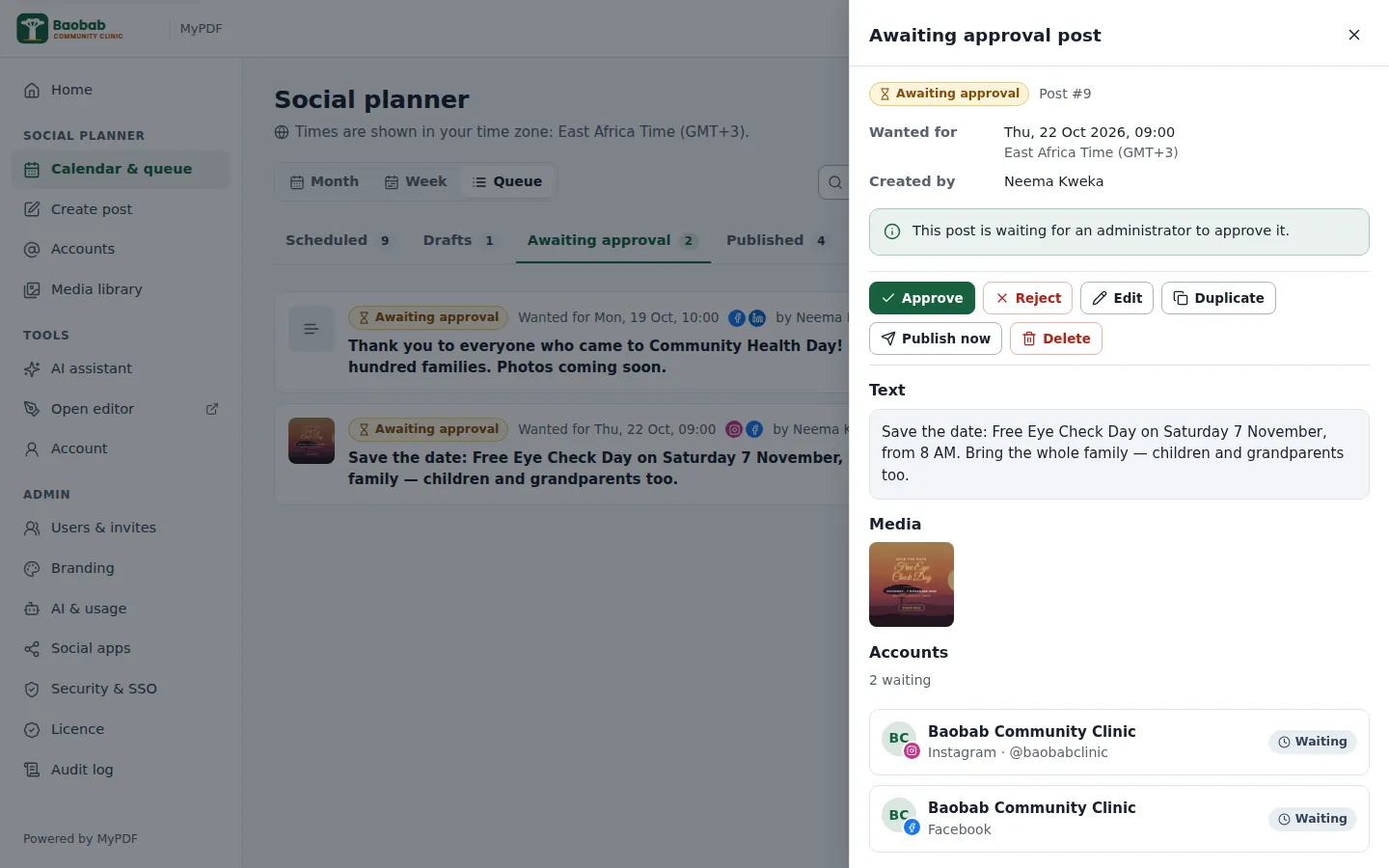
When an administrator turns on approvals (Admin → Social apps), posts written by members wait under Awaiting approval instead of being scheduled or published. Administrators' own posts go straight through.
- As an administrator, open Calendar & queue → Queue → Awaiting approval, and click a post.
- Check the text, media and accounts, then click Approve, or Reject and give a reason.
- An approved post is scheduled for its time, or published straight away if it had none or the time has passed. If email is set up, the author hears either way.
Failed posts and retrying
If a network refuses a post for one or more accounts, the post is marked Failed or Partly published, and the reason is shown for each account. If email is set up, the author and administrators get an email.
- Open the post and read the reason, for example a video that's too long, or an account that needs reconnecting.
- Fix the cause: edit the post, or reconnect the account.
- Click Retry. Only the accounts that failed are tried again; accounts that already published aren't posted to twice.
If the server restarts while a post is being sent, that post is marked as failed for the accounts it was sending to, rather than risk posting twice. Check the network before you press Retry.
Post a design from the editor
- Finish your design in the editor.
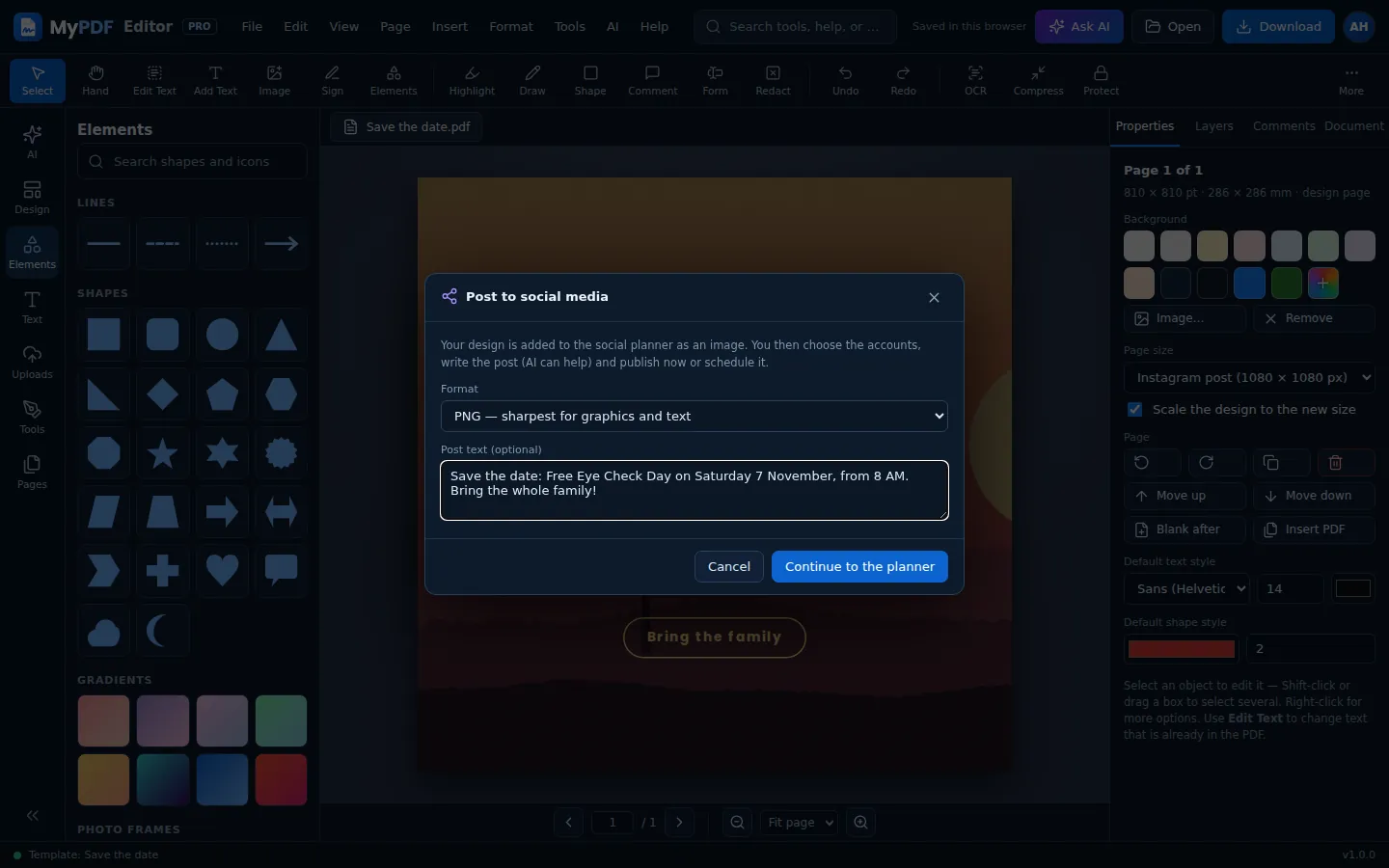
- Click Download → Post to social media. With several pages, choose this page or all pages as a carousel (up to 10).
- Choose PNG (sharpest for graphics and text) or JPG (smaller, best for photos), and optionally write the post text.
- Click Continue to the planner. The planner opens in a new tab with your images attached; choose the accounts and publish or schedule.
Still stuck? Contact us and tell us what you were trying to do. We read every message.