The AI features are part of MyPDF for organisations. They use your organisation's own AI provider, which an administrator connects in the console. If the AI panel says AI isn't set up yet, ask your administrator (or see AI provider in the admin guide).
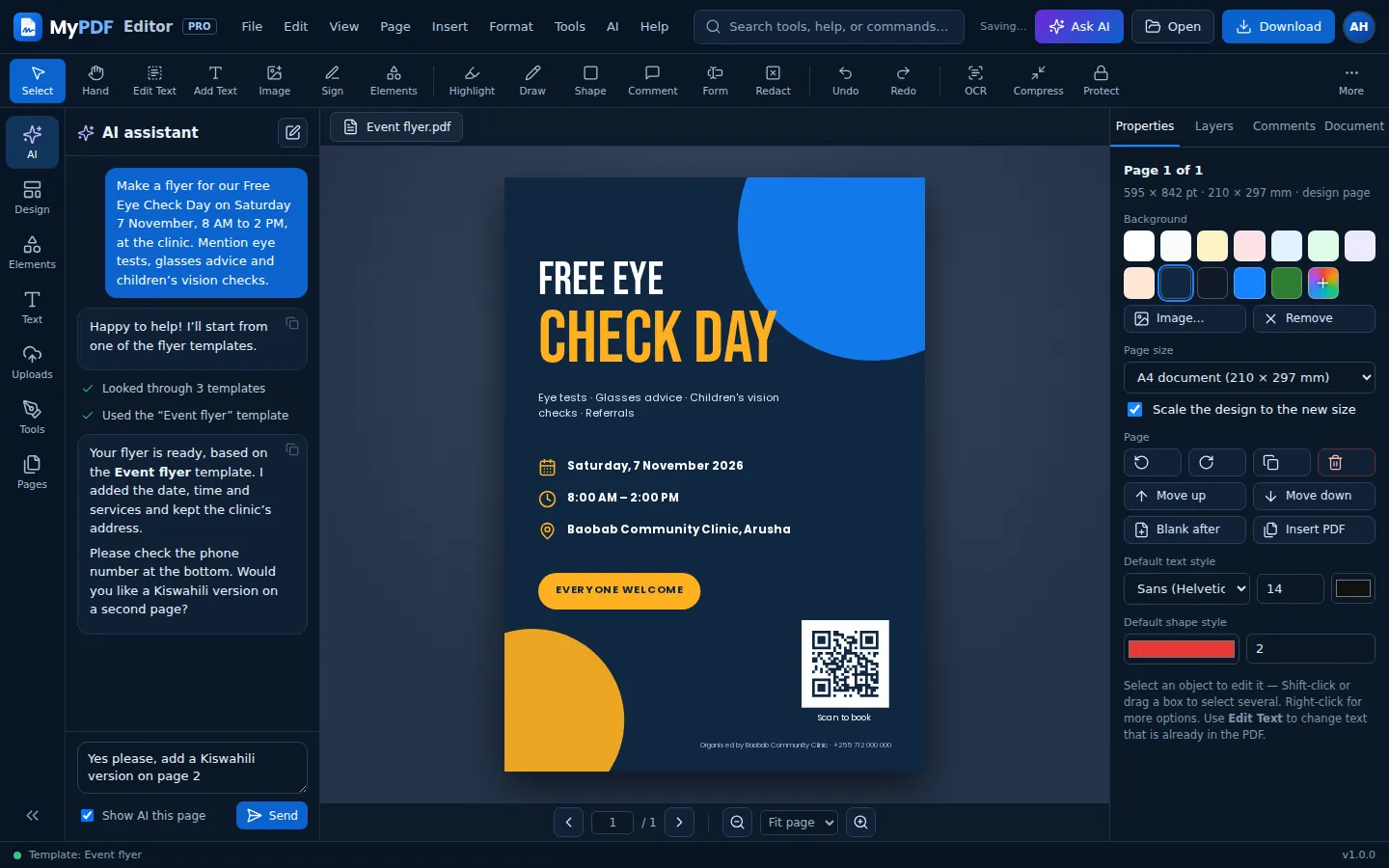
Open the assistant
- Click Ask AI at the top of the editor, or AI in the left column.
- Or press Ctrl + J (⌘ + J on a Mac), or choose AI → AI assistant in the menu.
Type your request and press Enter (use Shift + Enter for a new line). With nothing typed yet, the panel suggests a few requests to try; click one to send it. While the assistant is working, the Send button becomes Stop. The pencil button at the top starts a new chat.
What to ask
Write as you would to a colleague. The assistant replies in the language you write in.
| You want to… | Try asking |
|---|---|
| Create something new | “Make a flyer for our bake sale this Saturday at 10 AM” · “Design a certificate of completion for a first-aid course” |
| Change a design | “Make the headline bigger and bolder” · “Suggest a better colour scheme and apply it” · “Add a QR code linking to our website” |
| Rewrite or translate | “Rewrite all the text to sound more professional” · “Translate this design into French” |
| Understand a PDF | “Summarise this document in 5 bullet points” · “What are the key dates, amounts and names?” |
| Fill in a form | “Help me fill in this form” (then give the details it asks for) |
| Post it | “Get this ready to post on Facebook and Instagram” (organisations with the social planner) |
The assistant works with the editor's own tools: it can add and change text, shapes, lines, icons and QR codes, set page backgrounds, start from a template or a blank size, add pages, fill in PDF form fields and create AI images. For existing PDF pages, such as contracts and scans, it adds things in empty space rather than covering what's there.
Give the facts you want on the page: names, dates, times, places and prices. The assistant is told never to invent them, so where something is missing it leaves a gap like [Date] for you to fill in.
Show AI this page
Under the message box, Show AI this page is ticked by default. It sends a picture of the page you're looking at with your message, so the assistant can see the layout, colours and spacing. Untick it if the page isn't relevant to your question or you'd rather not send it. Your message shows with a picture of the page when one was sent.
Check and undo the assistant's changes
- Every step appears in the chat, such as Used the “Event flyer” template or Updated 2 objects. A tick means it worked; a warning sign explains what couldn't be done.
- When the assistant has changed your document, Undo the assistant's changes appears under its reply. One click puts everything back as it was. Ctrl + Z works too.
- It asks you first before deleting pages or more than three objects, and before replacing a document with unsaved changes.
- For long jobs it stops after a number of steps. Type “continue” if you want it to carry on.
Design with AI
Describe a design and let the AI choose one of the 196,930 professional templates and write the words for it.
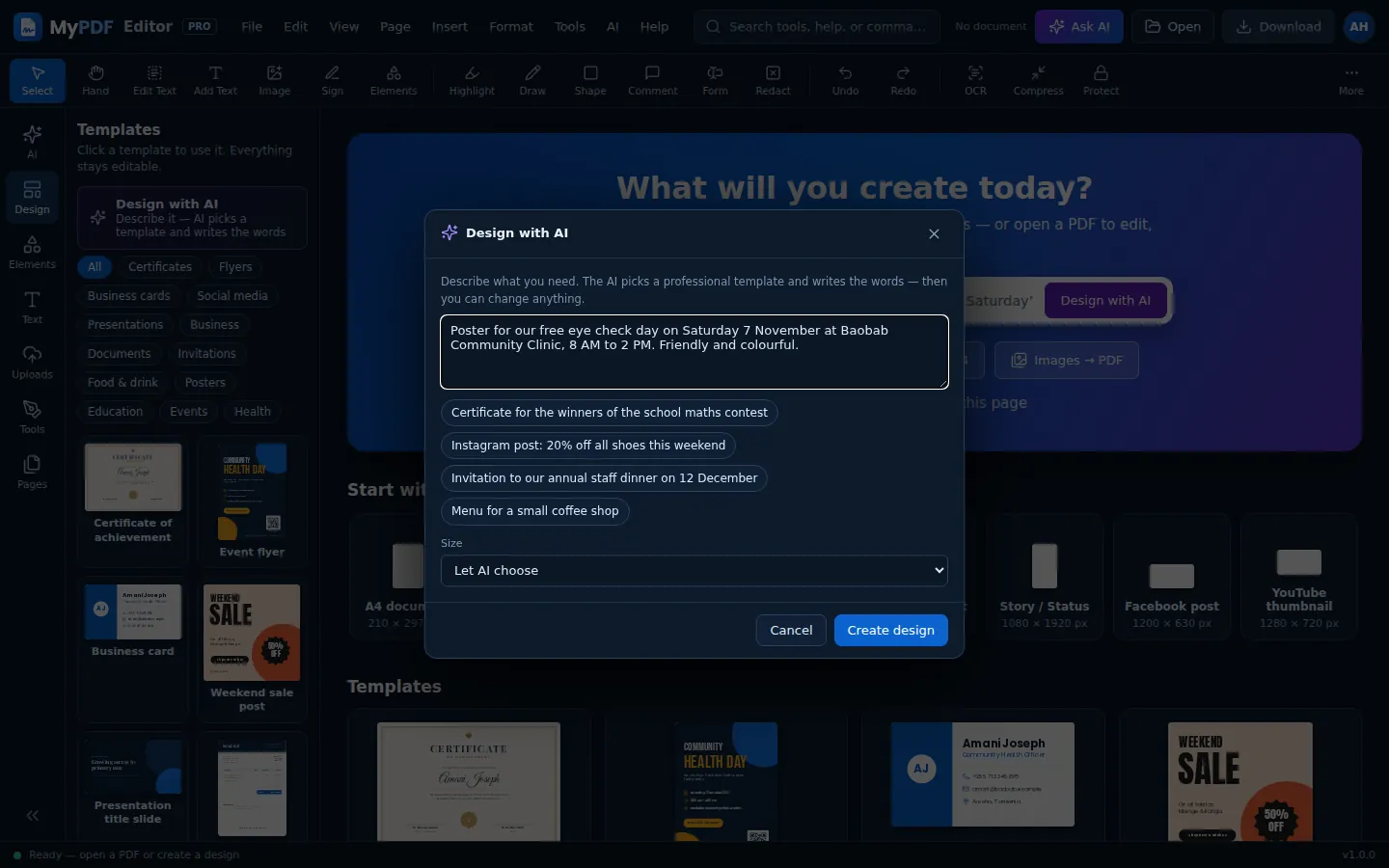
- On the start screen, type in the Describe a design box and press Design with AI. You can also use Design with AI at the top of the Design panel, or AI → Design with AI….
- Say what it's for and add the details, for example “Poster for our free eye check day on Saturday 7 November, 8 AM to 2 PM”.
- Choose a Size, or leave Let AI choose.
- Click Create design. Your design opens with the new words. Click any text to change it.
If no template fits, the assistant builds the design from scratch instead. A short note may suggest what to add, such as a photo or a start time.
Magic write
Magic write rewrites the words in one text box.
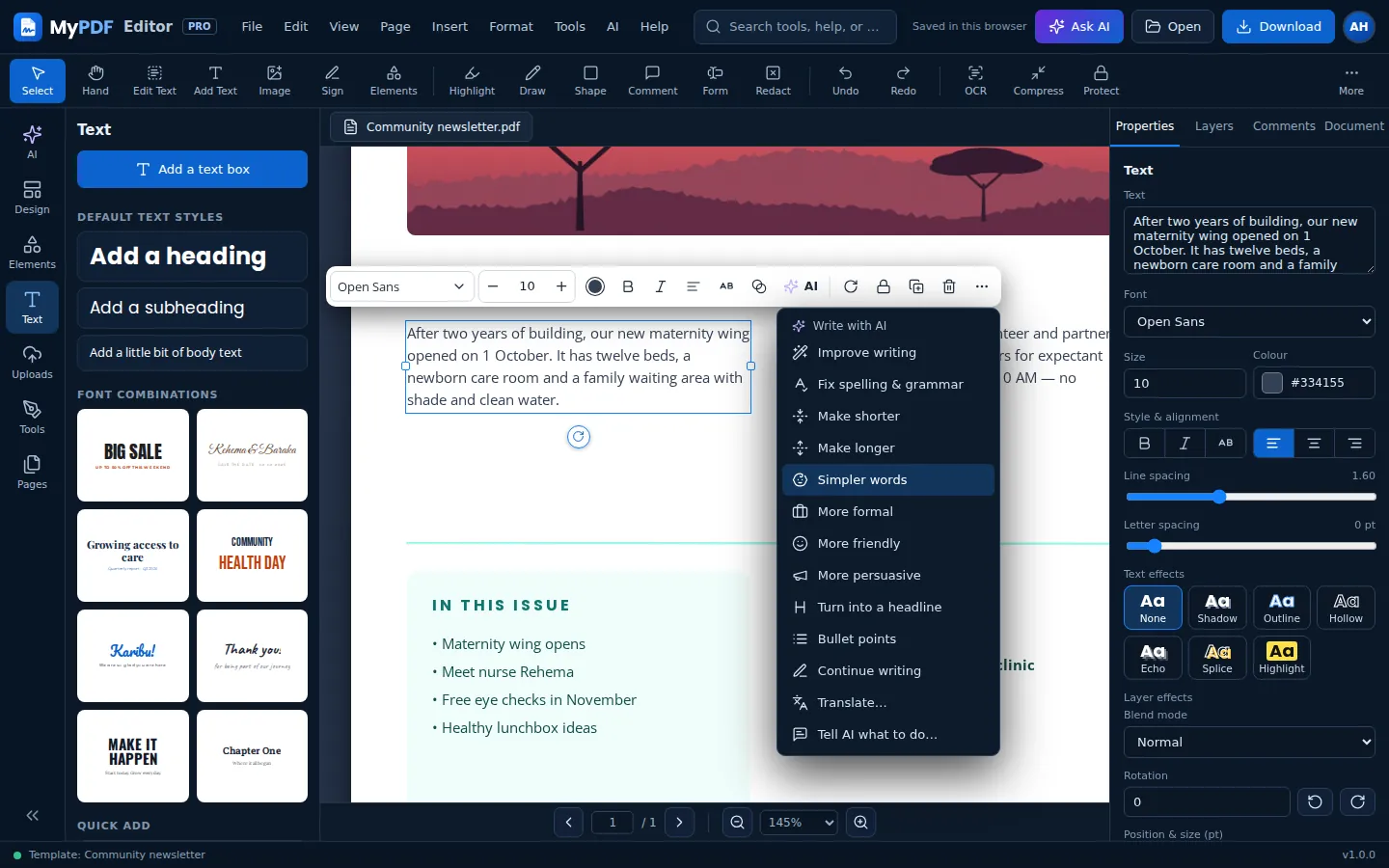
- Select a text box. In the small toolbar above it, click AI.
- Choose what to do. The new text replaces the old one.
- Not what you wanted? Press Ctrl + Z to get the original back, or try another action.
| Action | What it does |
|---|---|
| Improve writing | Clearer and smoother, with the same meaning, length and tone |
| Fix spelling & grammar | Corrects mistakes only |
| Make shorter · Make longer | About half the length, or up to twice as long, without adding new facts |
| Simpler words · More formal · More friendly · More persuasive | Rewrites in that style |
| Turn into a headline | One short line |
| Bullet points | Turns the text into a list |
| Continue writing | Adds the next sentences after your text |
| Translate… | Choose a language, such as Kiswahili, French, Portuguese, Arabic, Amharic, Somali, Luganda, Kinyarwanda, Yoruba, Hausa or Zulu, or type another under Other… |
| Tell AI what to do… | Your own instruction, for example “Rewrite as a warm invitation for parents, under 25 words” |
AI images
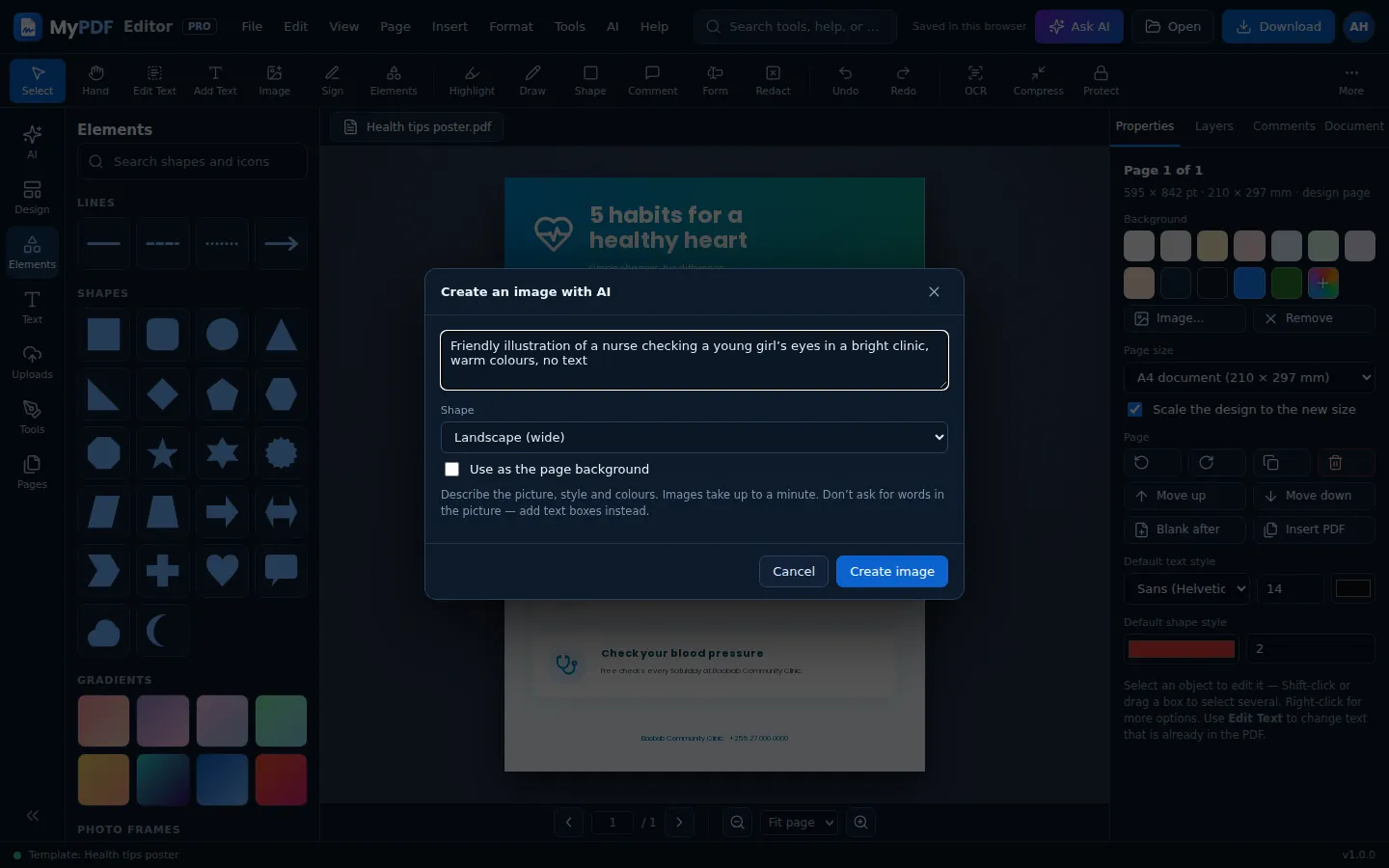
- Open Uploads and click Create an image with AI, or choose AI → Create an image with AI….
- Describe the picture: the subject, style, colours and mood. Don't ask for words in the picture; add text boxes instead.
- Choose Square, Portrait (tall) or Landscape (wide). Tick Use as the page background to fill the page with it.
- Click Create image. It can take up to a minute. The image is added to the page and to your uploads.
AI images work with OpenAI, or with a compatible service that has an image model. They aren't available when your organisation uses Anthropic Claude, and an administrator can turn them off.
Ask this PDF
Open a PDF, then ask the assistant a question such as “What are the key dates and amounts?” or “Are there any deadlines?”. It reads the document first, answers only from what's in it, and gives page numbers so you can check. If the answer isn't in the document, it says so.
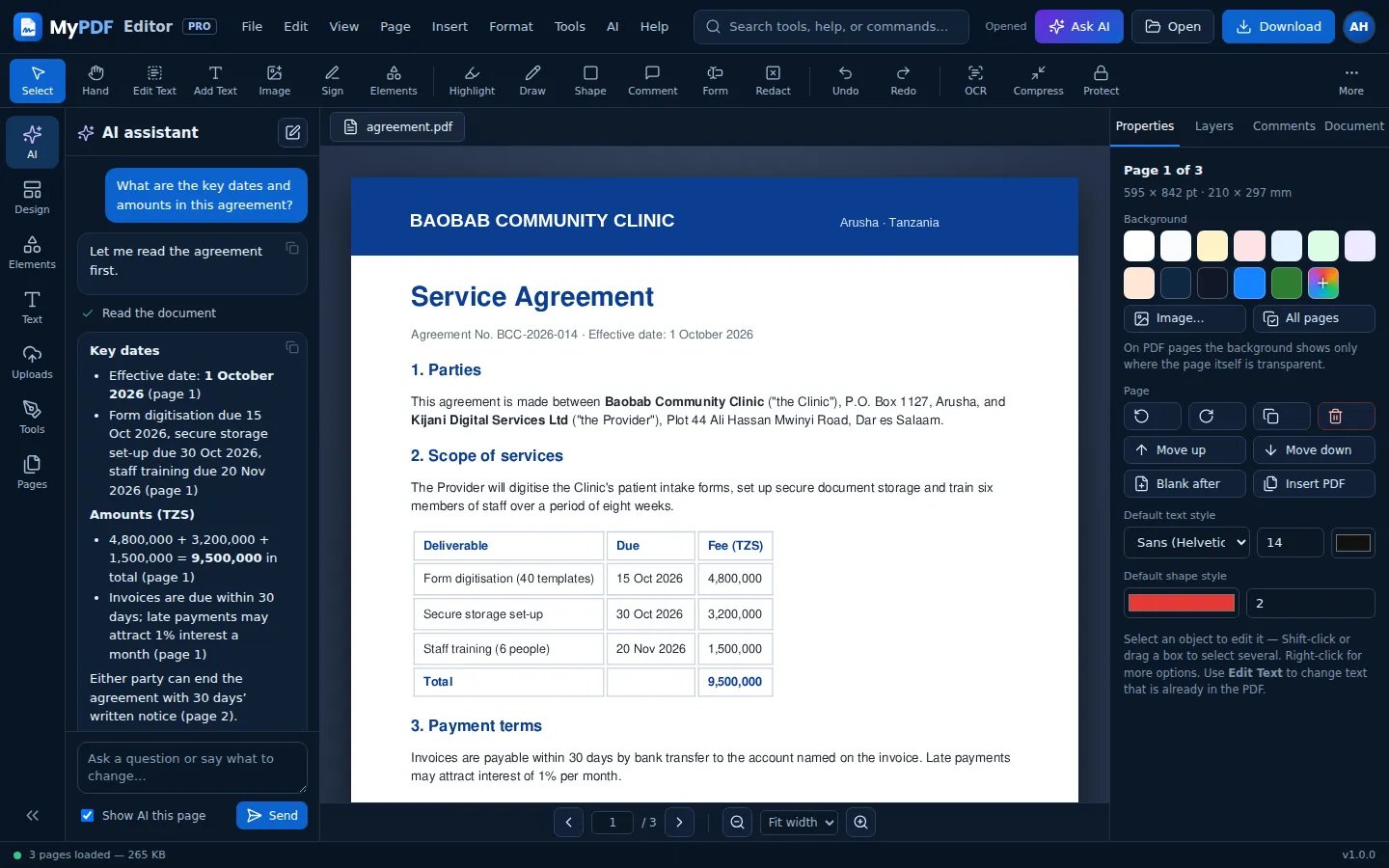
- AI → Summarise this document gives you the main points in a few bullets.
- Scanned pages are pictures, so there's no text to read yet. Run OCR first.
- Very long documents are shortened when read. For those, ask about specific pages, such as “What does page 12 say about payment?”.
The assistant in the console
The console has its own AI assistant page, under Tools. Use it when you don't need a document open: to draft an email or a LinkedIn post, summarise or translate text you paste in, or brainstorm headline ideas. It can't change your documents. The conversation is kept only until you close the browser tab.
Limits and messages
Your organisation's administrators decide how much AI can be used. When something stops the AI, MyPDF says why in plain words:
| Message | What to do |
|---|---|
| You've reached your daily limit of AI requests | The limit resets at midnight (UTC). If you often need more, ask an administrator. |
| Your organisation has used this month's AI allowance | An administrator can raise the monthly budget. |
| You already have 3 AI requests running · You're sending AI requests too quickly | Wait for the current request to finish, or a moment, then try again. |
| The AI provider is busy · Couldn't reach the AI provider | Try again in a minute. |
| This is too long for the AI model | Start a new chat, or send less text at a time. |
| AI isn't set up yet · AI is turned off · The AI provider rejected the API key | An administrator needs to check Console → Admin → AI & usage. |
| Image generation isn't available with the current AI provider | Your organisation's provider can't make images. Upload a photo instead. |
| The AI provider's safety system blocked this request | Try wording it differently. |
The panel also shows how many of today's requests you've used, when your organisation has a daily limit.
AI can make mistakes. Check names, dates, figures and contact details before you print, send or publish, and take particular care with anything medical, legal or financial. What you send to the AI goes to your organisation's AI provider; MyPDF itself doesn't store prompts unless an administrator turns on prompt logging for troubleshooting. See What leaves the server.
Still stuck? Contact us and tell us what you were trying to do. We read every message.