Open a document
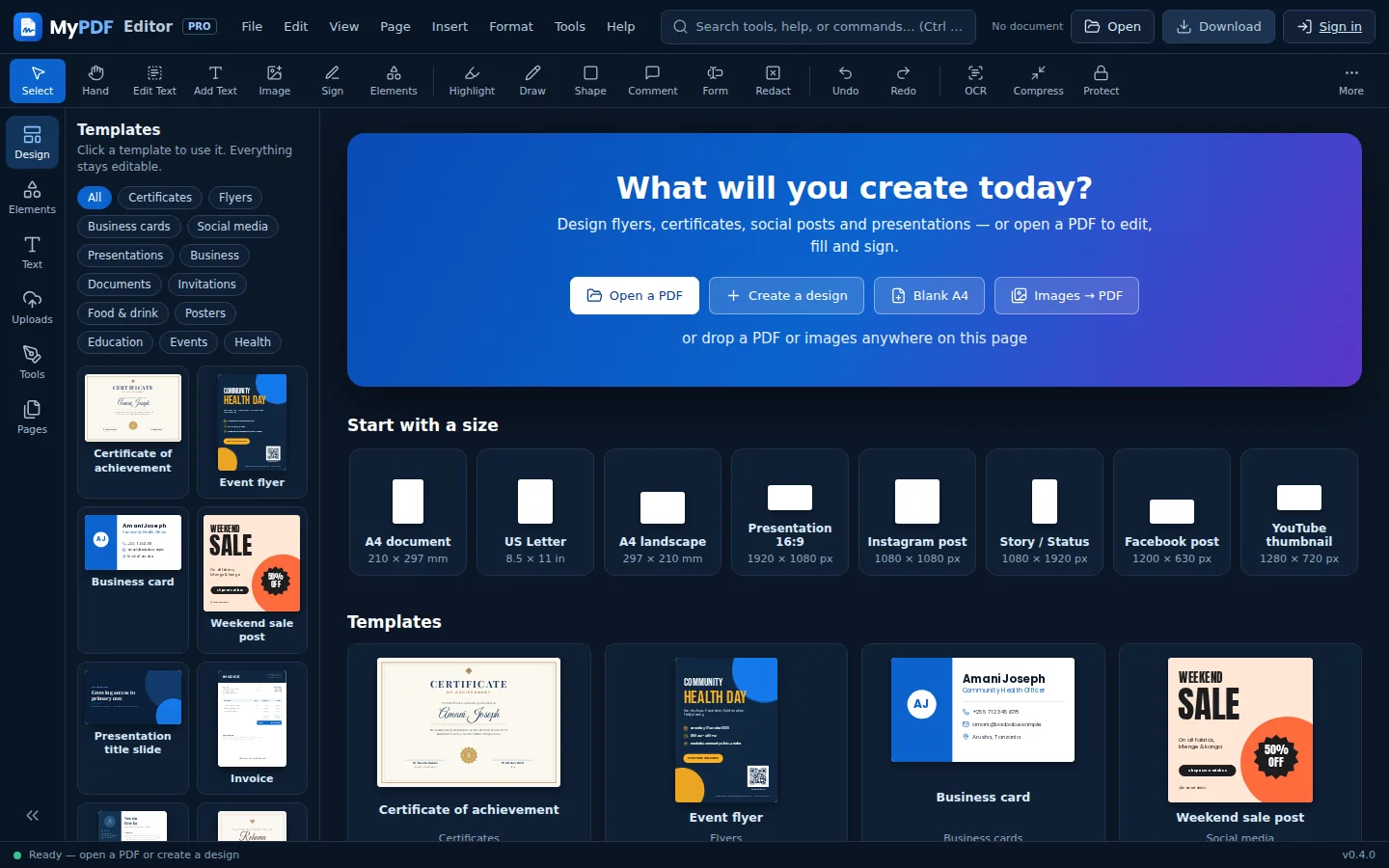
Go to app.mypdf.live. You don't need an account. You can start in several ways:
- Open PDF: click the button on the start screen or Open at the top right, then choose a file. Shortcut: Ctrl + O.
- Drag and drop: drop a PDF anywhere on the page. If a document is already open, the dropped PDF's pages are inserted after the current page.
- Create a design: pick a size (A4, poster, business card, Instagram post and more) or a template. See Create designs.
- Recent designs: reopen something you worked on earlier in this browser.
- Images → PDF: turn photos or scans (JPG, PNG) into a PDF, one image per page.
If the PDF has a password, MyPDF asks for it and unlocks a copy for editing. Your original file isn't changed.
The workspace
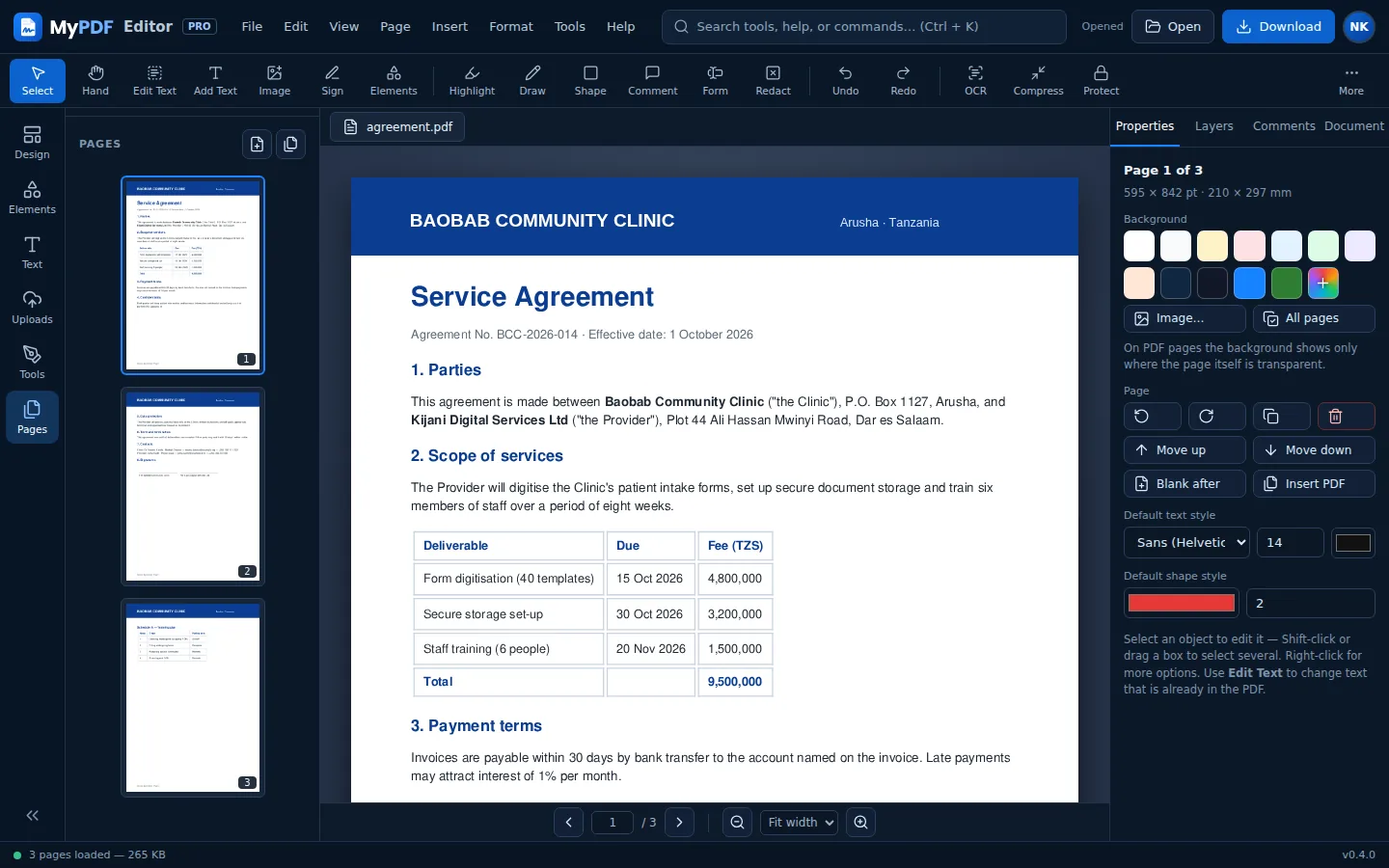
| Area | What it's for |
|---|---|
| Top bar | Menus (File, Edit, View, Page, Insert, Format, Tools, Help), the command search, Open, Download and your account. |
| Toolbar | The tools you'll use most: Select, Hand, Edit Text, Add Text, Image, Sign, Highlight, Draw, Shape, Comment, Form, Redact, Undo/Redo, OCR, Compress and Protect. More opens the command search. |
| Left side | A column of panels: Design (templates), Elements (shapes, lines, icons, frames, QR codes), Text (styles and font pairings), Uploads (your images), Tools (every PDF tool, convert and quick actions) and Pages (thumbnails). Click the open panel's button again, or « at the bottom, to hide it and make room for the page. |
| Page | Your document. Anything you add appears here and can be moved, resized and rotated. When you select something, a small toolbar appears above it with the most-used options. |
| Right panel | Four tabs: Properties (the selected item or page), Layers, Comments and Document (search, title and author, form fields). |
Pages & zoom
- Click a thumbnail in Pages, use the arrows under the page, or type a page number. Page Up / Page Down also work.
- Zoom with the + and − buttons, the zoom menu (Fit width, Fit page, 50–300%), or Ctrl + mouse wheel.
- Use the Hand tool (H) to drag the page around when zoomed in.
Download your PDF
Click Download (or press Ctrl + S). MyPDF builds the finished PDF with all your changes and saves it as yourfile-edited.pdf in your downloads folder.
MyPDF doesn't keep your document. It only lives in your browser tab until you download it. If you close the tab with unsaved changes, MyPDF warns you first.
Undo & command search
- Undo: Ctrl + Z. Redo: Ctrl + Y. MyPDF remembers your last 60 changes.
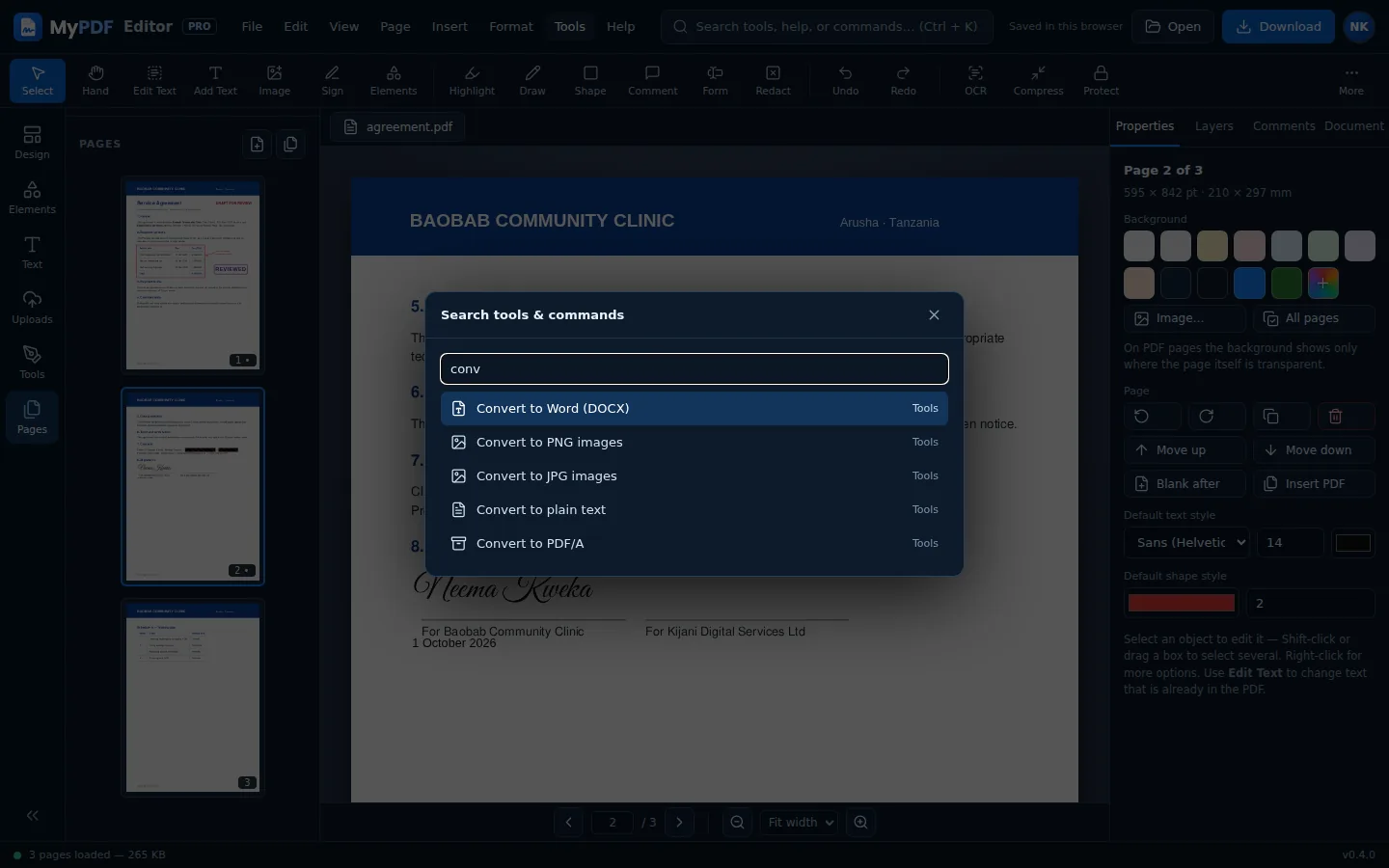
- Command search: press Ctrl + K or click the search box at the top, type what you want (“rotate”, “word”, “password”) and press Enter.
Still stuck? Contact us and tell us what you were trying to do. We read every message.