What redaction does
Drawing a black rectangle over text doesn't hide it. The words are still in the file and can be copied or searched. MyPDF's redaction deletes everything under the box (text, images and drawings) when you download, then leaves a solid black area in its place.
Redact an area
- Choose Redact (X).
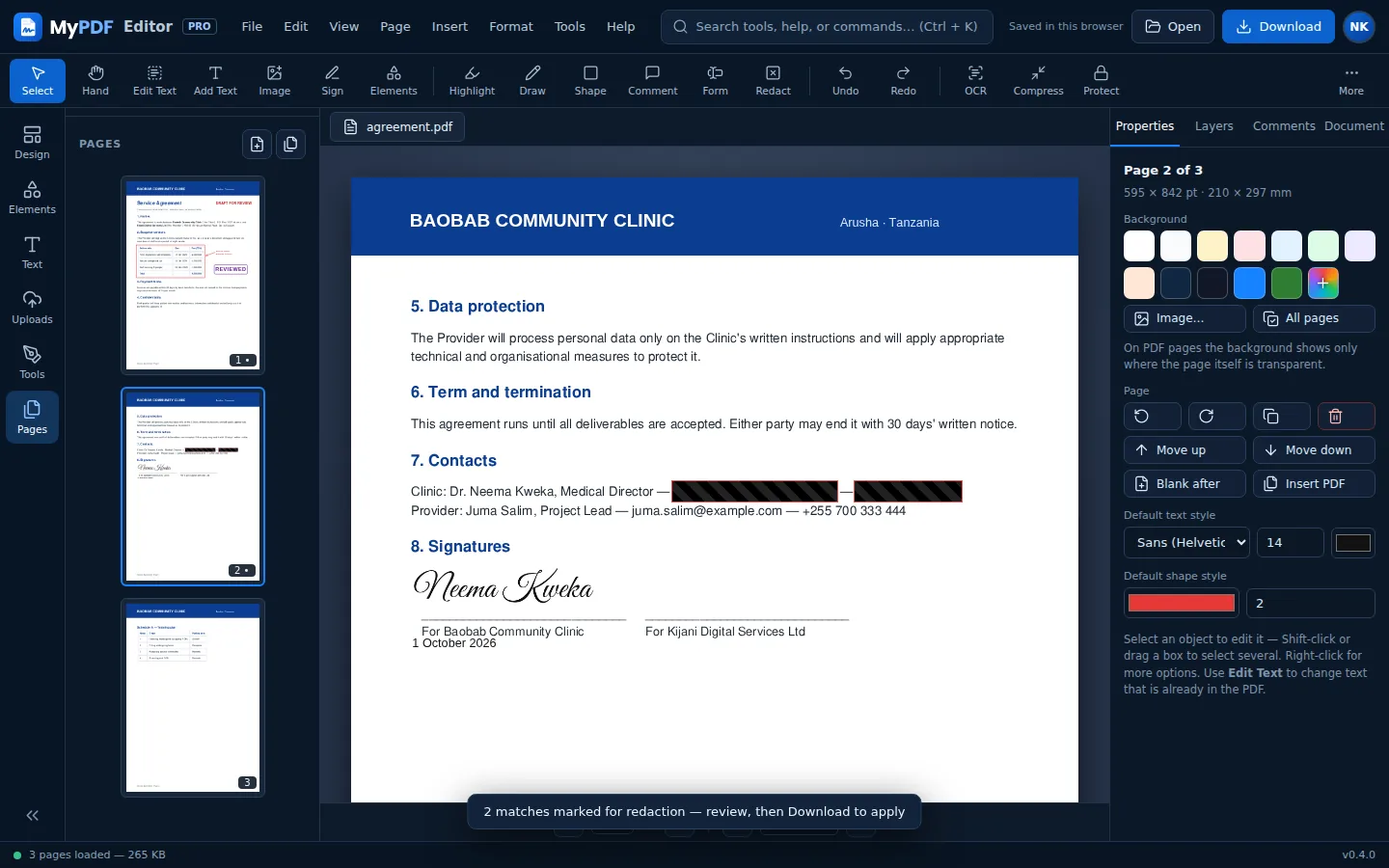
- Drag over each thing you want removed. The tool stays on so you can mark several areas. Marks show as black stripes with a red outline.
- Press Esc when done. Select a mark to move, resize or delete it.
- Click Download. The content under the marks is removed from the downloaded file.
Find & redact across the whole document
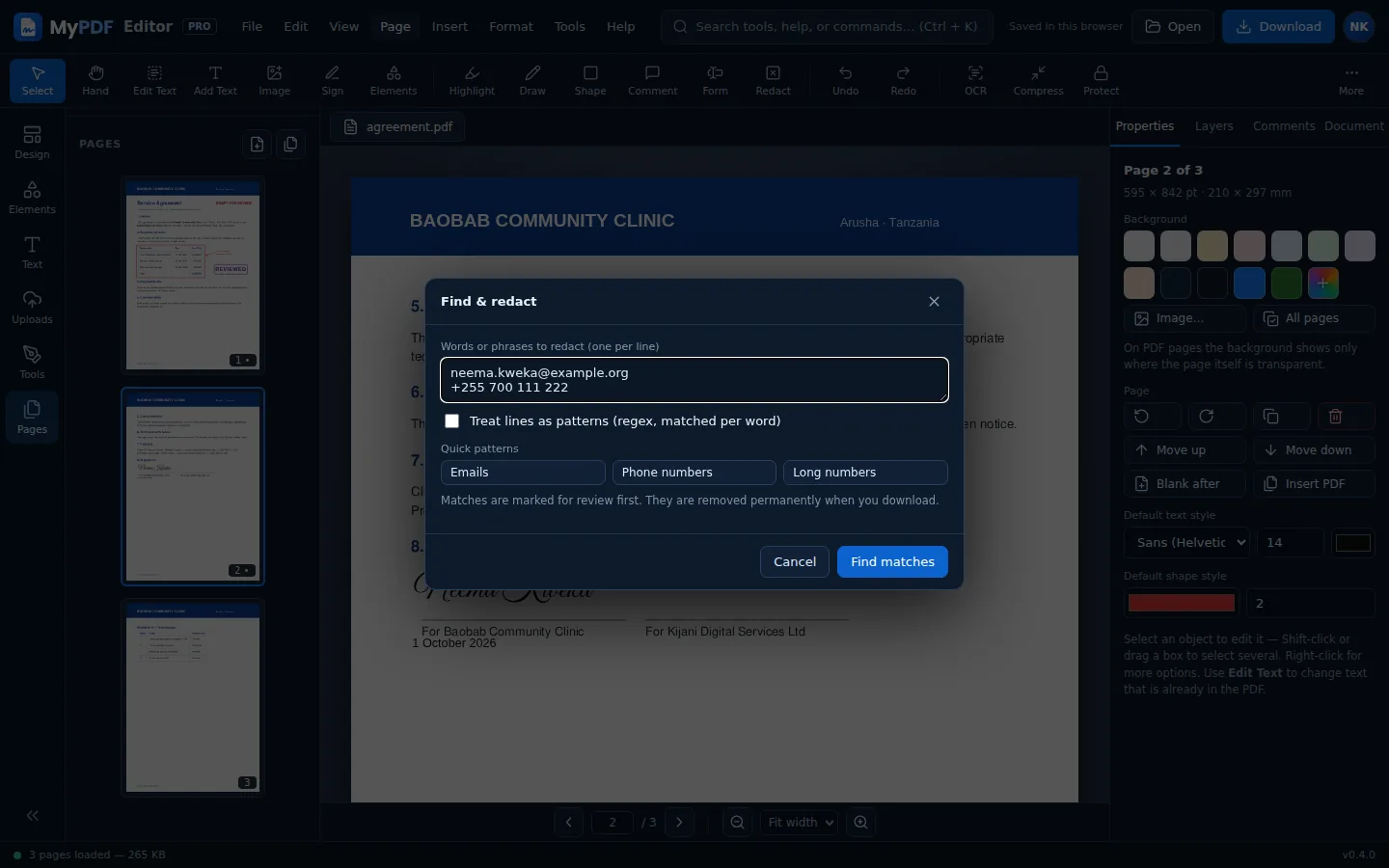
- Choose Find & redact (Protect tools, Quick actions or the Tools menu).
- Enter each word or phrase on its own line: names, ID numbers, account numbers. Or click a quick pattern: Emails, Phone numbers, Long numbers.
- Click Find matches. Every match on every page gets a redaction mark.
- Review the marks, adding any that were missed and deleting any you don't want, then download.
Check your work
- Automatic search only finds real text. Scanned pages need OCR first, or you can mark them by hand.
- Look for names in headers, footers, stamps, images and signatures. Search can't read text inside pictures.
- After downloading, open the file and try to search for a redacted word. It shouldn't be found.
- The document's title and author are in the Document tab. Clear them if they reveal anything.
Redaction needs our server tools. If they're offline, MyPDF warns you before downloading, because the boxes would only cover the text and not remove it.
Redact or white-out?
White-out (W) also removes content permanently, but leaves a white area instead of a black one. Use it to erase mistakes or old details you'll type over. Use Redact when readers should see that something was deliberately removed.
Still stuck? Contact us and tell us what you were trying to do. We read every message.