Work with page thumbnails
The Pages list on the left shows every page. Hover over a thumbnail (or look at its corner on a touch screen) for quick buttons to rotate, duplicate and delete.
- Reorder: drag a thumbnail to a new position. On a phone, use Move up / Move down in Properties.
- Rotate: R rotates right and Shift + R rotates left. Anything you've added rotates with the page.
- With nothing selected on the page, Properties shows the page size and buttons for every page action.
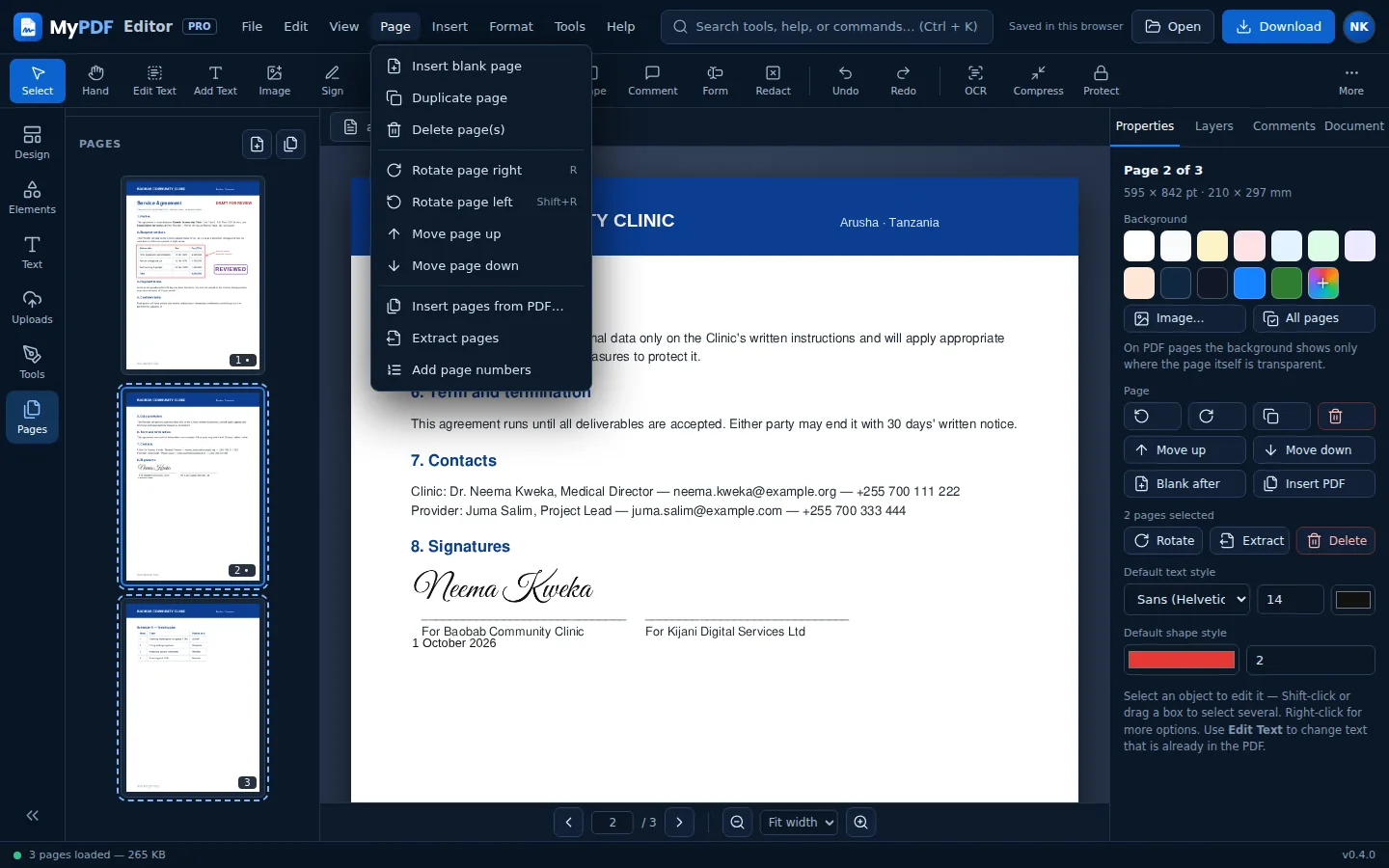
Select several pages
Hold Ctrl (⌘ on Mac) and click thumbnails to select several pages, or hold Shift to select a range. Then rotate, extract or delete them together from Properties or the Page menu.
Insert pages and merge PDFs
- Blank page: inserts an empty page after the current one, the same size.
- Insert PDF: adds all pages of another PDF after the current page.
- Merge PDFs (in Quick actions or the Tools menu): choose one or more PDFs to add at the end.
- Or drag a PDF file onto the page.
Extract or split
- Extract pages: enter pages such as
1-3, 5, 8-. Pages you selected in the thumbnail list are filled in for you. You get a new PDF with just those pages, including your edits. - Split PDF: split into several files by ranges (
1-3, 4-6, 7-) or every N pages. The files download together as a ZIP.
Add page numbers
Choose Page numbers from Quick actions or the Page menu. Set the format (for example Page {n} of {total}), the position (bottom or top; left, centre or right) and the starting number. Then choose Open in editor to keep working, or Download.
Still stuck? Contact us and tell us what you were trying to do. We read every message.