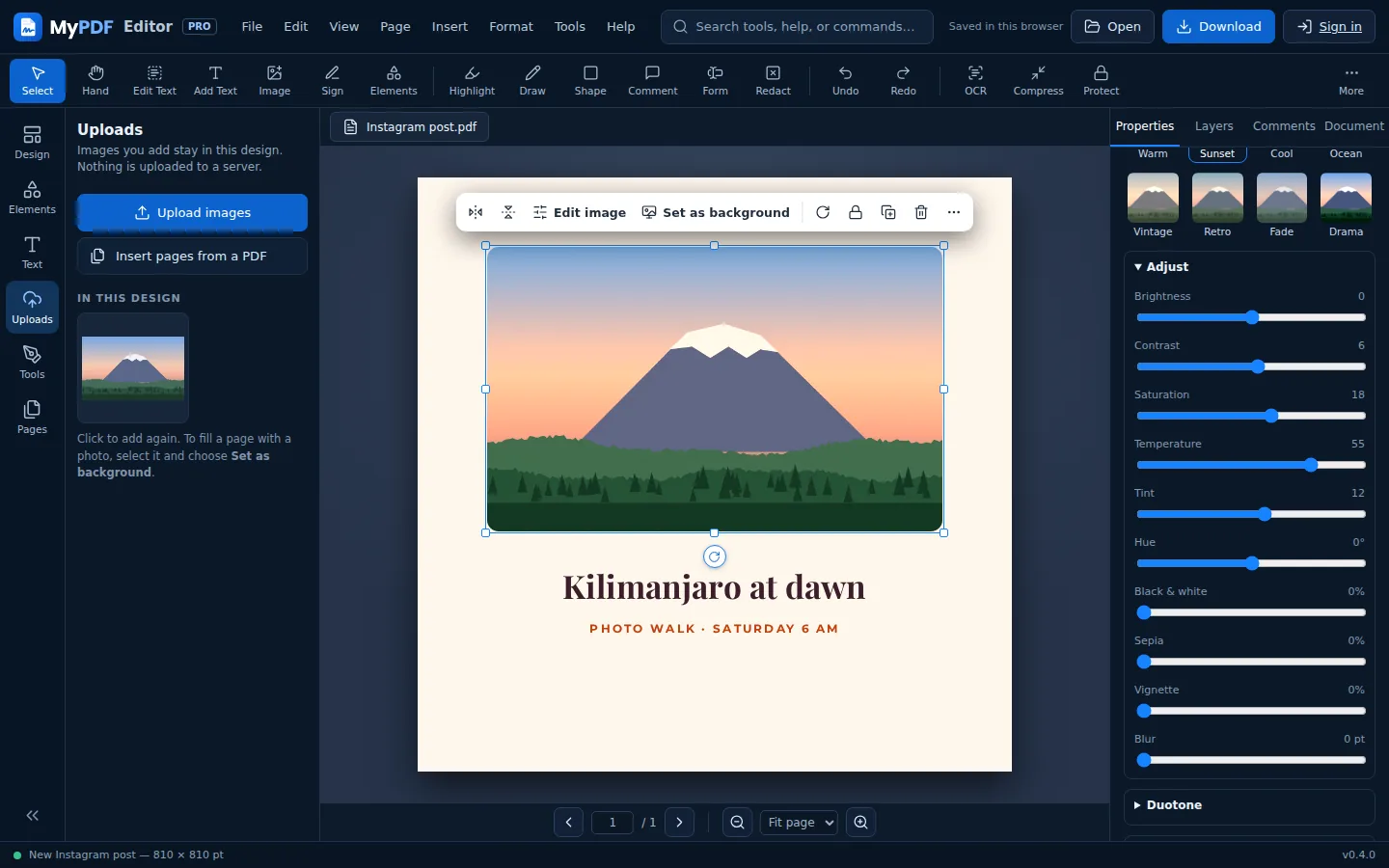
Select a photo on the page. The small toolbar above it has Flip and Edit image. Everything else is in the Properties panel on the right. Every effect can be changed or undone later, and your downloaded PDF or image looks the same as the page.
Filters & adjustments
- Filters: Mono, Noir, Vivid, Warm, Sunset, Cool, Ocean, Vintage, Retro, Fade and Drama. Click Original to go back.
- Adjust: brightness, contrast, saturation, temperature (warmer or cooler), tint (greener or pinker), hue, black & white, sepia, vignette (darker corners) and blur.
- Duotone: turns the photo into two colours, such as navy and sky blue. Great for posters and social posts.
Reset photo edits removes every filter and adjustment at once.
Remove a background
- Select the photo and click Remove background.
- MyPDF erases the plain colour around the edges of the photo, such as a white wall, a studio backdrop or clear sky, and softens the cut edge.
This works best when the background is one plain colour and the subject doesn't touch the edges of the photo. Busy backgrounds, like a street or a garden, won't be removed. Click Restore original to bring the full photo back.
Crop, masks and replacing a photo
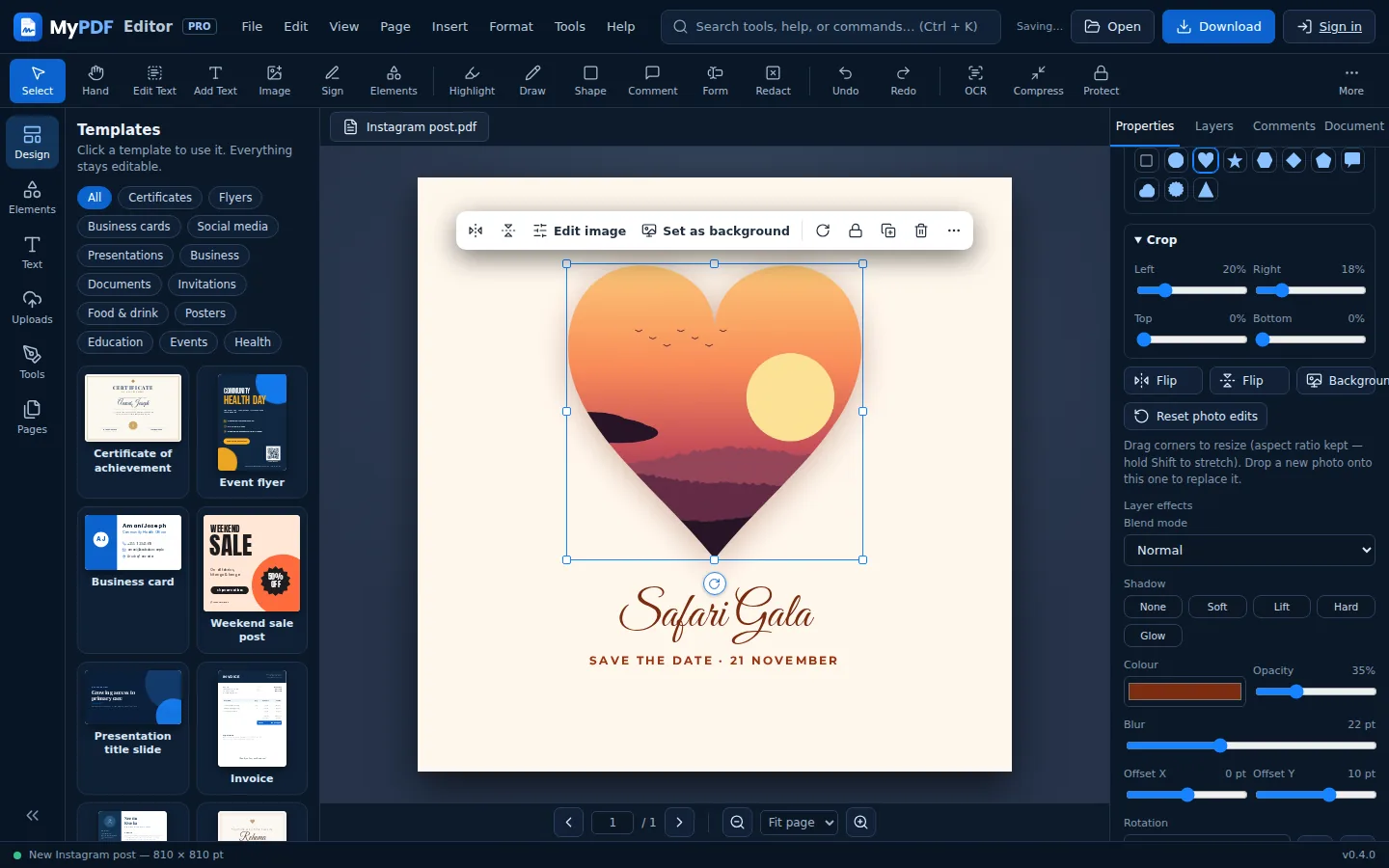
- Crop trims from any side. The frame gets smaller and the photo doesn't stretch.
- Shape mask shows the photo inside a circle, heart, star, hexagon, diamond, pentagon, speech bubble, cloud, badge or triangle.
- Rounded corners go from square to fully round.
- Replace photo swaps in a new picture but keeps the size, position, mask and effects. You can also drop a new photo straight onto the old one.
- Set as background fills the whole page with the photo.
Shadows & blend modes
These work on photos, shapes, icons, lines and drawings. Find them under Layer effects in Properties.
- Shadow: Soft, Lift, Hard or Glow. Then fine-tune the colour, offset, blur and opacity.
- Blend mode: how a layer mixes with what's under it. Multiply darkens (good for textures and paper effects), Screen lightens (good for light leaks and glows), and Overlay adds contrast. There are 12 modes in all.
Colours & gradients
Click any colour button to open the colour picker:
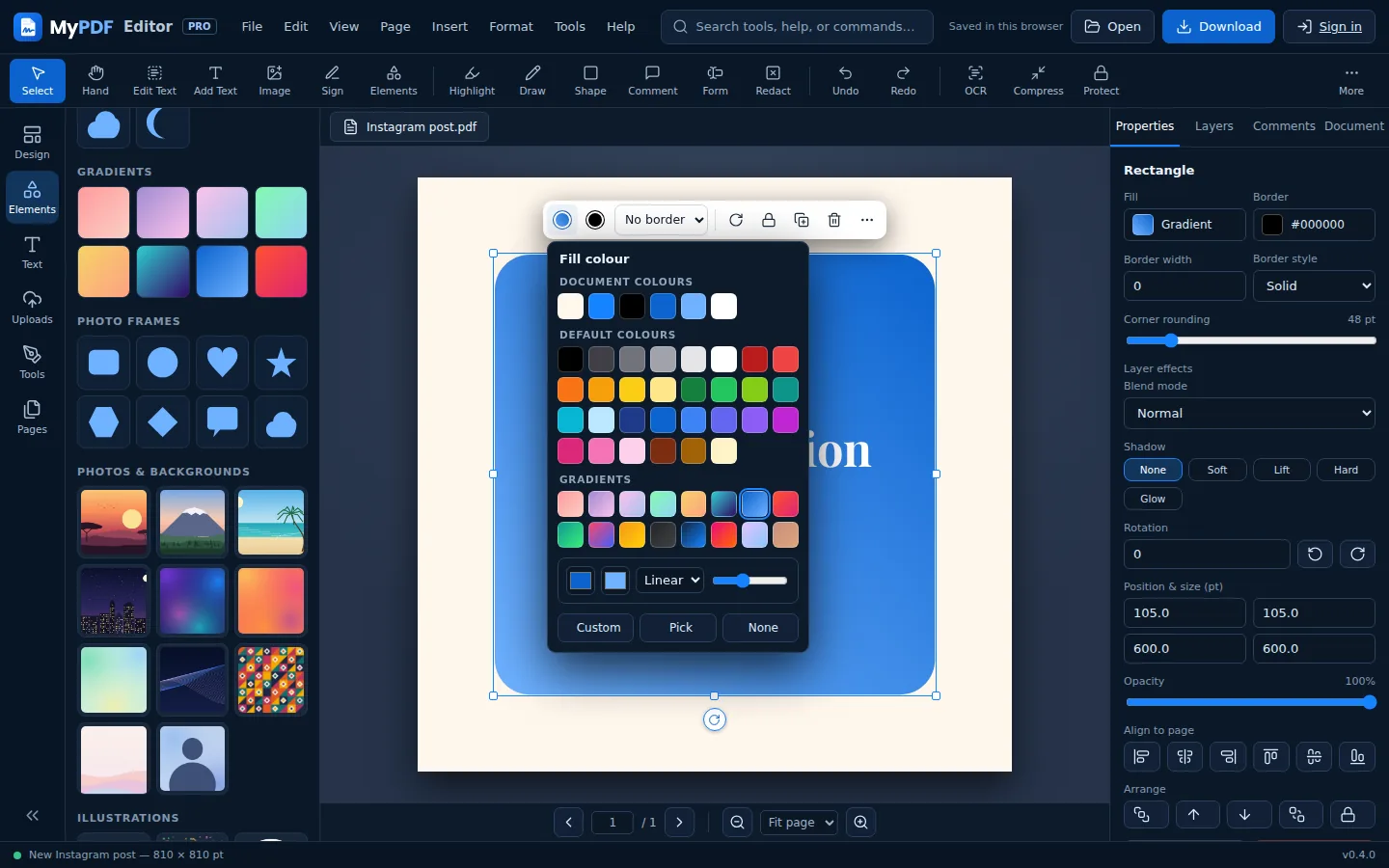
- Document colours: colours already used in your design, so it stays consistent.
- Default colours, Custom for any colour, and Pick to take a colour from anywhere on your screen (Chrome and Edge).
- Gradients for shapes and page backgrounds. For a page, click the + swatch under Background.
Text effects
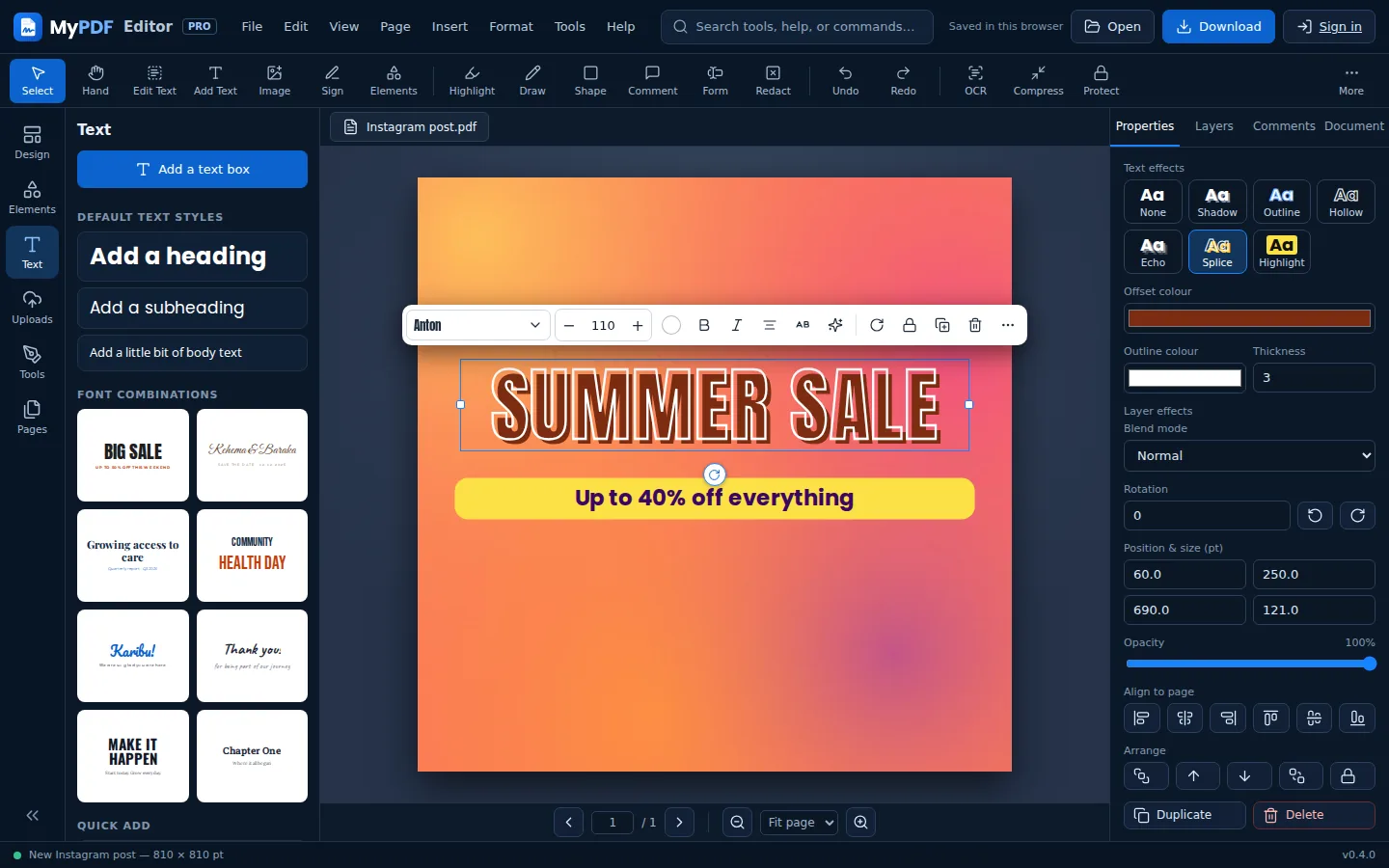
Select a text box and choose an effect under Text effects in Properties:
| Effect | What it does |
|---|---|
| Shadow | A crisp shadow below and to the right. Choose its colour. |
| Outline | A coloured edge around each letter. Choose the colour and thickness. |
| Hollow | Only the outline of the letters, with no fill. |
| Echo | Two fading copies behind the text, for a retro look. |
| Splice | Hollow letters with a solid offset copy. |
| Highlight | A coloured box behind the text. Choose the colour, spread and roundness. |
Brushes
Open Elements → Draw and pick a brush: Pen, Marker, Highlighter or Soft brush. Draw on the page with your mouse or finger. Strokes are smoothed automatically. Press Esc when you're done. Each stroke can then be recoloured, moved or deleted.
Grid & guides
- View → Show grid (Ctrl + ') shows a grid every quarter inch. With View → Snap to grid on, objects snap to it as you drag.
- Pink smart guides appear when an object lines up with the page centre, the page edges or other objects. Hold Alt to move freely.
- In the Layers tab, drag a layer up or down to change what's in front.
Still stuck? Contact us and tell us what you were trying to do. We read every message.