Add your signature
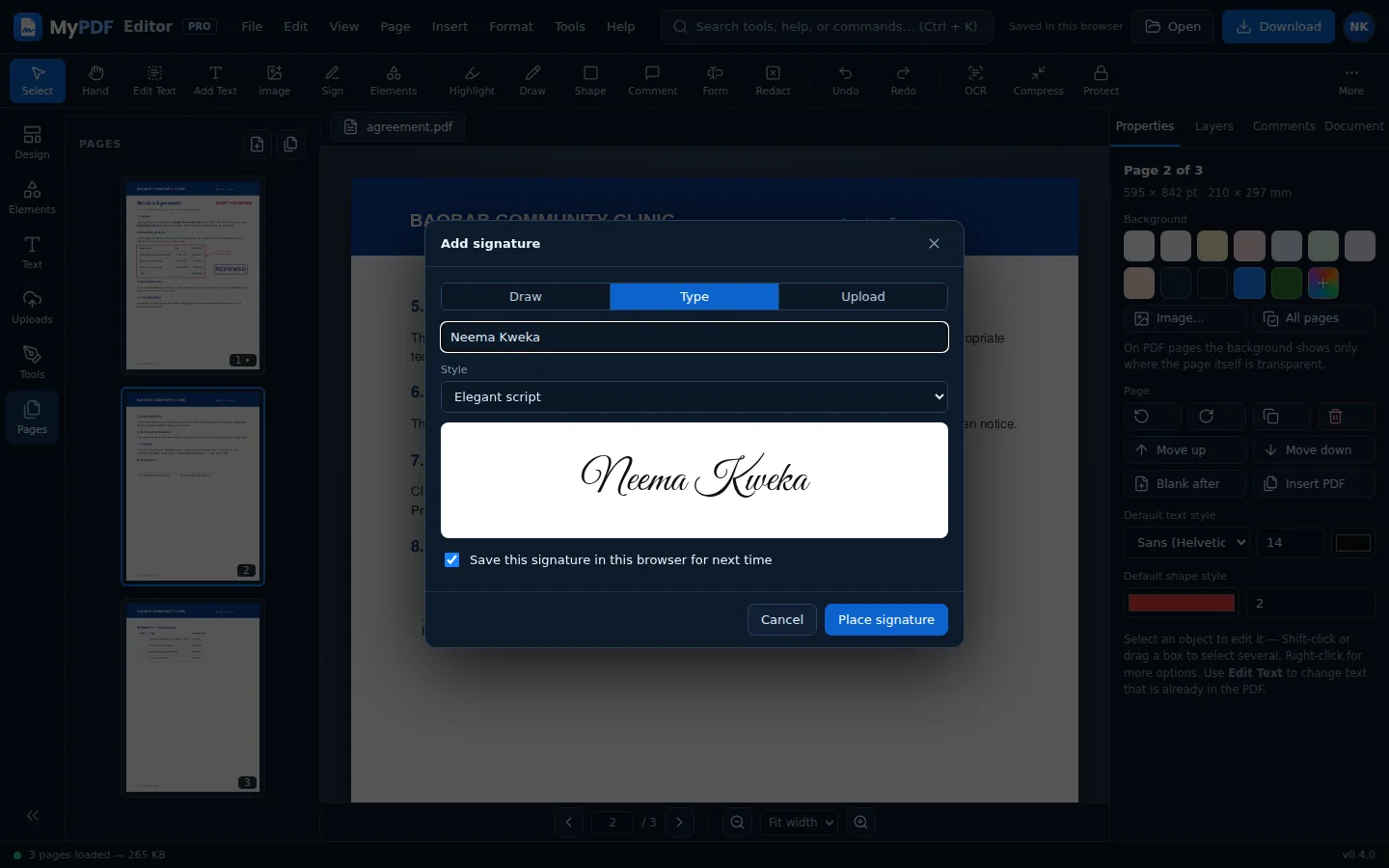
- Go to the page that needs signing and choose Sign (S).
- Pick a method:
- Draw: sign with your mouse, trackpad or finger. Choose black or blue ink, and use Clear to start again.
- Type: type your name and pick a handwriting style.
- Upload: choose a photo or scan of your signature. MyPDF removes the white background for you.
- Click Place signature. It appears in the middle of the page.
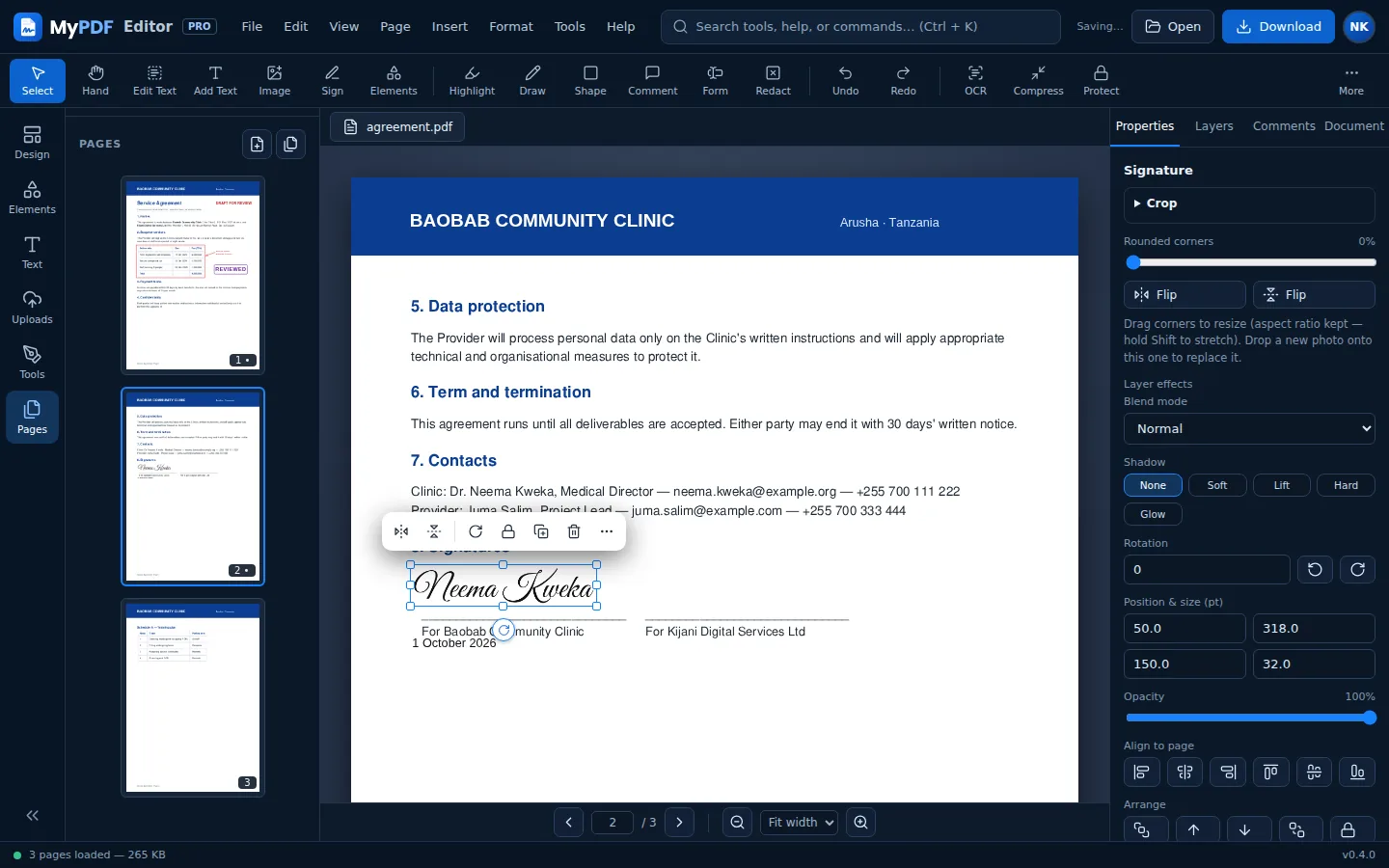
- Drag it onto the signature line and drag a corner to resize it. The proportions stay the same.
Saved signatures
Leave Save this signature in this browser ticked and your signature is stored on your device, not on our servers. Next time, click it under Saved signatures to place it straight away. MyPDF keeps your six most recent signatures. To remove them, clear this site's data in your browser settings.
Add images
- Choose Image (I) and pick a JPG or PNG, such as a logo, stamp or photo.
- Or drag an image file onto the page, or paste a copied image with Ctrl + V.
- Drag corners to resize (the shape is kept; hold Shift to stretch). Use Opacity in Properties to make it see-through.
Is my signature legally valid?
MyPDF adds a visual electronic signature: a picture of your signature, placed where you choose. This is widely accepted for everyday agreements, forms and approvals, but the rules depend on your country and the document. Some documents need a certificate-based digital signature, which MyPDF doesn't provide yet. If you're unsure, ask the person or organisation that requested your signature.
Still stuck? Contact us and tell us what you were trying to do. We read every message.