Password-protect a PDF
- Finish your edits, then click Protect in the toolbar.
- Enter a password twice. Use a long one, such as a short sentence.
- Choose permissions: printing, copying text, editing, and comments & form filling.
- Click Protect & download. The protected copy downloads, and your working copy in the editor stays unprotected.
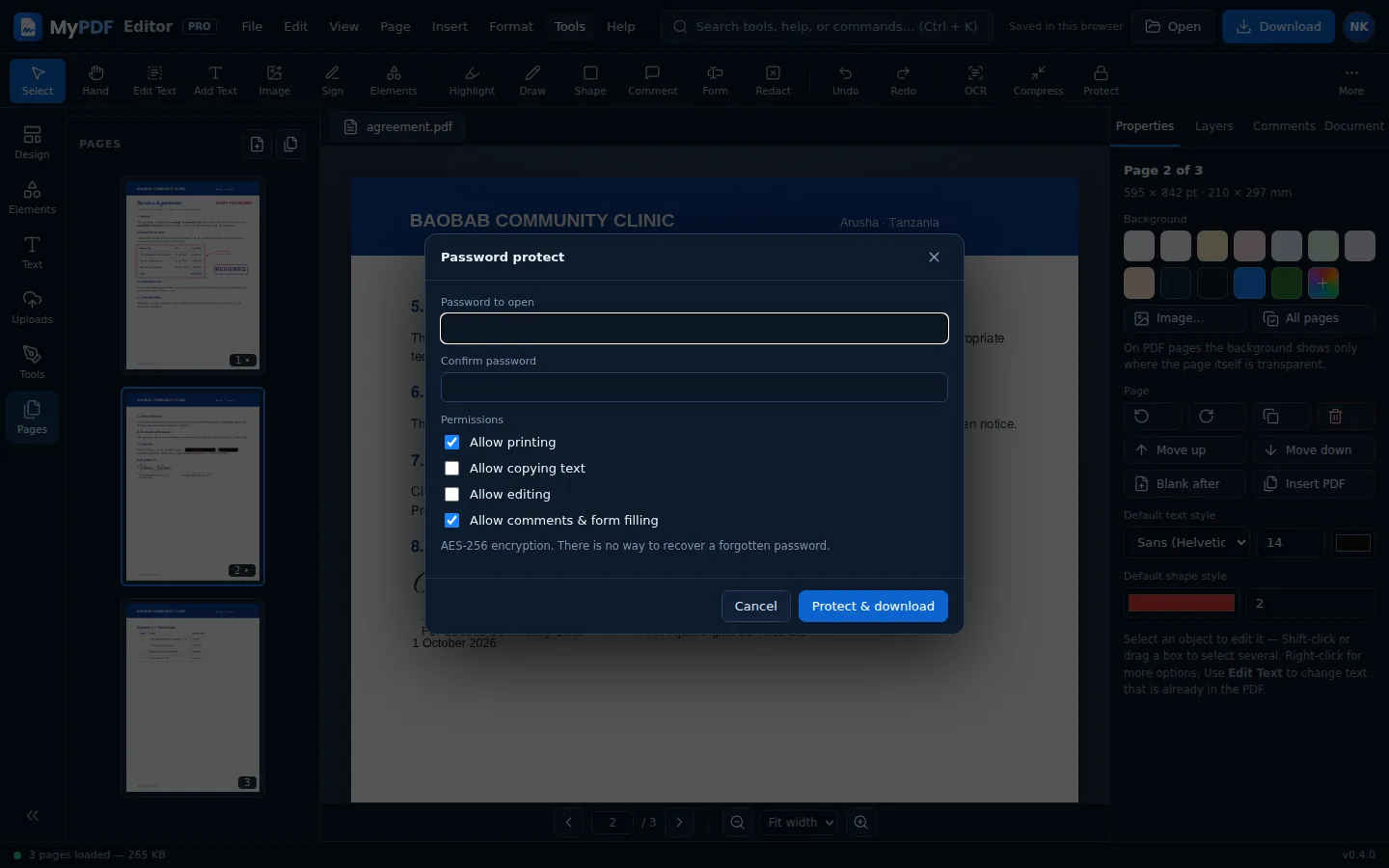
MyPDF uses AES-256 encryption. Nobody, including us, can recover a forgotten password. Keep it somewhere safe, and send it to people separately from the file.
Open or unlock a protected PDF
Open the file as usual and MyPDF asks for the password. The document then opens unlocked for editing, and whatever you download won't have a password unless you add one again. Remove password in Quick actions does the same thing. You need to know the password; MyPDF can't break PDF protection.
Some forms open without a password but carry publisher restrictions, also called an owner password. MyPDF removes those restrictions automatically when you open the file, so your filled-in and signed copy downloads as a normal PDF that anyone can open.
What happens to your files
| Action | Where it happens |
|---|---|
| Opening, viewing, adding text/images/signatures/shapes/comments, forms, page changes | In your browser, on your device |
| Redaction, white-out and replacing existing text (on download), OCR, compress, convert, watermark, page numbers, split, flatten, password protect/remove | Sent over HTTPS to our server, processed immediately, then deleted. We keep no copy. |
| Saved signatures and style preferences | Stored in your browser only |
| Recent designs (autosave) | Kept only in this browser on your device (browser storage), never uploaded. Remove them with Clear all on the start screen, or turn this off in File → Keep recent designs in this browser. |
| AI assistant, Magic write, Design with AI, AI images, questions about a PDF | Only when you use them: your request and the context you chose (for example the selected text, the document's text for a question, or a picture of the page when Show AI this page is ticked) go through your organisation's MyPDF server to its AI provider. MyPDF doesn't store prompts or answers unless an admin turns on prompt logging. |
| Post to social media | The pages you choose are uploaded as images to your organisation's social planner, on its own server, and sent to the networks when the post is published. |
Read the full privacy policy.
What leaves the server, and when
In an organisation's own MyPDF, everything is stored on the organisation's server: people, settings, the audit log, AI settings and usage numbers, and social posts and media. Documents opened in the editor aren't stored there at all. MyPDF connects to other services only when your organisation has set them up:
| Destination | When | What is sent |
|---|---|---|
| Your AI provider (OpenAI, Anthropic, Azure OpenAI or your own server) | After an admin connects a provider, and only when someone uses an AI feature | The person's request and the context they chose, your brand voice and the model name. OpenAI requests are sent with storage turned off (store: false). |
| Social networks (Meta, LinkedIn, X, TikTok, Telegram) | When an admin connects an account, when a post is published, and when sign-ins are renewed | The sign-in exchange, the post's text and media, and account look-ups. Instagram fetches images from an unguessable link on your server. |
| Your email server | If email is set up: invitations, password resets, email confirmations and alerts for admins | The recipient, subject and message, with links and names, never passwords. |
| Your sign-in provider (SSO) | If single sign-on is set up: when someone signs in with it | Standard OpenID Connect requests. |
| Let's Encrypt | Only with the built-in proxy: to issue and renew the HTTPS certificate | The address and, optionally, a contact email. |
| Software sources | Only when your IT team installs or updates MyPDF | Downloads of the software MyPDF is built from. |
There is no telemetry, analytics, crash reporting or licence check-in. The licence key is checked on your own server. Admins can see every sign-in, settings change and social post in the audit log. See Where data is kept in the admin guide.
Hidden information in PDFs
PDFs can carry a title, author, subject and keywords. You can see and change them in the Document tab. Clear them before sharing if they reveal something private.
Still stuck? Contact us and tell us what you were trying to do. We read every message.