When you need OCR
A scanned page or phone photo is just a picture: you can't search it, copy from it or edit its text. OCR (optical character recognition) reads the words in the picture and adds an invisible text layer on top. The page looks the same, but now the text works like normal text.
Run OCR
- Open the scanned PDF (or make a PDF from photos first).
- Click OCR in the toolbar.
- Tick the language or languages in the document. You can tick more than one, for example English and Kiswahili.
- Choose what to do with pages that already contain text. Skip them is right for most documents.
- Click Run OCR, then Open in editor to continue, or Download.
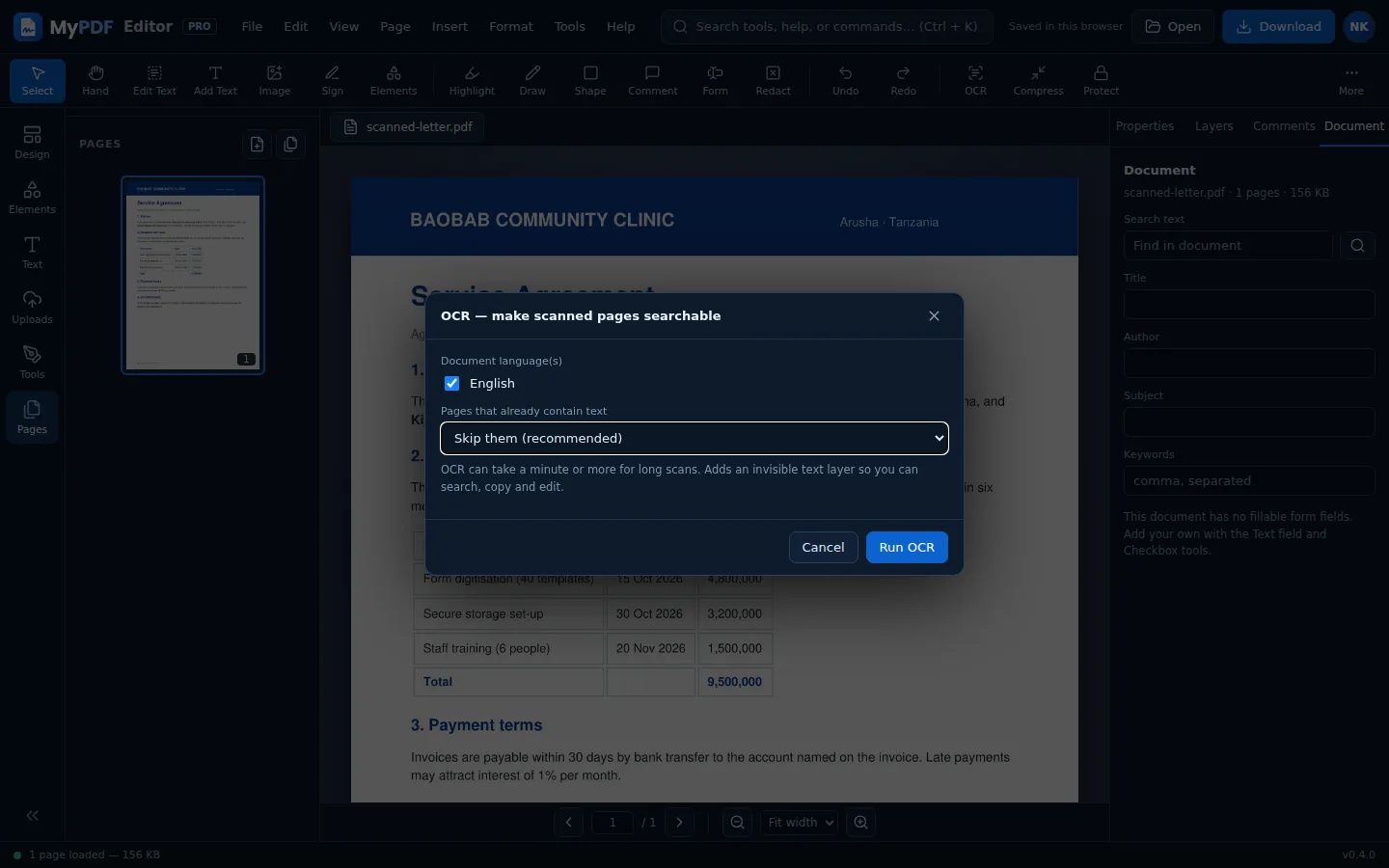
OCR takes a few seconds per page. A long document can take a minute or more, so keep the tab open until it finishes.
After OCR
- Search the document in the Document tab.
- Use Edit Text to change words. You can also select the converted text box and press Delete to remove that original OCR text; MyPDF preserves the linked removal mask and permanently removes the underlying searchable text when you download.
- Use Find & redact to remove private details automatically. Editing or deleting original PDF/OCR text requires the MyPDF server tools during export so the old text cannot remain hidden-but-searchable underneath a visual cover.
- Convert to Word or plain text with far better results.
Getting good results
- Scan at 300 dpi if you can. Blurry or tilted photos give poorer results.
- Pick the right language. It makes a big difference with accents and local words.
- Handwriting isn't recognised reliably. OCR works best on printed text.
- Re-OCR everything redoes pages that already have text. Use it only if a previous OCR was poor, because it turns those pages into images first.
Still stuck? Contact us and tell us what you were trying to do. We read every message.